
Remove screen passcode, Apple ID, MDM and Screen Time from iPhone safely.

How to Factory Reset iPhone without Password? (2026 Updated)

Posted by Alvin Cantero to iOS Unlocker Mar 13, 2026
Whether you're preparing your iPhone for sale or you have been locked out of your own device, knowing how to factory reset an iPhone without a password is a digital survival skill. Doing so can be done in a few taps, but things can get tricky when you forget your Apple ID credentials. Thus, this guide won't leave you with such a headache, as it covers four proven ways to perform an iPhone factory reset without a password. Unlock your iPhone today!
Guide List
Factory Reset iPhone without Password without Apple ID Enable Recovery Mode to Factory Reset iPhone Using Activation Lock to Factory Reset iPhone Factory Reset iPhone with iCloudFactory Reset iPhone without Password without Apple ID
Find yourself locked out of your iPhone? A professional unlock is often the most reliable solution! Using 4Easysoft iPhone Unlocker lets you bypass the need for an Apple ID or screen password completely. It provides a premium, yet friendly solution to regain access to your device by removing forgotten passcodes and Apple ID locks. Whether your screen is disabled, broken, or you have forgotten your credentials, this tool won't force you to navigate a stressful process. Plus, it is compatible with the latest iOS version and a wide range of iPhone models, guaranteeing high success rates for most users. In just a few minutes, your iPhone will be restored to its original state, ready to be set up as new.
Effortlessly removes digit passcodes, Touch ID, and Face ID.
Rapid locking process with a high success rate, with no data loss.
Seamlessly supports every iPhone model and iOS versions.
Bypass iPhone unavailable or Security Lockout screens instantly.
100% Secure
100% Secure
Step 1Launch 4Easysoft iPhone Unlocker. Before starting, make sure you have the latest version of iTunes installed and that your iPhone is securely connected to your computer. From the main dashboard, select the "Wipe Passcode" module to initiate the reset process.
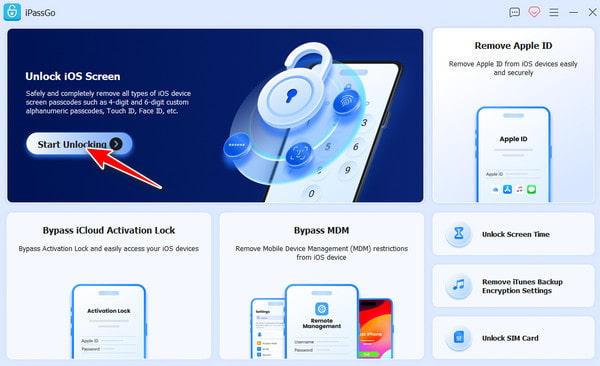
Step 2The tool will automatically detect and recognize your iPhone. Click the "Start" to move on to the device information page. Review the detected model and iOS version to ensure accuracy, then click the "Start" button once more.
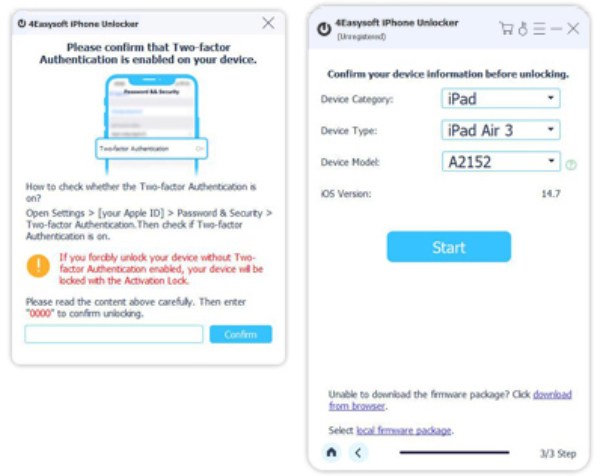
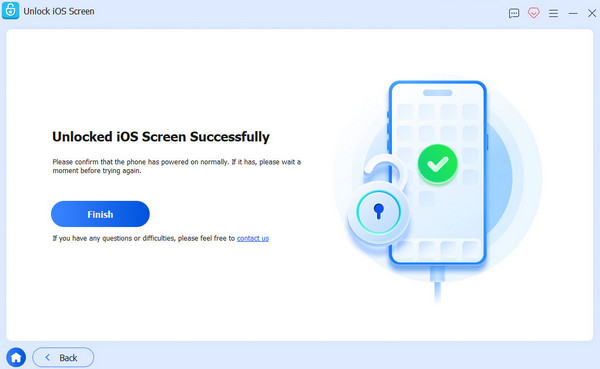
Step 3Once the firmware is ready, type "0000" in the field to confirm that you wish to proceed with the factory reset. Click the "Unlock" button, and the software will then take over, resolving the factory reset a locked iPhone without password or Apple ID.
100% Secure
100% Secure
Enable Recovery Mode to Factory Reset iPhone
Suppose you prefer to stick with Apple's official methods but cannot remember your Apple ID password. For this, you can use the Recovery Mode to erase iPhone. This approach lets you connect with a computer, even if your device is locked. By putting your device into this state, you can effectively wipe all data and settings, letting you bypass the locked iPhone.
Step 1Launch Finder on a Mac or the iTunes app on a Windows PC. Power off your iPhone using the "Power" and "Volume" buttons.
Step 2Enter Recovery Mode by connecting your phone to the computer while holding the "Power" button (iPhone 8 and later), the "Volume Down" button (iPhone 7/7 Plus), or the "Home" button (iPhone 6s and earlier).
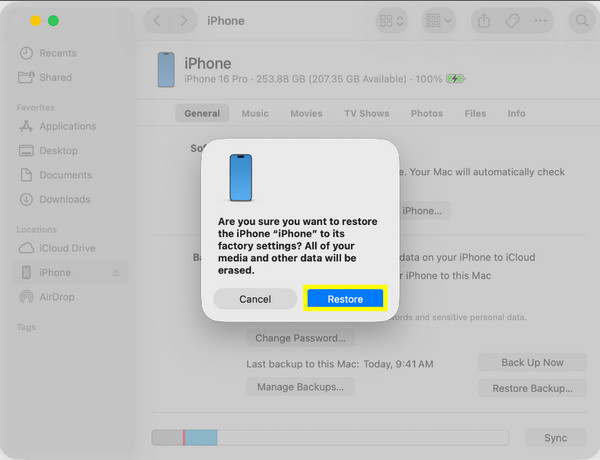
Step 3Once you see the Recovery Mode screen, choose your iPhone device in Finder or iTunes. Then, select "Restore" from the pop-up, and your computer will start wiping the device.
Using Activation Lock to Factory Reset iPhone
Activation Lock is the official way to bypass forgotten Apple ID credentials when all other digital methods have failed. It requires submitting a request to Apple support, which can manually disconnect the device from the old account. Although it may take a bit longer, it provides a secure way to factory reset iPhone, ensuring your device is permanently usable.
Step 1Begin the setup process until you reach the "Activation Lock" screen (Locked to Owner). On some iOS versions, tap "Unlock with Passcode?" to use your device's screen passcode instead of the Apple ID.
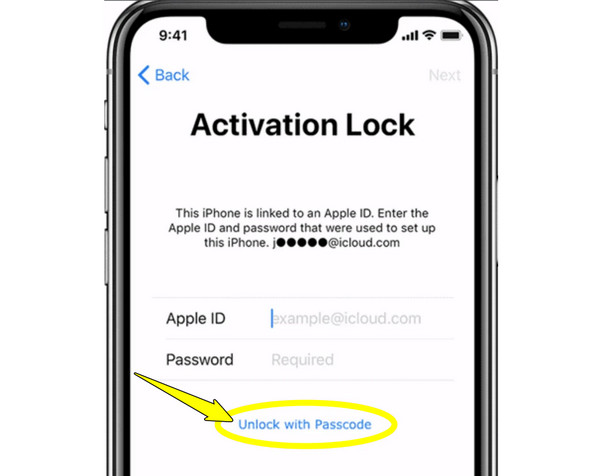
Step 2If the password does not work, visit the Apple Activation Lock page and submit proof showing your device's serial number or IMEI. Enter your email address and wait for Apple to confirm.
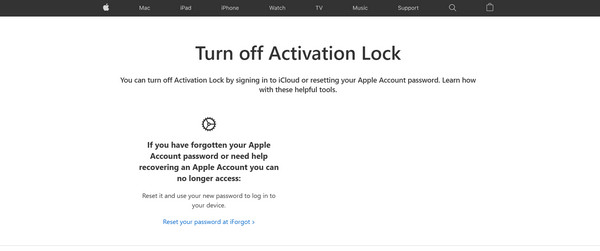
Step 3Wait for the Apple team to confirm, which usually takes 2-4 business days. Once you receive the email, simply restart your iPhone and set it up with a new Apple ID.
Factory Reset iPhone with iCloud
While the previous approaches focus on being locked, the iCloud method is the fastest way to factory reset iPhone with password, even if you do not have the phone in hand. Thanks to Find My's remote wipe feature, if your phone is ever lost or stolen, you can use the cloud to trigger a factory reset as long as it is connected to the internet. This method also ensures your personal data remains protected, making it a safe, seamless process to factory reset iPhone without a computer and get your device back.
Step 1Search for the iCloud Find My official website on any browser. Sign in with your Apple ID there. Click "All Devices" above, then select the iOS device you want to reset.
Step 2From the device menu, click the "Erase iPhone" button, then enter your Apple ID password to confirm the wipe.
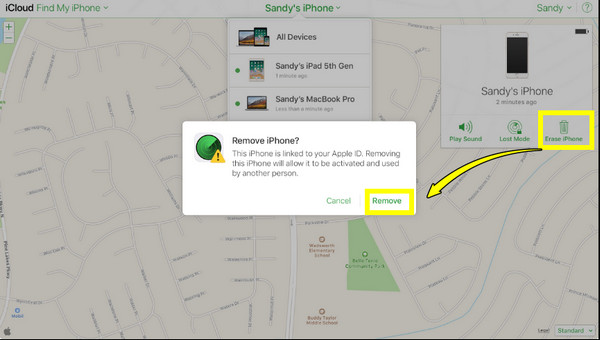
Step 3As soon as the iPhone connects to Wi-Fi or cellular data, it will begin the factory reset. Once erased, click the "Remove from Account" so you can set it up with a new Apple ID.
Conclusion
Getting locked out of your iOS device does not mean the end. You've seen here that there's a solution for every situation, from Recovery Mode to using iCloud. But before you proceed, take note that your iPhone will have a fresh start, erasing your device completely. Also, among all the methods, if you wish to skip the frustration of manual troubleshooting, do an iPhone factory reset without password with 4Easysoft iPhone Unlocker. Regardless of the lock scenarios you're facing on your iPhone, this software has you covered safely and efficiently.
100% Secure
100% Secure
