
Convert, edit, and compress videos/audios in 1000+ formats with high quality.

5 Ways to Crop Videos to Any Aspect Ratio on PC/Mobile

Posted by Paula Pailaga to Edit Video/Audio Dec 01, 2025
By cropping out unwanted parts of a video, you can upload a 16:9 clip to an Instagram Story or resize a video for TikTok's feed. Video cropping can help you control the frame, eliminate distractions, and ensure your video looks clean on every screen. So how to do it? This guide breaks down 5 different ways to crop a video for every user and every device. By the end, you will have the best method for your video cropping needs.
Guide List
Use Photos App on iPhone to Crop Video How to Crop a Video on Windows/Mac with Better Effects Crop Videos on Desktop with Professional Premiere Pro Crop a Video with Google Photos on Android How to Crop a Video in the Functional VLC PlayerUse Photos App on iPhone to Crop Video
The built-in Photos app on iPhone has a simple yet powerful way to crop videos without installing any tools. It works perfectly for quick edits, especially when you simply want to adjust framing, remove extra edges, or resize the video for a social media post. Since it is built into iOS, you can ensure a smooth and intuitive experience to crop video files on iPhone.
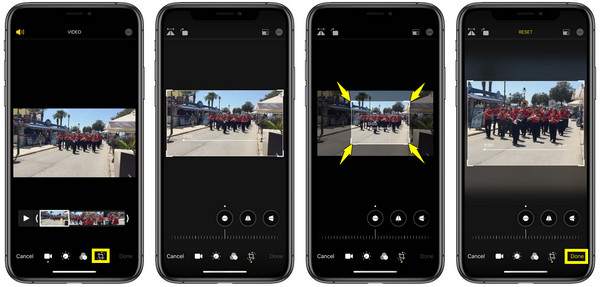
Step 1Open the "Photos" app on your iPhone, and locate and tap the video you wish to crop. Tap the "Edit" button in the upper-right corner.
Step 2In this window, select the "Crop/Rotate" icon below. Drag the corner handles to adjust the cropping frame. Tap the "Done" button to save your cropped video.
How to Crop a Video on Windows/Mac with Better Effects
4Easysoft Total Video Converter offers flexible options for cropping videos on both Windows and Mac. You can adjust the aspect ratio and cropping area without compromising video clarity. Furthermore, it includes a bunch of other tools like trimmer, rotator, filters, effects, transitions, and more to significantly enhance your video editing experience for social media or professional use.

Can crop videos while maintaining the original detail and clarity.
Keep the original aspect ratio or change to any social-media friendly size.
Refine your video further with tools for brightness, contrast, and more.
Easily adjust the resolution, frame rate, aspect ratio, and others.
100% Secure
100% Secure
Step 1After launching the 4Easysoft Total Video Converter, click the "Add Files" button and choose the video you wish to crop.

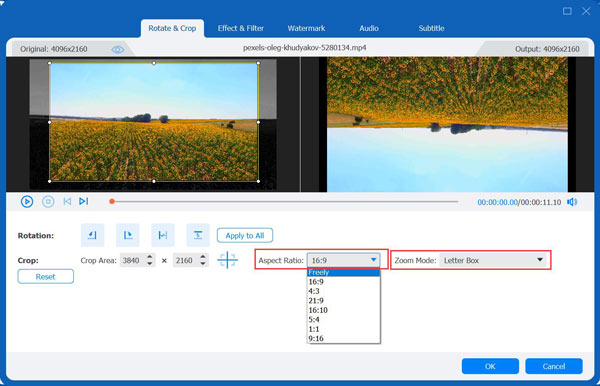
Step 2Click the "Edit" button to open the editing window. Navigate to the "Rotate & Crop" tab, open the "Aspect Ratio" menu, and choose "Freely" to manually set your desired output size.
Adjust the cropping box to define the area you wish to keep. Also, you can use the "Zoom Mode" option to handle any extra black bars.
Step 3Optionally, before finalizing, explore other tabs in the editor to apply effects, filters, watermarks, audio tracks, or subtitles to enhance your video further.
Step 4Now, return to the main screen. In the "Format" menu, select your desired output format. Then, specify a file name and choose your folder for your final video. Click the "Convert All" button to save your high-quality, cropped video.

100% Secure
100% Secure
Crop Videos on Desktop with Professional Premiere Pro
Next is Adobe Premiere Pro, a high-end editing program used by professionals that features complete precision and flexibility when cropping videos. It is excellent for those who want advanced control over their video framing, aspect ratios, and composition. Beyond the simple steps crop a video with Premiere Pro, you can apply effects, transitions, color grading, and more for a polished final output.
Step 1Launch Adobe Premiere Pro on your computer. Create a new project and upload your selected video into the timeline.
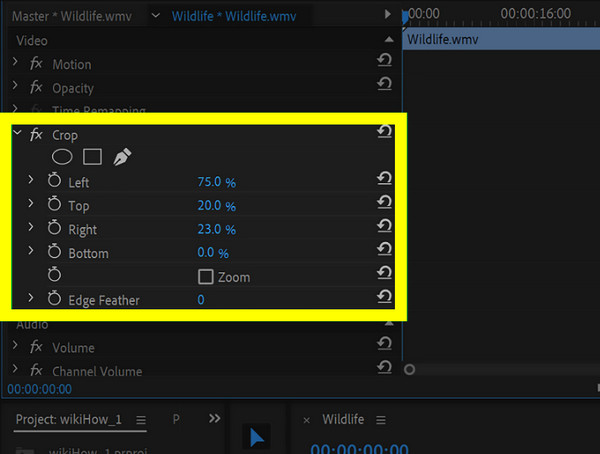
Step 2Click on the video clip and go to the "Effects" panel. Look for the "Crop" effect and drag it onto the video. Now, in the "Effect Controls" panel, adjust the "Left", "Right", "Top", and "Bottom" values.
Step 3After all that, once you're okay with the crop, save the project.
Crop a Video with Google Photos on Android
Meanwhile, for Android users, you have Google Photos to help. It provides a quick and convenient way to crop videos on Android without the help of extra apps. It has easy-to-use tools for removing the additional parts of your frame and adjusting aspect ratios, which is helpful for social media posts like TikTok, Reels, or Shorts. Google Photos also has a clean and beginner-friendly interface, making it ideal for everyday users.
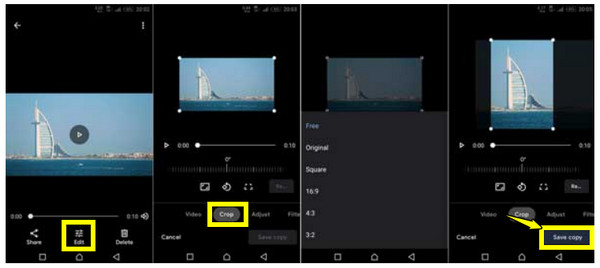
Step 1Open the Google Photos app on your Android device. Select the video you wish to crop, and then tap the "Edit" button below.
Step 2There, select the "Crop" option. Start dragging the handles or choosing an aspect ratio. Later, tap the "Save copy" button to apply the changes.
How to Crop a Video in the Functional VLC Player
VLC Media Player is not just for viewing videos, as it also has a proper editing function that can help you crop videos. While it is not as advanced as dedicated tools, VLC offers enough customization tools to trim extra borders and adjust the video layout, making it a good free alternative for those who want a familiar tool on their desktop.
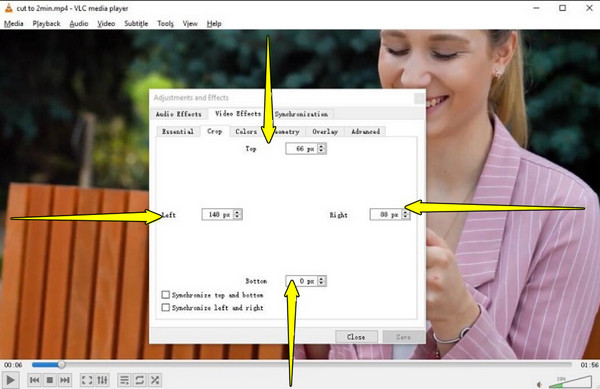
Step 1Launch VLC Media Player and head to "Media", then select "Open File" to load your video. Navigate to "Tools" and choose "Effects and Filters".
Step 2Then, go to the "Video Effects" tab and open the "Crop" section. There, adjust the "Top", "Bottom", "Left", and "Right" fields to adjust the video frame.
Step 3To save it, just head to "Media", select "Convert/Save", and export the file.
Conclusion
Explored today are five distinct ways for achieving a perfect crop, from a quick built-in tool to desktop editors that offer convenience. Whether it is a cinematic widescreen or a vertical social media post, there's a method here to learn to crop videos on PC, Mac, iPhone, and Android! But if your work needs high-quality results and needs effects, filters, and more, step up to a solution like 4Easysoft Total Video Converter. This software allows you to crop by a custom area or specific aspect ratio, while maintaining your original video quality intact. Its reliability and depth are needed for those who treat video editing as more than just a quick fix.
100% Secure
100% Secure
