
Remove screen passcode, Apple ID, MDM and Screen Time from iPhone safely.

Effectively Change Apple ID Password on iOS, Mac, and Online

Posted by Alvin Cantero to iOS Unlocker Mar 26, 2026
Whether you're using macOS, iPadOS, or iOS, your Apple ID serves as the central gateway to all Apple apps and services. Therefore, setting a strong password and keeping it secure is essential for ensuring your digital security. Changing your password regularly is an effective way to prevent unauthorized access and protect your personal information and data from being compromised. Below, we'll walk you through three simple and secure methods to help you easily change your Apple ID password.
Guide List
Change Apple ID Password Using the Current Password Change Apple ID Password without the Correct Credentials Easily Remove Apple ID and Change Your Apple ID Password Tips of Change Apple ID Password Safely FAQs About Changing Apple ID PasswordChange Apple ID Password Using the Current Password
Changing your Apple ID password offers the advantages of high security, ease of use, and broad applicability. Additionally, password updates take effect immediately across all devices, helping to prevent unauthorized access in a timely manner.
On iPhone/iPad
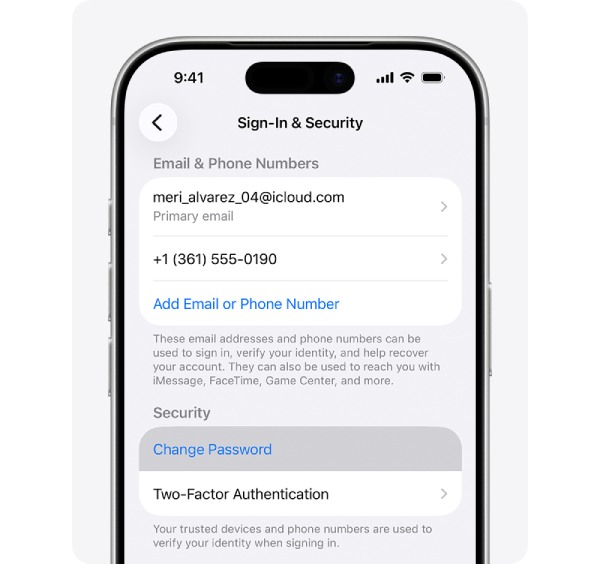
Step 1Open the "Settings" app. Then, tap your Apple ID at the top. From the list of options, select "Sign In & Security".
Step 2On the next screen, select "Change Password". Enter your Apple ID password or lock screen passcode. Then, follow the on-screen steps to complete the verification process.
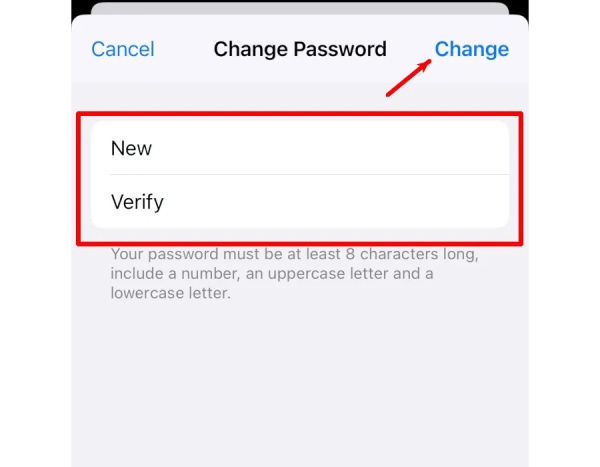
Step 3Enter your new strong password on the screen. Then, tap the "Change" button on the screen to confirm the Apple ID password change.
On Mac
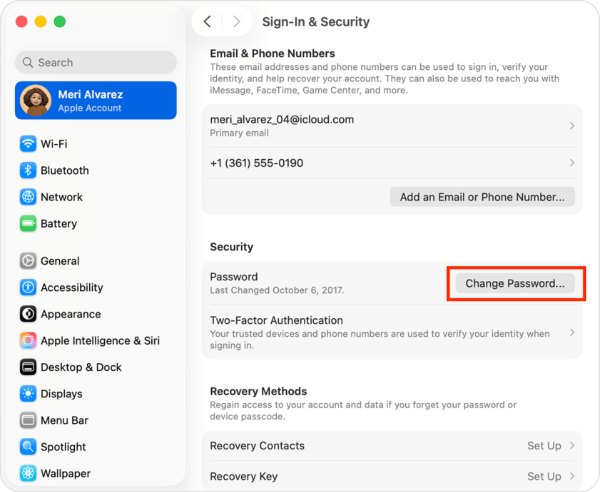
Step 1Turn on your Mac and click the "Apple" at the top of the screen. Then, select "System Settings". Click your Apple ID account name in the top-left corner. Next, select "Sign-In & Security" from the list.
Step 2Go to the "Passwords" section, then select the "Change Password" button. If your Mac isn't already trusted, enter your old password.
Step 3Next, enter your new Apple ID password on the next screen. Then, follow the on-screen instructions to complete the process.
On the Web
If you don't have a trusted device, you can also change your Apple ID password via the web. This can be done using a non-Apple device. However, please make sure your account is signed in on the website.
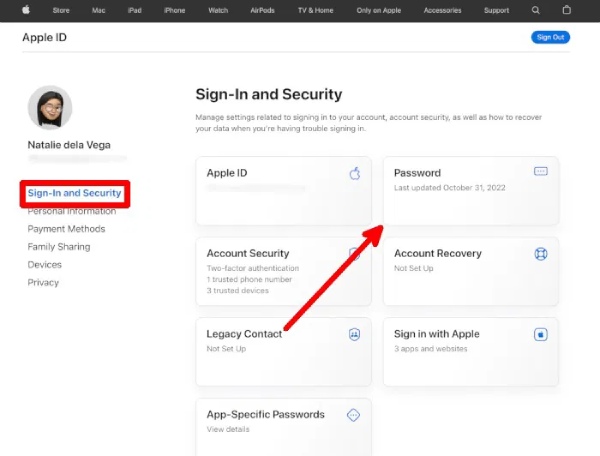
Step 1Open the web browser on your device and go to official website. Your account information will then appear automatically. Select your account name at the top of the screen.
Step 2Select the "Sign In & Security" button. Click the "Password" button on the right. Then, enter your current password and the new, strong password. Finally, click the "Change Password" button to confirm.
Reset Apple ID Password without the Correct Credentials
Not all users can always remember their Apple ID password. Since devices typically remain logged in for extended periods, users rarely need to enter their account credentials frequently, making it common to forget passwords. Furthermore, if an account exhibits unusual activity or faces security risks, users may even be unable to verify their identity using their original credentials. In such cases, alternative authentication methods are required to reset or change the Apple ID without a password, thereby restoring normal access to the account.
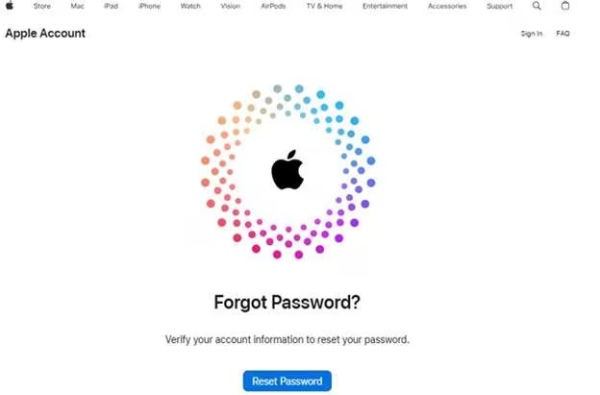
Step 1Use your device to visit the official iForgot website, then tap the "Reset Password" button at the bottom center of the screen. The screen will then refresh.
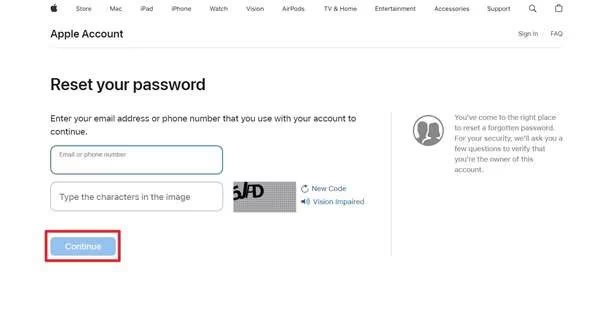
Step 2Enter your Apple ID email address or phone number at the top. Next, enter the verification code at the bottom. Tap "Continue" in the bottom-left corner. Select "I need to reset my password", then tap "Continue".
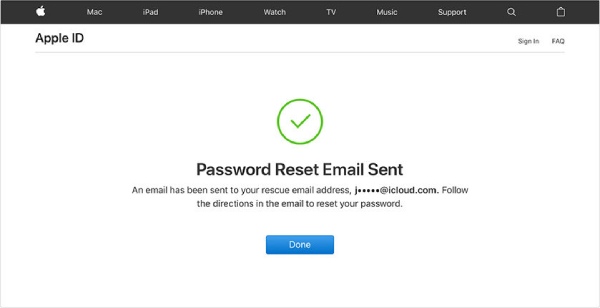
Step 3Select "Get an email" or "Answer security questions". Tap "Continue" in the bottom-right corner. Follow the on-screen instructions to complete the process.
Easily Remove Apple ID and Change Your Apple ID Password
If you want to easily learn how to change your Apple ID password when you've forgotten it, 4Easysoft iPhone Unlocker is a convenient choice. This powerful program can remove various password restrictions on iPhones, iPads, and iPods. The tool supports all iOS models and versions, including the latest iPhone 17 and iOS 18/26. Additionally, when it comes to unlocking an iPhone, this iPhone Unlocker offers a comprehensive solution for changing the Apple ID password, whether you use Face ID or Touch ID.
Erase all saved passwords from your device and reset features such as Face ID.
Quickly remove your old Apple ID password and set a new one immediately.
Effectively remove various usage restrictions when your iPhone is in restricted mode.
Safely unlock iOS devices in various locked states and protect your privacy.
100% Secure
100% Secure
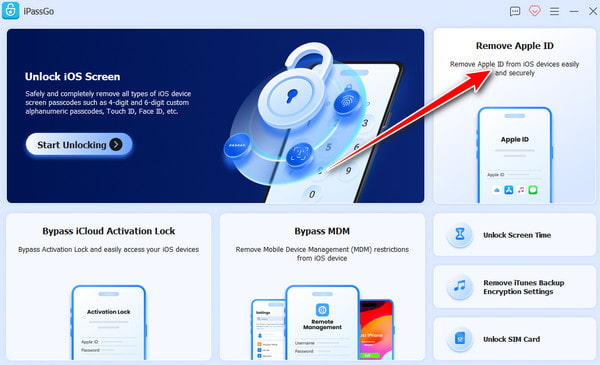
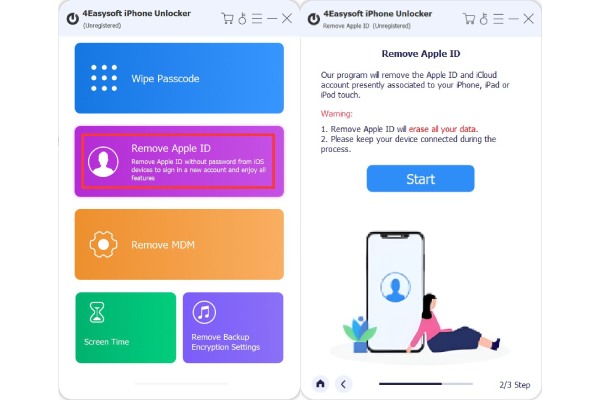
Step 1Launch it on your computer, click "Remove Apple ID" to continue. On your device, a notification: Trust this Computer? will appear, tap "Trust".
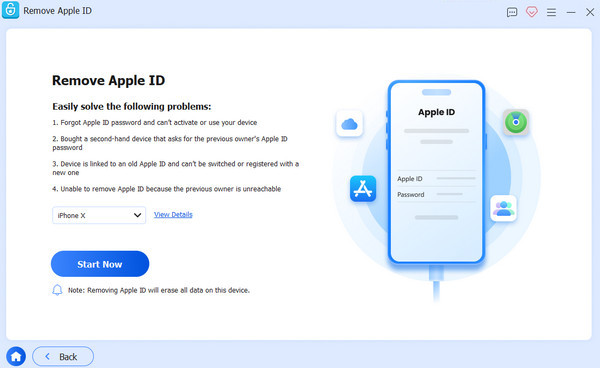
Step 2Then tap "Start". If it's turned off, you'll need to wait a few minutes to unlock your Apple ID. If the feature is enabled, for iOS 11.3 and earlier, remove your Apple ID by resetting all data.
Step 3On your computer, enter 0000 in the box. Click "Confirm" and review your information. Click 'Start' to download the firmware package. Next, enter 0000 again and click "Unlock" to remove and change your Apple ID password.
Tips of Change Apple ID Password Safely
Use a Strong Password:
It recommends a password that is at least 12 characters long and includes a combination of uppercase and lowercase letters, numbers, and special characters. Avoid using easily guessable information such as your name, birthday, or consecutive numbers to make it harder to crack.
Change Your Password Regularly:
Even if your account shows no signs of unusual activity, proactively change your password every so often. This effectively reduces security risks associated with past data breaches or using the same password for an extended period.
Enable Two-Factor Authentication:
Once enabled, even if your password is compromised, a second verification step—such as using a trusted device, or a verification code is required, significantly enhancing your account's overall security.
Check and Manage Logged-in Devices:
After changing your password, you should promptly review the list of currently logged-in devices and remove any devices you do not recognize or no longer use to prevent others from continuing to access your account data.
FAQs About Changing Apple ID Password
-
Will changing my Apple ID password sign me out of all devices?
Yes, after updating your password, Apple may require you to sign in again on your devices. This helps ensure that only authorized users can continue accessing your account.
-
Can I change my Apple ID password without my iPhone?
Yes, you can change your password using any web browser by visiting the Apple ID management page. As long as you can verify your identity, you don't need physical access to your iPhone.
Conclusion
If you want to change your Apple ID password, any of the methods mentioned above will work. You can choose the one that best fits your device and situation. However, if you've forgotten your password or your iPhone is not functioning properly, you may not be able to change it directly through "Settings". In such cases, you can use 4Easysoft iPhone Unlocker as an alternative solution. It provides an effective way to resolve iPhone password issues, including those related to Face ID and Touch ID.
100% Secure
100% Secure
