
Reliable video converter, editor, and compressor for daily tasks.
Top 10 Audio Compressors on PC, Web, and Mobile [with Steps]

Posted by Aira Lesly Escoto to Edit Video/Audio Jan 29, 2026
In a world where high-fidelity audio is the standard, large file sizes have become a challenge for students, creators, and music lovers. For sending audio files over email and saving space on your mobile, a reliable audio compressor is a crucial addition to your kit. So, to make your search easier, compiled here are the top 10 audio file compressors for desktop, online, and mobile platforms. By the end, you'll know which tool best fits your workflow.
Guide List
4Easysoft Total Video Converter – All-in-One Lossless Audio Compressor Freemake Audio Converter – Direct iTunes Audio Compressor CapCut – Audio Compressor for Content Creators FreeConvert MP3 Compressor – Advanced Web-Based Audio Compressor OnlineConverter.com – Audio Compressor for Quick Tasks XConvert – Best Audio Compressor for Cloud Storage Users Media.io – AI-Powered Audio Compressor Audio Compressor – Lightweight Android Audio Compressor Audio Compressor – MP3 Shrink – Privacy-Focused iOS Audio Compressor Compress Audio – Minimalist Mobile Audio Compressor4Easysoft Total Video Converter - All-in-One Lossless Audio Compressor
Starting off the list of audio compressors, 4Easysoft Total Video Converter is a comprehensive desktop suite that uses advanced hardware acceleration to ensure lightning-fast audio compression without quality loss. It supports more than 600 formats and lets you enjoy complete control over the parameters of your audio file. Whether you have an entire music collection or are just fine-tuning a single file, the Audio Compressor toolkit makes the overall process seamless and efficient for everybody.

Use Audio Compressor to shrink audio files by more than 60%.
Trim, merge, volume up/down and reduce noise of audio files.
Adjust audio output settings, including sample rate, format, and channels.
Export audio files to device-compatible formats, including iPhone and Andorid.
100% Secure
100% Secure
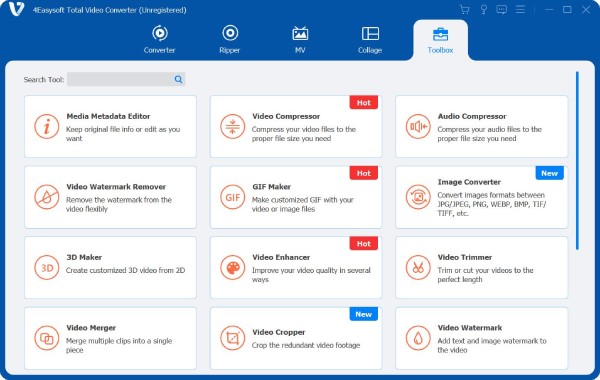
Step 1Launch 4Easysoft Total Video Converter on your computer. Navigate to the "Toolbox" tab at the top, which lets you access more toolkits. Choose "Audio Compressor" there to start.
Step 2Upload your audio file into the window. Use the "Size" slider to shrink the file to 40% or less. For further optimization, you can modify the format, channel, or sample rate settings listed below.
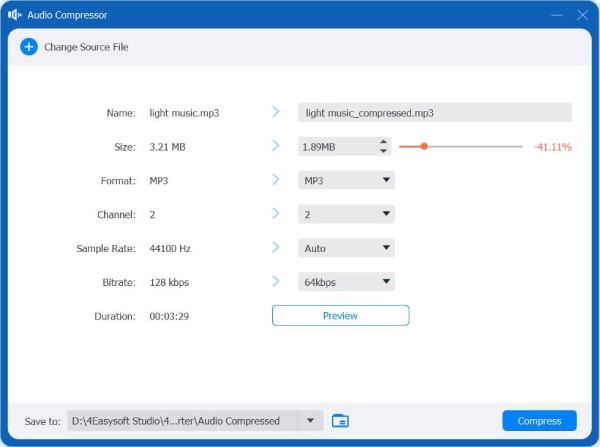
Step 3Click the "Preview" button to check the sound quality of your compressed audio. Once you are satisfied with the results, click "Compress" to process the file and save it to your chosen folder.
100% Secure
100% Secure
Freemake Audio Converter - Direct iTunes Audio Compressor
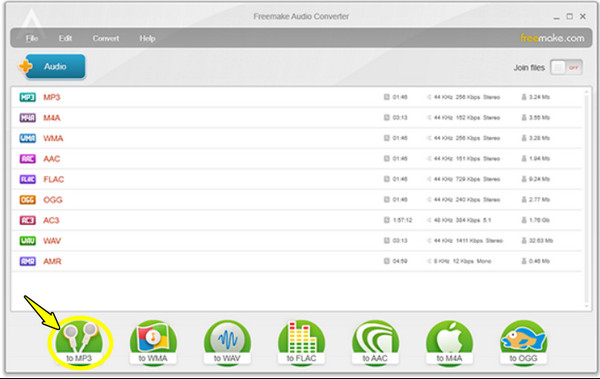
Freemake provides Windows users with a specialized environment to bridge the gap between several formats and the Apple ecosystem. This free audio compressor is famous for its ability to export compressed files directly to your iTunes library.
- Pros
- Very colorful and friendly interface; automatic iTunes integration.
- Cons
- Its free version limits files to 3 mins only; ad-supported installer.
Steps:
- 1.Start Freemake Audio Converter on your computer.
- 2.There, click the "Audio" button to add your tracks.
- 3.Choose "to MP3" at the bottom, then select a lower-quality preset and click on "Convert".
CapCut - Audio Compressor for Content Creators
While it mainly works as a video editor, CapCut has a simple solution for shrinking audio for all your social media projects, making it one of the best free audio compressors today. It has specialized AI tools that let you enhance voice clarity.
- Pros
- Free to use desktop tool; offers advanced AI noise reduction.
- Cons
- Can be limited for a bunch of desktop work; needs an account login.
Steps:
- 1.Launch CapCut on your desktop.
- 2.Then, import your media into a new project.
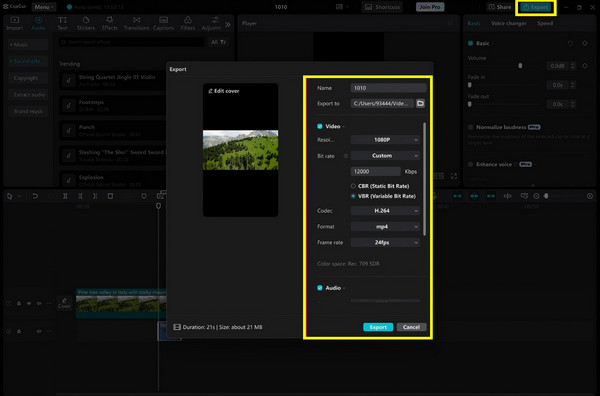
- 3.Make edits as needed, then click "Export" and choose "Audio (MP3)".
- 4.Pick a lower bitrate and click "Export" again to reduce MP3 file size online.
FreeConvert MP3 Compressor - Advanced Web-Based Audio Compressor
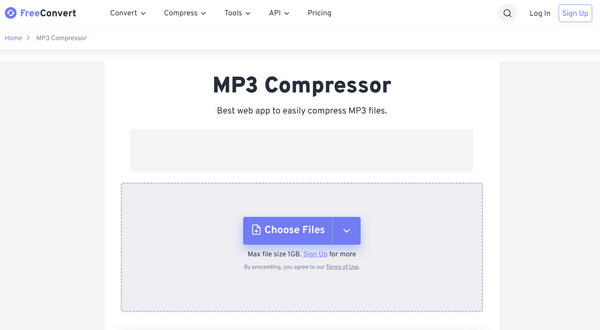
The following online audio compressor works on multiple browsers. FreeConvert offers a powerful engine that gives you expert-level control over audio settings. Also, it is perfect if you wish to quickly compress audio without the need to install anything.
- Pros
- Covers huge files up to 1GB; has variable bitrate options.
- Cons
- The speed depends on your internet; daily task limits apply.
Steps:
- 1.From the FreeConvert MP3 Compressor's page, click "Choose Files" to upload your audio.
- 2.Then, tap the "Settings" button to lessen the bitrate.
- 3.Click "Compress Now" and download the result once finished.
OnlineConverter.com - Audio Compressor for Quick Tasks
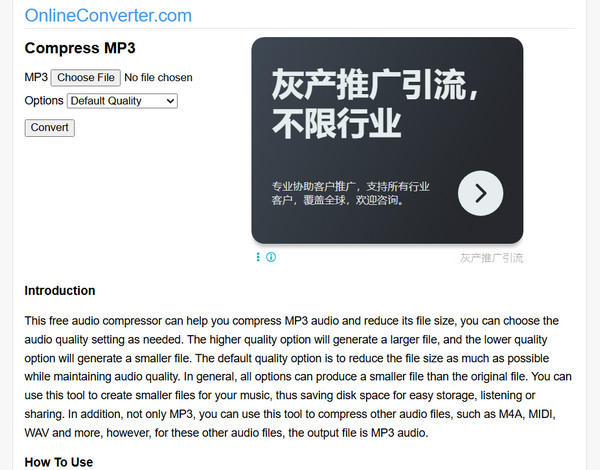
Next is OnlineConverter.com, a minimalist, old-school interface that focuses on speed and functionality. This audio compressor online is great for anyone who has slow connectivity, as it is a lightweight tool that just works.
- Pros
- Very lightweight and loads quickly on your browser.
- Cons
- Has no preview player; file size limits are stricter than others.
Steps:
- 1.On the OnlineConverter.com, choose your file to add from your computer.
- 2.Afterward, select the target quality from the menu and click on "Convert".
XConvert - Best Audio Compressor for Cloud Storage Users
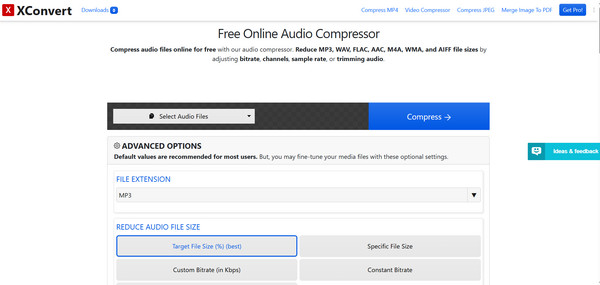
Meanwhile, XConvert distinguishes itself by having a percentage-based compression slider, making it easy for you to visualize how much space you're saving on your device. Plus, this online MP3 audio compressor lets you directly import from cloud storage.
- Pros
- It has a visual slider for easy size targeting and supports batch processing.
- Cons
- The page layout is crowded with heavy ads.
Steps:
- 1.Search for the XConvert Audio Compressor website.
- 2.There, upload your files by clicking "Add Files".
- 3.Use the "Target Size" slider to pick the reduction percentage.
- 4.Click "Compress" to reduce audio file size online.
Media.io - AI-Powered Audio Compressor
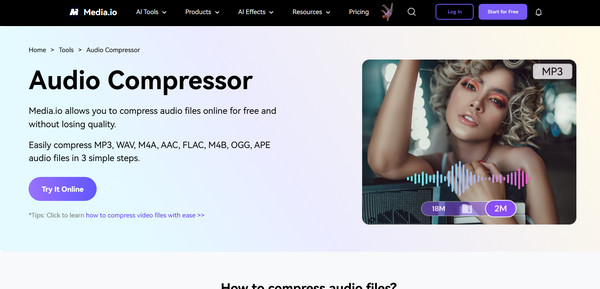
Media.io here utilizes a high-end conversion engine that keeps your audio layout and metrics intact even at high compression levels. It is one of the online MP3 compressors for musicians who share audio demos.
- Pros
- Offers high-end AI processing; a preview for checking audio quality.
- Cons
- Its free tier has a very limited conversion.
Steps:
- 1.Once you're on the official Media.io Audio Compressor website, upload your audio.
- 2.Then, select a quality ratio.
- 3.Click on "Compress", and download your file.
Audio Compressor - Lightweight Android Audio Compressor
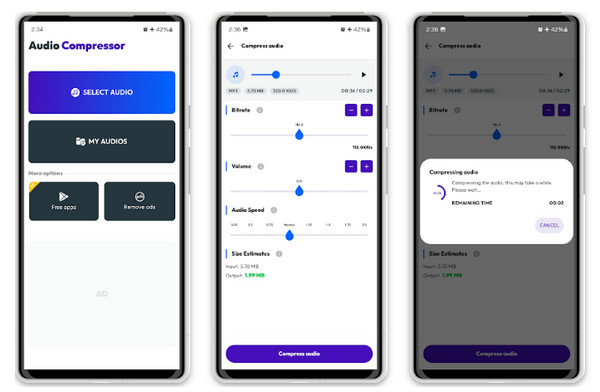
This Android audio compressor app is specifically made for reclaiming your storage space. It features batch compressing of recordings and music on your phone. It supports reducing the size by 90% for easy sharing.
- Pros
- Perfect for bulk clearing storage; works fully on-device.
- Cons
- Has full-screen ads.
Steps:
- 1.From the app's screen, tap "Select File".
- 2.After that, choose your desired compression level.
- 3.Tap "Start" to save the compressed file to your gallery.
Audio Compressor - MP3 Shrink - Privacy-Focused iOS Audio Compressor
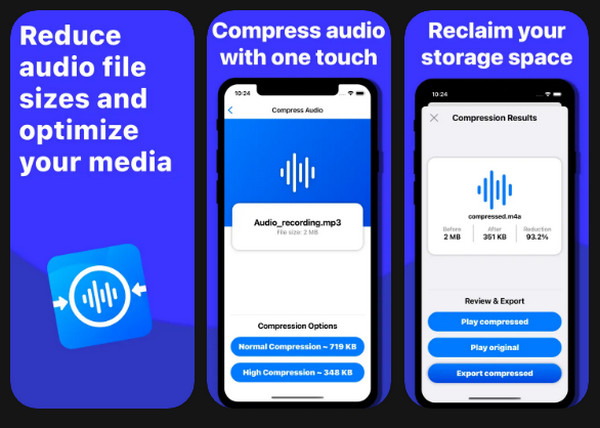
For iPhone users here, Audio Compressor - MP3 Shrink offers a secure solution to shrink audio as the process is done offline. Using this audio compressor app, personal recordings are surely secured.
- Pros
- Works completely offline; removes unnecessary metadata.
- Cons
- Only works for iOS and iPadOS and needs iOS 15.6 or later.
Steps:
- 1.Start the Audio Compressor - MP3 Shrink on your iPhone.
- 2.Then, select a file from your library.
- 3.Next, choose one of the compression profiles.
- 4.Tap on "Compress" and export it to your "Files" app.
Compress Audio - Minimalist Mobile Audio Compressor
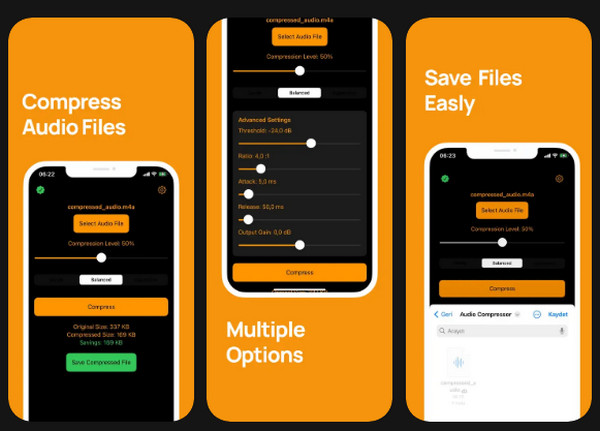
This audio compressor app centers mainly on a functional approach, having a predefined profile that avoids confusing technical settings. It can be your ideal choice if you wish for a one-tap solution to shrink your audio files quickly.
- Pros
- Has accurate file size results; ad-light interface.
- Cons
- Fewer advanced manual settings than others.
Steps:
- 1.Upon launching the app, pick music from your gallery.
- 2.Select a bitrate such as 128 kb/s.
- 3.Once done, tap on the "Compress" button.
Conclusion
By knowing the unique strengths of the top 10 free audio compressors, you can effectively manage your storage space and make sure your audio files are playable across your desired devices and platforms. From desktop and online to mobile apps, one stands out for its simplicity and high-quality performance: 4Easysoft Total Video Converter. This program has an Audio Compressor and more toolkits that handle much more than just audio. It ensures lightning-fast speed and high-quality results for any desktop user.
100% Secure
100% Secure
