
Fix 150+ iOS system problems without data loss.

iPhone Says No SIM: 8 Proven Solutions to Fix It Fast

Posted by Alvin Cantero to iOS Recovery Mar 13, 2026
"I recently switched to a new SIM card and inserted it into my iPhone, but now it shows 'No SIM'. What can I do to fix this and get my iPhone back to normal?" Don't throw away your SIM card immediately! There could be several reasons behind this issue. So, why is your iPhone saying No SIM? Read on to explore the possible causes and discover 8 useful fixes to resolve this problem!
Guide List
Part 1: Understanding the "No SIM Card" Error Part 2: Why Does My iPhone Say No SIM? Part 3: How to Fix the "iPhone Says No SIM" Issue? Part 4: FAQs About iPhone Saying No SIMPart 1: Understanding the "No SIM Card" Error
If you see the "No SIM Card" message on your iPhone, it typically means that your device cannot recognize the SIM card and is unable to connect to cellular networks. This message may show as "No SIM Card", "Invalid SIM", or "No SIM Card Installed". There are 3 scenarios in which you might encounter this error:
- SIM Card Not Inserted: The iPhone cannot detect any SIM card inserted in the device.
- SIM Card Not Installed: Although the SIM card is present, the device has failed to recognize it.
- SIM Card Not Available: Your iPhone cannot communicate with the SIM card.
Part 2: Why Does My iPhone Say No SIM?
To fix the "No SIM Card" error, we need to understand why the iPhone says No SIM. Here are some common reasons for this issue:
- SIM Card Issues: Your SIM card may be improperly inserted, damaged, or faulty. Dust or debris on the SIM card can also prevent proper detection.
- Hardware Problems: Issues with the SIM tray, slot, overheated battery, or internal components could block the SIM card from being recognized.
- Software Glitches: System glitches, bugs, or an outdated iOS version can cause the device to fail in detecting the SIM card.
- Network or Carrier Issues: Your SIM card might not be activated by the carrier, or there could be issues with the network connection.
Part 3: How to Fix the "iPhone Says No SIM" Issue?
Here are 8 efficient and easy fixes that can help you resolve this issue:
Fix 1: Activate Your SIM Card
Before proceeding, make sure you've subscribed to an active plan with your carrier. If your SIM card isn't activated, your iPhone won't be able to connect to the carrier's network.
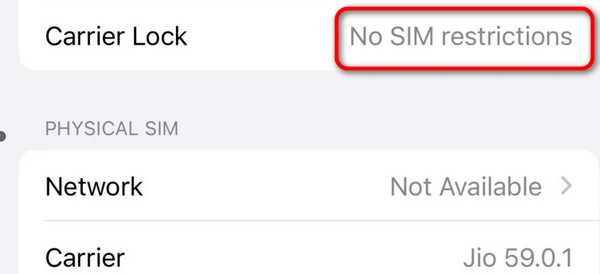
If your iPhone is locked to a specific carrier, it can only be used by that carrier. To check if your iPhone is unlocked, go to Settings > General > About. If your iPhone is unlocked, you can see No SIM restrictions next to Carrier Lock.
Fix 2: Restart Your iPhone
A simple restart can often fix temporary software glitches causing the "No SIM Card" error. Keep pressing the Power button, then slide to power off. Wait for 30 seconds, and press and hold the Power button until you see the Apple logo to turn on your iPhone.
Fix 3: Reinsert the SIM Card
Sometimes, the issue can be as simple as the SIM card being misplaced, dusty, or damaged.
- Use the SIM ejector tool to carefully pull out the SIM tray from your iPhone, take out the SIM card, and check it for any visible damage.
- Gently clean the SIM card and the slot to remove any dust or debris.
- Reinsert the SIM card to make sure it's installed correctly and firmly.
- Restart your iPhone and check whether the error persists.
Fix 4: Update iOS to the Latest Version
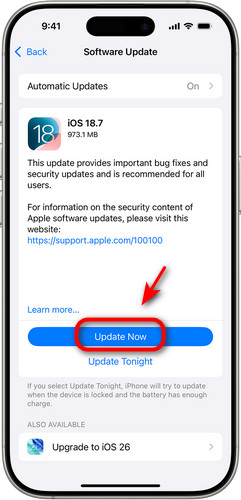
If you keep using an outdated iOS version, your iPhone might run into compatibility issues with the SIM card. Go to Settings > General > Software Update > Download and Install to update iOS to the latest version and resolve software glitches.
Fix 5: Check for a Carrier Settings Update
Carrier provider periodically releases updates and related settings to improve cellular network connectivity and performance. If you haven't installed the latest carrier updates, it might be the reason your iPhone keeps saying no SIM. To check for an update, go to Settings > General > About. If an update is available, you'll be prompted to install it.
Fix 6: Reset Network Settings
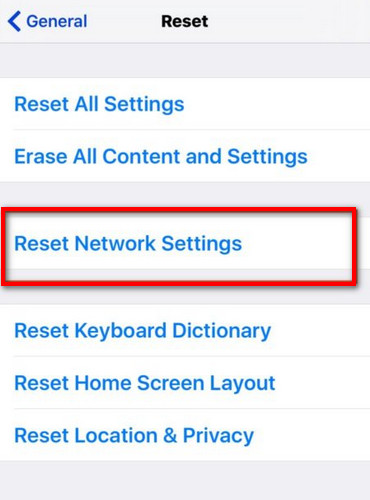
Network settings control how your iPhone connects to Wi-Fi, Bluetooth, and cellular networks. If the SIM issue is not due to software glitches, resetting network settings might help. To do this, go to Settings > General > Reset > Reset Network Settings.
Fix 7: Use 4Easysoft iOS System Recovery
If all the system setting adjustments above fail to fix the "No SIM Card" error, the issue may go deeper - there could be a problem with the underlying iOS system. In this case, a professional third-party tool can be an ultimate solution for fixing iOS problems. 4Easysoft iOS System Recovery is designed to resolve iOS system problems for both Mac and Windows users. It can repair software issues, screen issues, iOS mode issues, and iTunes issues quickly and safely.
Resolve 50+ iOS system problems, such as restart loops, SIM errors, or a frozen iPhone.
Upgrade or downgrade iOS 26 and 27 without iTunes/Finder.
Recover the iOS system without data loss.
Support almost all iOS versions and models.
100% Secure
100% Secure
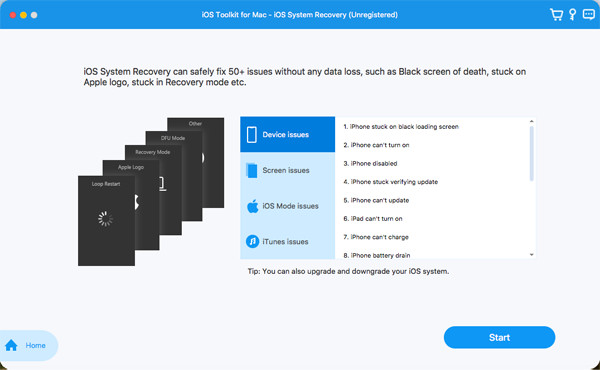
Step 1Launch the software and select "iOS System Recovery" from the main interface. Connect your iPhone to the computer using a USB cable, then click the "Start" button to proceed.
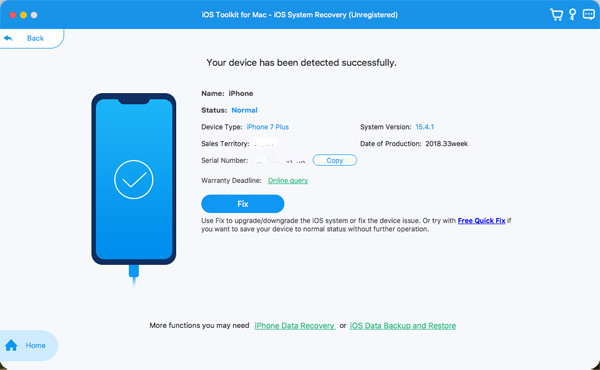
Step 2Click "Free Quick Fix" to resolve basic issues. If this doesn't work, click the "Fix" button to do more advanced fixes.
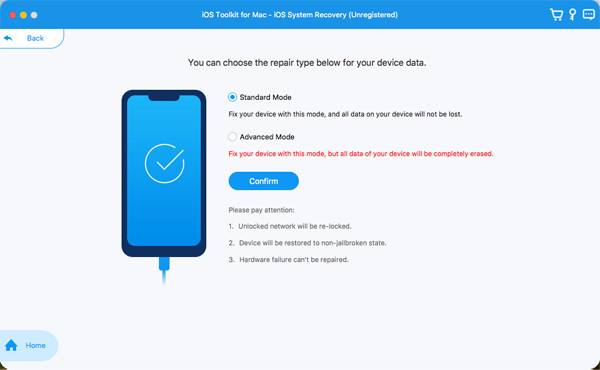
Step 3Select "Standard Mode" to fix common iOS problems without data loss.
Select "Advanced Mode" to fix serious system issues. This mode will delete all the data on your device, but it offers a higher success rate than the standard one.
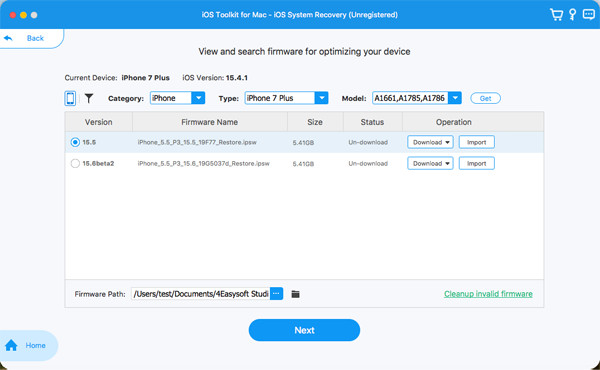
Step 4Choose the category, type, and model of your device, then select the firmware that matches your iOS version. Click "Download", and once the download is complete, click "Next" to begin the repair process.
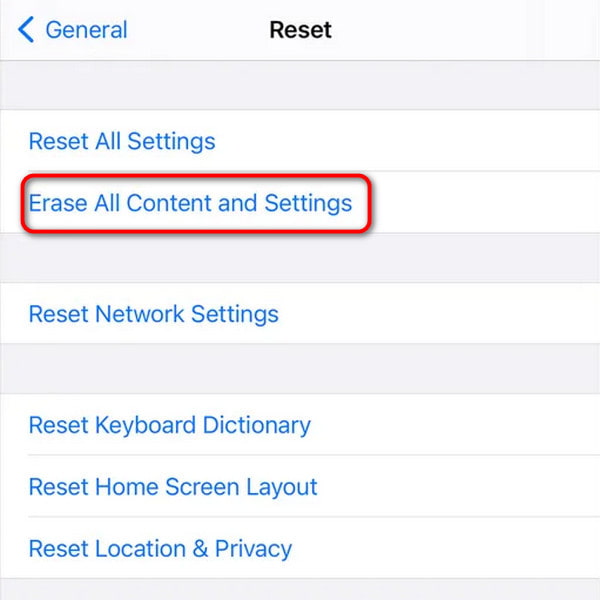
Fix 8: Factory Reset Your iPhone
If you've tried all the above fixes and your iPhone still keeps saying no SIM card, resetting your iPhone to factory settings can resolve serious software issues.
A factory reset will erase all data on your device, so be sure to back up your important information, and then you can restore your iPhone from a backup after resetting!
Step 1Go to "Settings" and tap "General".
Step 2Select "Transfer or Reset iPhone" and choose "Erase All Content and Settings".
Step 3Tap "Continue" and follow the on-screen instructions.
Part 4: FAQs About iPhone Saying No SIM
-
Why is my iPhone saying SOS Only or no SIM?
These messages indicate that your iPhone can't detect your SIM card, but it can still make emergency calls. If you're in an area with an extremely weak signal, your iPhone can also get stuck in SOS mode.
-
How to fix iPhone randomly saying no SIM ?
(1) Restart your iPhone. (2) Reinsert the SIM card and clean the tray and slot. (3) Check for iOS updates or carrier settings updates. (4) Reset network settings. (5) Use a third-party tool like 4Easysoft iOS System Recovery. (6) Factory reset your iPhone.
-
Can I use my iPhone without a SIM card?
Yes, you can use your iPhone without a SIM card for Wi-Fi, apps, and other non-cellular functions. However, you won't be able to make calls or send texts.
Conclusion
Conclusion In most cases, the "No SIM Card" error can be fixed by following basic steps, such as checking the SIM card, restarting your phone, or updating your carrier settings. For more serious issues, professional tools like 4Easysoft iOS System Recovery can resolve the problem effectively. If your iPhone still keeps saying no SIM, a factory reset may be necessary. Just be sure to back up your data before resetting!
100% Secure
100% Secure
