
Fix all iOS issues like broken screen, stuck problem, etc. without losing data.
How to Fix iPhone Mail Not Updating after System Update

Posted by Alvin Cantero to iOS Recovery Dec 05, 2025
When you notice your iPhone Mail app not updating properly, and new emails aren't appearing promptly, especially if this is affecting your work or essential communications, don't worry. This article will provide you with simple fixes using your iPhone's built-in tools, as well as professional repair solutions to help restore your Mail app's standard functionality.
Guide List
What Caused iPhone Mail Not Updating Professional Method to Fix iPhone Mail Not Updating Enable Mobile Data for the iPhone Mail App Adjust Mail Push and Retrieval Settings Update iOS Again to Fix iPhone Mail Not Updating Delete and Re-add your Email AccountWhat Caused iPhone Mail Not Updating
There are several possible reasons why your iPhone's email may not be updating. Understanding these potential causes in advance can help you troubleshoot the issue more efficiently.
An unstable Wi-Fi or cellular data connection is the most common reason for email not syncing.
Minor glitches in the iOS system or temporary errors within the Mail app itself may cause abnormal email loading.
If the "Push" feature or "Fetch New Data" settings are incorrect, your iPhone may not automatically check for and load new emails.
Bugs present in older iOS versions may affect the normal functionality of the Mail app.
Incorrect email account settings or password errors can prevent email synchronization.
If your iCloud storage is full, it may affect the normal sending and receiving of iCloud emails.
Professional Method to Fix iPhone Mail Not Updating
Professional repair tools like 4Easysoft iOS System Recovery offer effective solutions. It resolves over 50 different iOS system issues, including malfunctioning Mail apps, system crashes, and devices stuck on the Apple logo screen. By reinstalling iOS system firmware to replace damaged components, it restores normal device functionality. It also provides two repair modes to accommodate problems of varying severity.
Supports all iOS models/versions, including iPhone 17 and iOS 26.
Resets problematic iPhones without requiring a passcode.
Standard and Advanced modes address varying degrees of system issues.
The simple repair process requires no prior experience and is 100% safe to use.
100% Secure
100% Secure
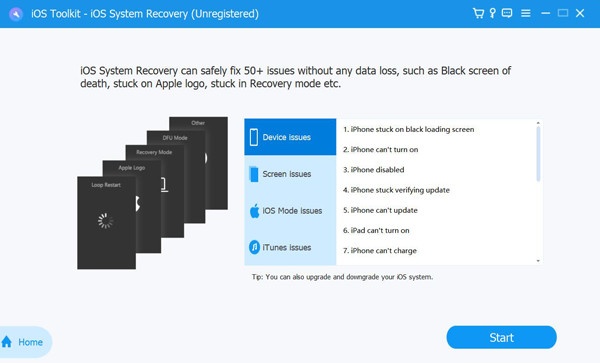
Step 1Launch the software and connect your iPhone to the computer via a USB cable. Click "iOS System Recovery", then click "Start".
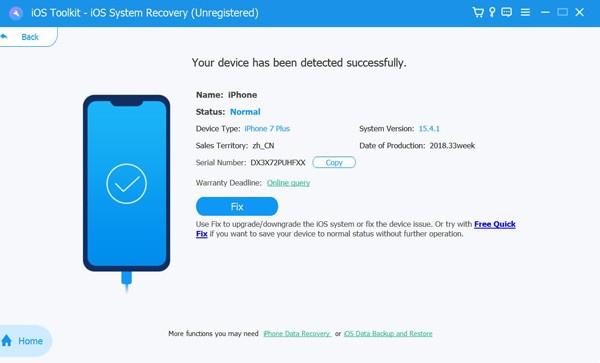
Step 2The program will begin detecting your iPhone. For email issues not updating, try clicking "Free Quick Fix" first.
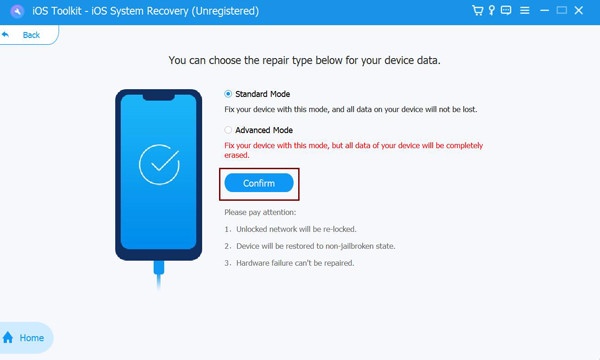
Step 3If the problem persists, click "Repair" and select one of the two modes for a deeper repair. Then download the corresponding firmware.
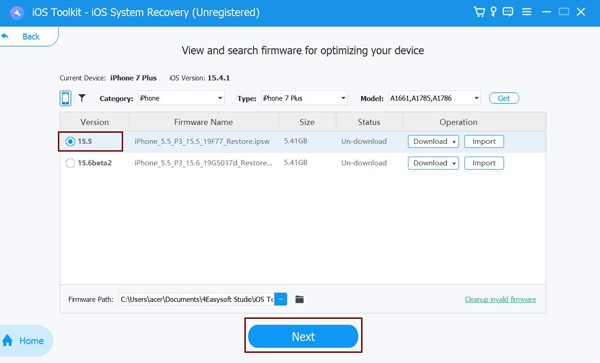
Step 4After verifying your device model and iOS version, click "Next". The program will automatically begin repairing your iPhone.
Enable Mobile Data for the iPhone Mail App
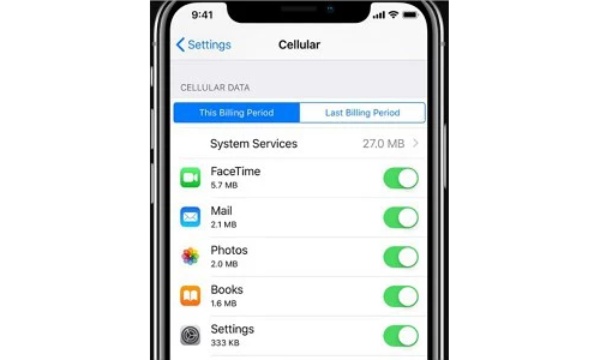
Another reason why iPhone Mail may not update is that the Mail app restricts access to mobile data. When Wi-Fi signals are unstable, network access is limited, or the system disables cellular data for Mail to conserve data, the Mail app cannot maintain real-time synchronization with servers. This also prevents the Mail app from loading emails on the device.
Step 1Open "Settings" and navigate to "Cellular" settings. Scroll down to find the Mail option and turn it on.
Step 2Allow the Mail app to access cellular data to start receiving emails automatically.
Adjust Mail Push and Retrieval Settings
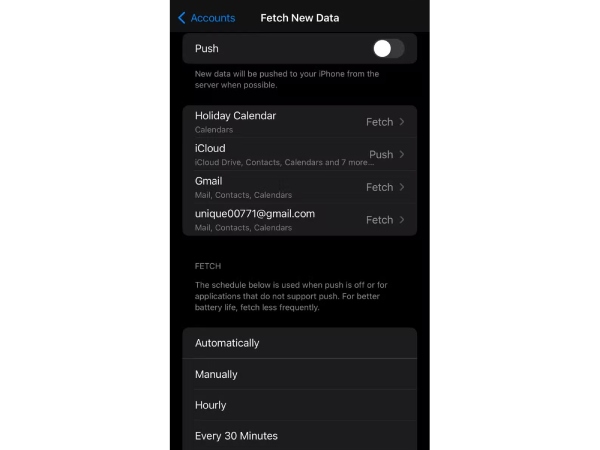
If email is still not working on iPhone after enabling cellular data, you need to check the "Push", "Fetch", or "Manual" settings. Push relies on the server to actively send updates in real time, Fetch automatically checks for new emails at fixed intervals, while Manual mode only syncs when you open the mailbox or pull down to refresh. These settings changed after the iOS 11 update, so users may not be aware that these options exist.
Step 1Open Settings and tap "Accounts & Passwords". At the bottom of the menu, locate the "Fetch New Data" setting.
Step 2Enable push notifications to receive new data from the server to your device automatically.
Update iOS Again to Fix iPhone Mail Not Updating
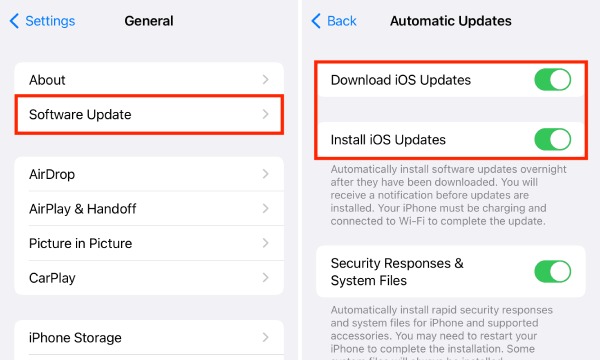
System updates typically include fixes and optimizations for email applications, network connectivity, background refresh mechanisms, and compatibility with various email server protocols. When the old system has software vulnerabilities, protocol compatibility issues, or background tasks are abnormally restricted, emails may fail to update properly. This method can also fix issues like SMS not working on an iPhone.
Step 1Open "Settings", tap "General", then find "Software Update". Wait for the check for new versions to complete, then tap "Download and Install".
Step 2Enter your passcode and wait for the download to finish. Select "Install Now", and your iPhone will restart automatically to complete the update.
Delete and Re-add your Email Account
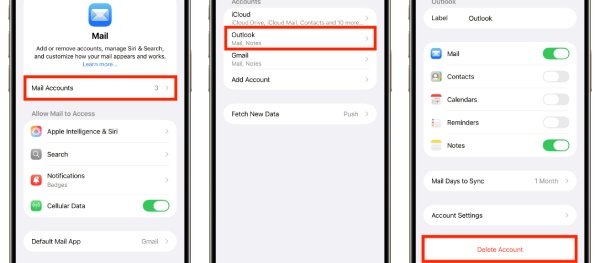
Deleting an email account can resolve issues such as authentication errors that may occur in the original account configuration. When you re-add the account, the system will re-establish a connection with the mail server, generating new login credentials and synchronization settings. This resolves situations where updates fail or synchronization becomes abnormal.
Step 1Open the "Settings" app, then navigate to the "Mail" settings.
Step 2Select the problematic account, scroll to the bottom of the screen, tap the "Remove Account" option to delete it, and exit the app.
Step 3Reopen the "Accounts & Passwords" settings, select the "Add Account" option. Re-enter the account details and complete the setup.
Conclusion
iPhone Mail not updating is a common yet easily resolved issue. You can use professional repair tools like 4Easysoft iOS System Recovery to fix it in one step, quickly resolving errors of any severity. Alternatively, try troubleshooting other potential causes by checking your network connection or enabling manual push notifications. Download it now to fix your iPhone Mail not updating problem.
100% Secure
100% Secure
