
Reliable video converter, editor, and compressor for daily tasks.

How to Trim Snapchat Video? Your 3-Way Guide Like a Pro

Posted by Aira Lesly Escoto to Edit Video/Audio Jun 13, 2025
You capture the perfect snap, only to find out there’s extra footage at the start. Whether it is an awkward pause or extra bits, you need to learn how to trim Snapchat videos—trimming videos on Snapchat does not have to be a headache. In this guide, you’ll discover three simple ways how to trim a video on Snapchat , providing a step-by-step breakdown of each technique, which ensures all your snaps are always on point before hitting that post button. Start trimming now!
Guide List
How to Trim Snapchat Videos from the Memories Steps to Record and Then Trim Snapchat Videos How to Trim A Snapchat Video for Longer Than 10 SecondsHow to Trim Snapchat Videos from the Memories
Start trimming Snapchat videos from Memories—a handy feature that permits you to edit your snaps before sharing them with the world. This feature is a gallery where you can store your snaps and stories. Fortunately, it has a built-in video editor that will let you make your snaps easily by cutting out parts of the video. And its process is straightforward, making it easy for every user to learn how to trim Snapchat video without extra editing apps.
Here are the steps to trim Snapchat videos from Memories:
Step 1Launch the Snapchat app on your phone, then look for the "Memories" button (Pictures icon) on the side of the recording button. From there, find the video you want to trim and tap on it.
Step 2On this page, you can see tools like text, volume, music, etc.; slide to the "Edit" button (Pencil icon) on the lower left side to access the editing mode, where you can see the entire timeline of your snap.
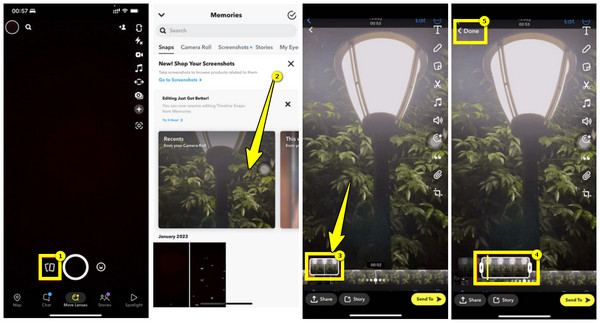
Step 3Following that, use the left-right handles to select the portion of the snap video you wish to keep. When you’re done, tap the "Done" button to apply the trimming; then, you can share it with your friends, post it on your story, or save it.
Steps to Record and Then Trim Snapchat Videos
Another effective solution to trim Snapchat videos is to cut them right after recording them. Whether you want a quick update for your friends or to share a creative story, recording a video takes just a few seconds. Without needing third-party apps, Snapchat allows you to trim videos directly after recording, giving you complete control over what the final result will look like. No more awkward silence or extra parts to be posted!
Follow the steps below on how to record and then trim Snapchat videos directly:
Step 1Once you have opened the Snapchat app on your mobile screen, if ready, press and hold the "Record" button in the middle to capture your new Snapchat video.
Step 2After a while, click the "Add More" button (Plus icon) on the lower left side, then tap the thumbnail below to see it ultimately.
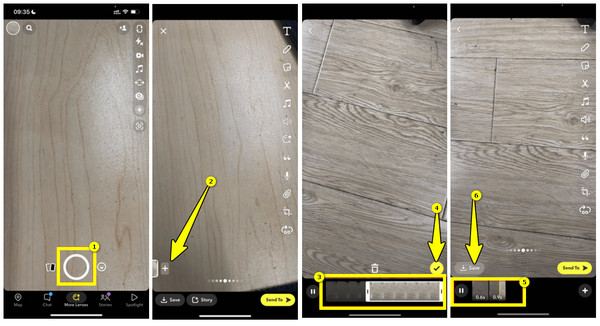
Step 3Now, drag the left-right handles to determine which part of the snap video to keep. Once everything is finished, tap the "Check" button. Snapchat will let you add more recordings to be posted by clicking the "Add More" button; trim it as well as you wish.
You can save the trimmed video, post it on your story, and share it with your friends.
How to Trim A Snapchat Video for Longer Than 10 Seconds
Not to mention that Snapchat’s default length for snaps is limited to 10 seconds, so trimming longer than 10 seconds can sometimes be a challenge. So, why not trim Snapchat videos using a straightforward yet sophisticated video editing tool like 4Easysoft Total Video Converter? This strong Windows and Mac video editor can assist you in trimming longer Snapchat videos with its extensive video editing features. Whether you wish for a perfect length, rotate, crop, add effects, add subtitles, and more, or convert your video to another format, this program can do it all without sacrificing the original video quality. It also has a preview function, letting you see every change in real-time.

Has the ability to trim Snapchat videos, regardless of the length, with great ease.
Many presets and formast are covered; compatibility with all devices and platforms.
Can adjust video brightness, contrast, saturation, and so forth.
Ensures quick processing without affecting the original quality of the snaps.
100% Secure
100% Secure
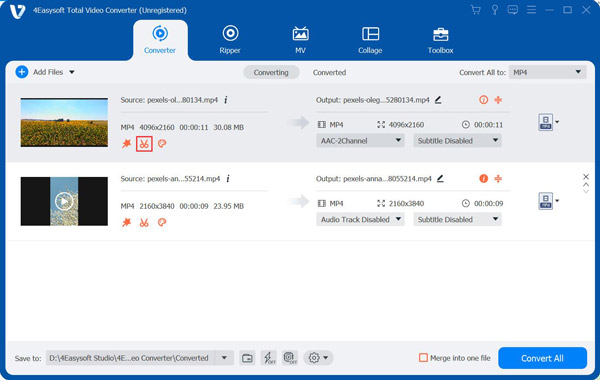
Step 1Start off the operation by launching the 4Easysoft Total Video Converter. Then, upload the Snapchat video you wish to trim by clicking the "Add Files" button; locate the "Trim" button (Scissors icon) below the added video, and click on it.
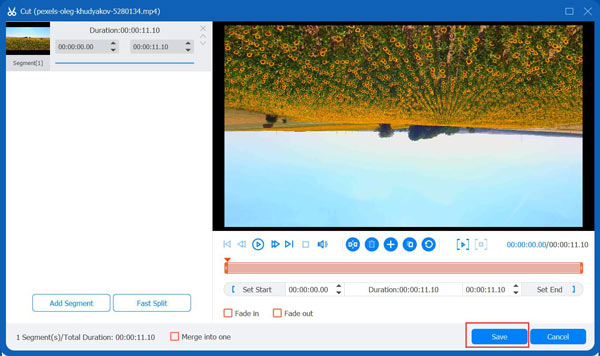
Step 2From the trimming window, drag the clipper on the progress bar below the Snapchat video to get rid of the extra parts. All those parts inside of the red square will be kept.
Alternatively, you can navigate the "Start" and "End" buttons below to set the start/end time yourself. You may create a new clip by clicking the "Add Segment" button.
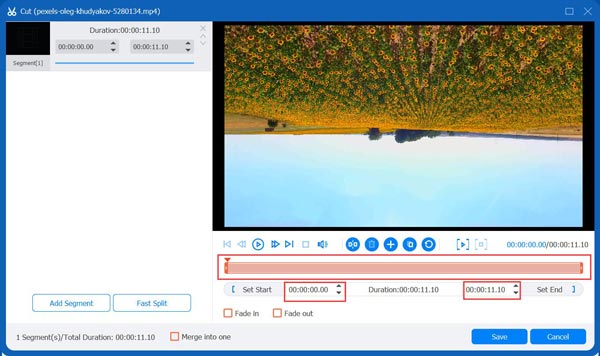
Step 3On the right window pane, you’ll see the preview of the trimmed Snapchat video. You can play it first to see if you got everything according to your liking. If satisfied, click the "Save" button.
Here, on the main interface, you can pick your desired format, set a name and location for your file, and then you’re ready to click the "Convert All" button.
Conclusion
To put it in a nutshell, getting to know how to trim Snapchat video is a great way to enhance your content. Whatever your reason is, like shortening clips, removing extra footage, or more, you've seen here how to easily trim Snapchat videos from Memories and trim directly after recording. However, if you want precise control over your snaps, use the 4Easysoft Total Video Converter. Trim, convert, and enhance your Snapchat videos here effortlessly. With its editing tools, enhancement features, customizable options, and more, it is an excellent choice for elevating your video editing game!
100% Secure
100% Secure
