
Reliable video converter, editor, and compressor for daily tasks.
How to Stabilize and Fix Shaky GoPro Videos with High Quality

Posted by Aira Lesly Escoto to Edit Video/Audio Dec 01, 2025
GoPro cameras are the perfect tool for capturing adventurous moments, but shaky footage can ruin even the most spectacular shots. Whether you're running, skiing, or simply walking, camera shake can render your videos unusable. This article will show you how to fix shaky GoPro videos through post-processing and pre-shooting settings, ensuring your adventure memories always remain smooth and stable.
Guide List
What causes GoPro video shake? Fix Shaky GoPro Video Using Professional Yet Simple Methods Use Popular Premiere Pro to Fix GoPro Video Shake iOS Users Fix Shaky GoPro Videos with iMovie Use the Official Quik App to Stabilize your GoPro VideosWhat causes GoPro video shake?
Insufficient Stabilization
If HyperSmooth is disabled or set to a lower level, the camera won’t compensate enough for motion, resulting in a shakier video.
Mount Instability
Loose mounts, worn-out accessories, or flexible mounts (like chest straps or selfie sticks) can transfer vibrations directly to the camera.
High-Vibration Environments
Activities such as biking on rough trails, riding motorcycles, or mounting the camera on vehicles cause constant micro-vibrations that appear as jitter in videos.
Wind and Speed
High-speed movement creates wind resistance that can shake the camera, especially when mounted externally or on a lightweight accessory.
Low Light Conditions
In dark environments, the GoPro uses slower shutter speeds, which amplifies motion blur and makes any shake more noticeable.
Fix Shaky GoPro Video Using Professional Yet Simple Methods
If your GoPro footage suffers from severe shaking, you can use 4Easysoft Total Video Converter to stabilize it. This comprehensive video editing tool not only converts formats but also offers powerful stabilization features specifically optimized for GoPro shakiness. Supporting over 600 video formats and resolutions, it seamlessly handles GoPro footage across all resolutions.

The built-in video stabilizer effectively eliminates shaky footage, delivering smoother, more stable visuals.
Stabilized videos retain their original quality without loss of resolution or detail.
Supports batch processing of multiple video files, significantly boosting workflow efficiency.
Multiple editing tools facilitate further video trimming and special effects application.
100% Secure
100% Secure
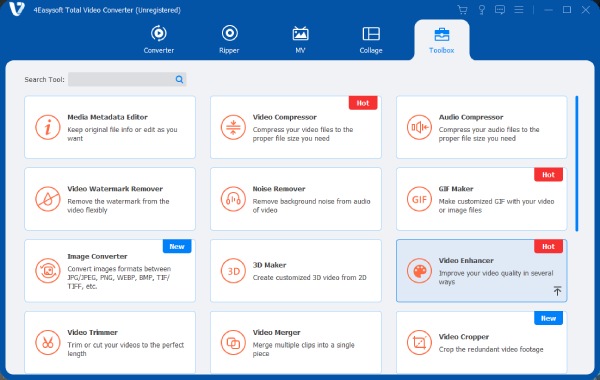
Step 1Launch the software, click "Toolbox" in the top menu bar, then choose "Video Enhancer" to enter the enhancement window.
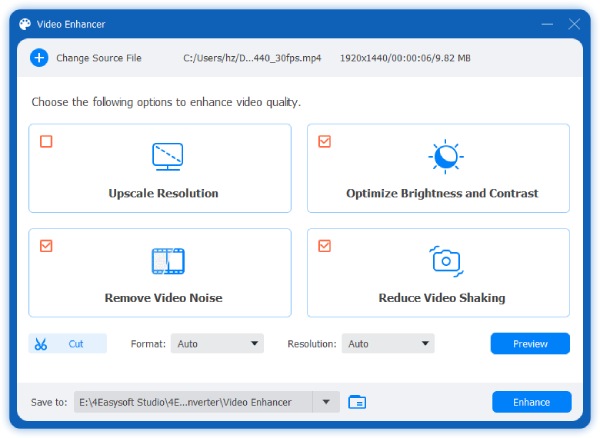
Step 2Then click "Add Files" to import your shaky GoPro video. Check the "Reduce Video Shake" option and click the "Enhance" button.
Step 3The "Preview" in the lower right corner allows you to preview your GoPro video after stabilization.
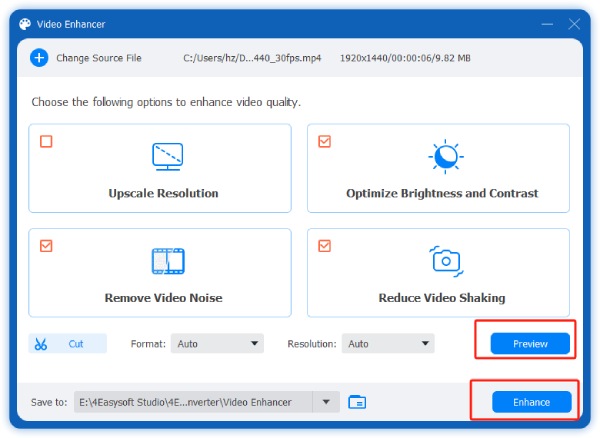
You can click the "Cut" button in the lower left corner to proceed to the next step of trimming and adding clips.
Use Popular Premiere Pro to Fix GoPro Video Shake
As the industry-standard professional Adobe video editing software, Premiere Pro's Warp Stabilizer effect intelligently analyzes motion trajectories within footage to automatically eliminate unwanted shakiness, making it particularly well-suited for processing handheld GoPro footage.
- Pros
- It's pretty popular, with many tutorials available.
- It offers rich features and delivers stable, high-quality results.
- Multiple preset modes and advanced settings ensure smoother video playback.
- Cons
- Not suitable for shooting scenes with apparent depth of field.
- Rendering speed is slow on low-performance computers.
- Parameter settings are too complex for beginners.
Step 1Add the shaky GoPro video to the "Project Panel", right-click to create a new sequence, and drag the shaky footage into the timeline area.
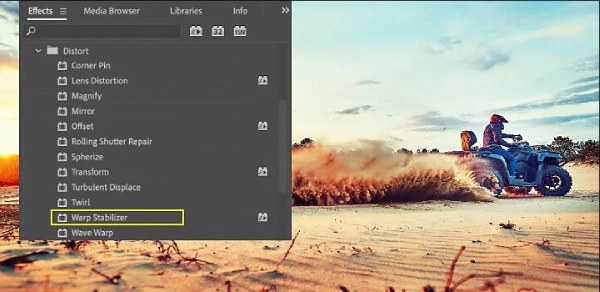
Step 2Go to the "Effects" panel, click "Video Effects", scroll down and find Distort, select "Warp Stabilizer", click and drag it onto the clip.
Step 3Wait for the software to complete the video analysis. If it encounters an unanalyzable situation, you can delete the footage and re-import it.
Step 4After the video analysis repair is complete, click the "File" menu in the upper-left corner to export the GoPro video without shaking.
iOS Users Fix Shaky GoPro Videos with iMovie
iMovie's image stabilization feature reduces camera shake by analyzing and compensating for motion within video clips. This feature also includes a "Correct Rolling Shutter" option that corrects distortion caused by rapid camera panning or recording fast-moving subjects.
- Pros
- Pre-installed on Apple devices, with intuitive functionality.
- A slider allows manual control over stabilization intensity for greater flexibility.
- Cons
- Cropping and zooming may alter the composition.
- The mobile version of iMovie is fully automated and does not support manual fine-tuning.
Step 1After importing the video, click to select the video clip you want to stabilize in the iMovie timeline.
Step 2Click the "Stabilization effect" in the "Adjustments" bar, then select the "Stabilize Shaky Footage" checkbox. iMovie will automatically analyze and process the clip.
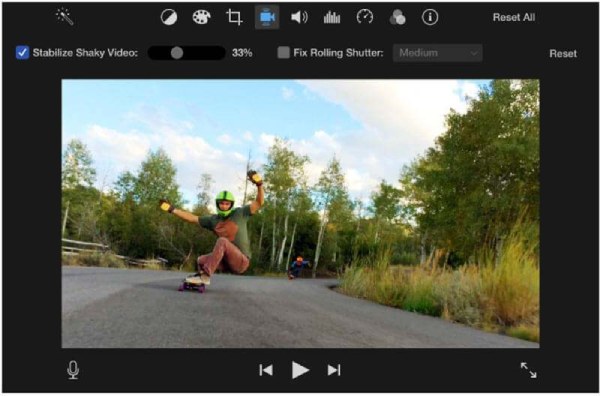
Step 3After completion, you can adjust the stabilization level applied to the clip by dragging the "Stabilize Shaky Footage" slider.
Step 4Finally, play back the processed clip to see if the stabilization effect meets your expectations.
Use the Official Quik App to Stabilize your GoPro Videos
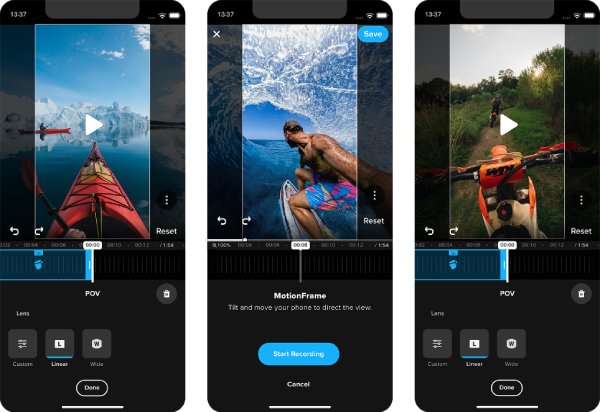
GoPro Quik's stabilization feature leverages GoPro's HyperSmooth technology to correct shakes and jitters in footage during post-production automatically. After importing your clips, Quik intelligently analyzes the motion trajectory of each frame. Using stabilization algorithms, it smooths out footage and reduces shakes caused by handheld or action shooting. This makes your videos appear steadier and more fluid. The entire process requires no manual adjustments, making it extremely user-friendly even for beginners.
Conclusion
Fixing shaky GoPro footage isn't complicated; it all comes down to choosing the right tools and mastering the proper techniques. By combining pre-shooting stabilization measures with professional software like 4Easysoft Total Video Converter, you can effortlessly fix shake from your GoPro videos with a single click, delivering smooth, stunning footage.
100% Secure
100% Secure
