
Convert video and audio to 1000+ formats and devices with high quality and fast speed.
How to Convert MPG to MP4 Fluently to Get Higher Quality

Posted by Aira Lesly Escoto to Convert Video Feb 06, 2026
MPG is a format compressed using MPEG-1, MPEG-2, or MPEG-4, but these compression formats are now less supported, and MPG offers relatively low compression efficiency. Therefore, playing MPG on modern devices requires conversion to MP4. The six methods recommended in this article allow you to convert MPG to MP4 across multiple devices. Continue reading to start converting your MPG files.
Guide List
The Best Way to Convert MPG to MP4 on PC/Mac Easily 2 Methods to Freely Convert MPG to MP4 Formats Online How to Convert MPG to MP4 with VLC Player Convert MPG to MP4 on Mac with iMovieThe Best Way to Convert MPG to MP4 on PC/Mac Easily
If you lack experience in this area but want to quickly convert MPG files to MP4, 4Easysoft Total Video Converter is the best video converter you need on your Windows/Mac device. This video converter completes conversions with just a few clicks. Additionally, the tool supports batch conversion with no file size restrictions. With hardware acceleration, it reduces CPU usage. Converting multiple files at once remains 50 times faster than ordinary software.
Convert MPG to MP4 and 1000+ other formats on Windows and Mac.
Support batch conversion with no file size limitation.
50x faster conversion speed with hardware acceleration.
Built-in editing tools to crop, rotate, and enhance videos before exporting.
100% Secure
100% Secure
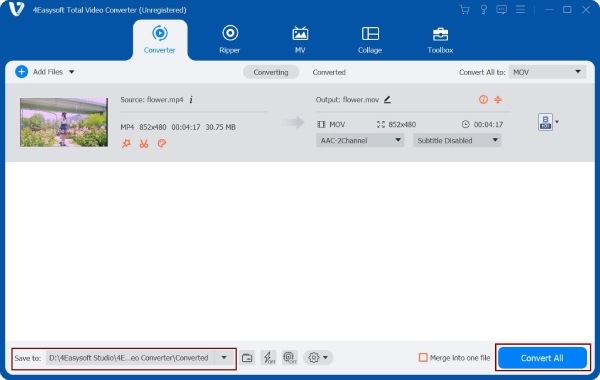
Step 1Run the 4Easysoft Total Video Converter on your Windows/Mac. After that, click the Add Files button or drag your video to upload MPG files to the software.
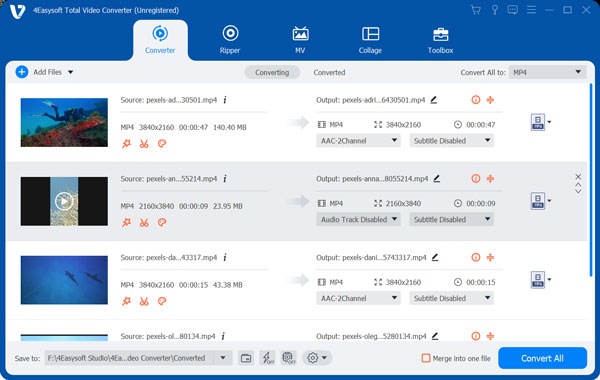
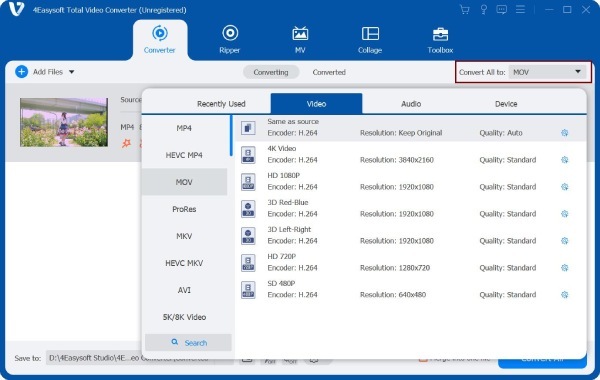
Step 2Next, click the "Convert All to" button; a new window will appear on the screen. Go to the "Video" section, then select the MP4 format.
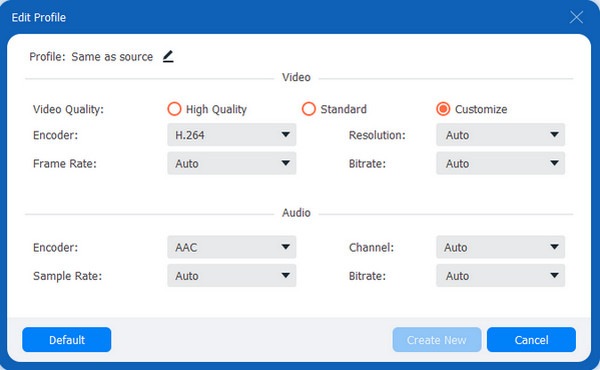
Step 3If you wish to maintain video quality, click the button at the end of the selected format. You can then modify the encoder, frame rate, etc, in the new window. Once finished, click the "Create New Video" button.
Step 4Finally, you can now save your converted files. But first, click the "Save to" button to choose a file location. After that, click the "Convert All" button to convert MPG to MP4 successfully.
100% Secure
100% Secure
2 Methods to Freely Convert MPG to MP4 Formats Online
In addition to the powerful video converters mentioned above, you may also consider using a free online MPG to MP4 converter. However, please note that online converters typically offer limited format support and fewer features.
1. Convertio
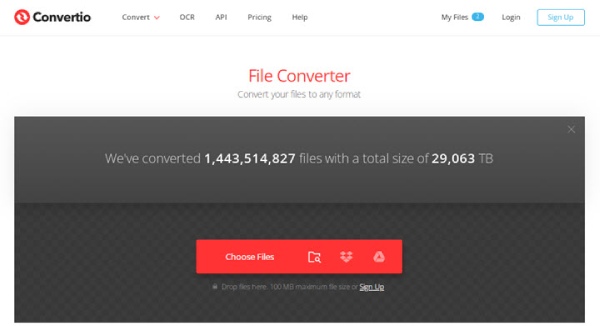
Convertio makes converting MPG to MP4 online simple and flexible, offering a fully browser-based conversion experience accessible across devices. Users can customize parameters like encoders and resolution via the gear icon before conversion, with SSL encryption ensuring the privacy and security of uploaded content throughout the process.
Step 1Open the Convertio official website and upload the MPG video file from your device. Select MP4 as the target format.
Step 2Configure the relevant video parameters. Then click "Convert" to begin. Afterward, download the MP4 file via your web browser.
2. Zamzar
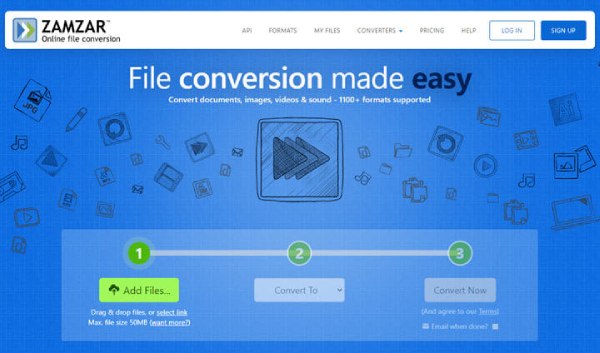
Zamzar is a popular online MPG to MP4 converter. With its simple drag-and-drop operation, even beginners can easily convert MPG files to MP4 format. You simply need to set the desired format. Additionally, it supports over 1,100 different file formats. However, for users who want complete control over video settings and further trimming capabilities, it may be too basic.
Step 1Open the ZamZar official website. Choose MPG files from your device. Wait for it to upload and then choose MP4 as the target format.
Step 2Click Converter Now and save the MP4 when it completes the conversion.
How to Convert MPG to MP4 with VLC Player
VLC's advantage in converting MPG to MP4 lies in its being completely free, open-source, and format-agnostic. It features built-in encoders like H.264 and H.265 for local transcoding, ensuring privacy and security, so it can also convert MP3 to MP4 or other formats. Additionally, VLC supports basic parameter adjustments such as resolution and bitrate. However, it lacks other editing features and operates at a relatively slower conversion speed.
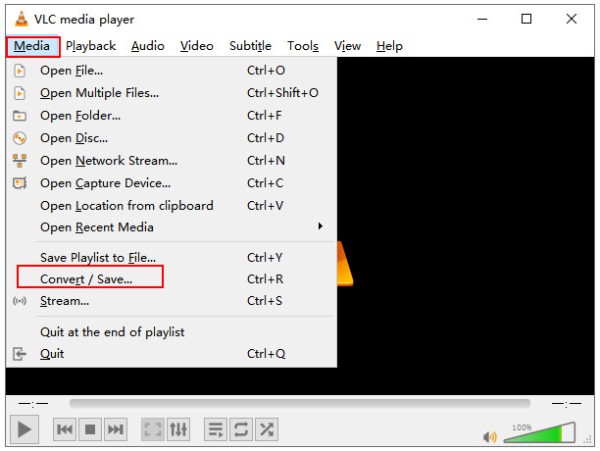
Step 1Open VLC. Click "Media" and find "Convert/Save". Click the "Add" button to load an MPG video from your computer to VLC. Click the "Convert" button.
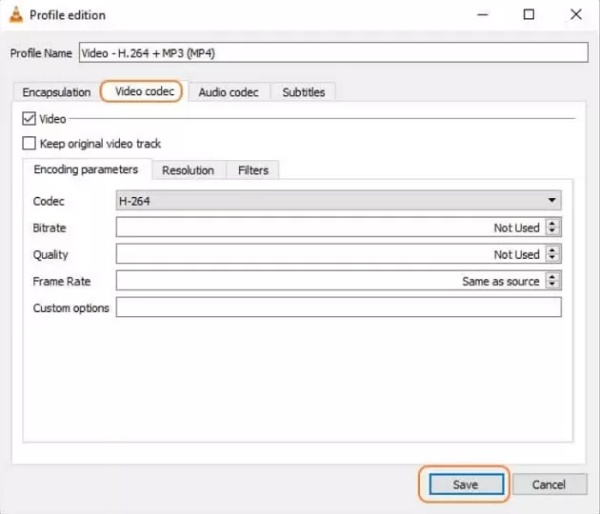
Step 2Expand the drop-down menu of Profile and select Video – H.264 + MP3 (MP4). If you need MP4 with other codecs, click the wrench icon and set it up manually.
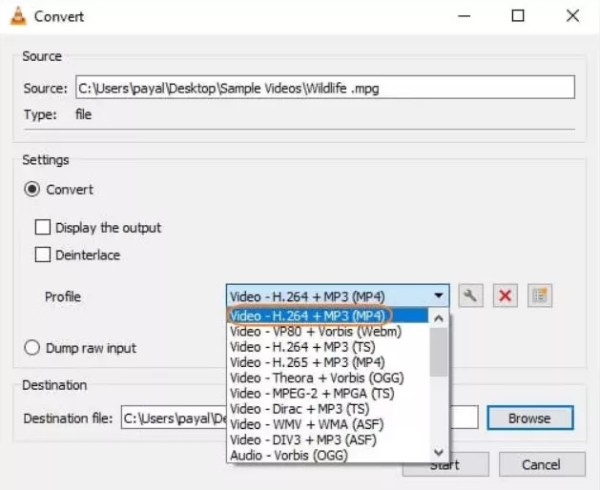
Step 3Choose a destination and give the final file a name. Hit "Save" to convert MPG to MP4.
Convert MPG to MP4 on Mac with iMovie
iMovie integrates Apple's complete video editing and output workflow: not only can it handle editing tasks like trimming, transitions, and color grading, but it also directly outputs MP4 files optimized for web and device playback via the "Share/Export" feature. It offers selectable output specifications, including 720p, 1080p, or 4K resolution.
Step 1Launch iMovie on your Mac. Click "Create a New Project" in it. Import an MPG video to its media bin and add it to the timeline.
If you add multiple MPG files to the timeline, iMovie will merge them into one file. So just import one by one.
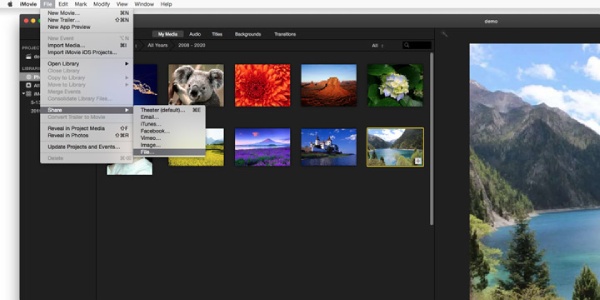
Step 2Click the "Share" button in the top right corner and select "Export File". Select MP4 as the target format and hit "Next". Input a file name and start to export.
Conclusion
So you know how to use these five ways to convert MPG to MP4 on Windows, Mac, and online. These video converters can handle the majority of your file conversion needs. However, to get more editing functions and high quality, we strongly advise you to use 4Easysoft Total Video Converter to convert MPG to MP4 files without losing too much quality.
100% Secure
100% Secure
