
Reliable video converter, editor, and compressor for daily tasks.
Compress MOV: 5 Ways to Reduce Video File Size from GB to KB

Posted by Aira Lesly Escoto to Compress Video Dec 10, 2025
MOV files often come with large file sizes. Whether it is for email, social media, or editing, the need to compress MOV becomes essential. Fortunately, you have several powerful tools here, from desktop to online tools, making the compression quick, easy, and efficient. Scroll down here to see five of the best tools to reduce MOV video file size, highlighting what makes each one perfect for different needs.
Guide List
Compress MOV with Functional Video Editor with Little Data Loss Use QuickTime Player to Reduce MOV Size on Mac Compress MOV on iPhone and iPad with iMovie FreeConvert - Fast Online MOV Compressor VEED.IO - MOV Compressor with Video Editing ToolsCompress MOV with Functional Video Editor with Little Data Loss
If you are aiming to compress .mov files without sacrificing too much detail, 4Easysoft Total Video Converter is the best choice, a direct and beginner-friendly method. This simple yet powerful tool has a Video Compressor to make MOV compression effortless for anyone. Here, you can select your desired output format, bitrate, and resolution, so you can carefully lessen file size while maintaining as excellent a visual clarity as possible. Instead of looking for multiple workflows, rely on this program to have a consistent, high-quality MOV compression with little effort.

Advanced compression technology to preserve MOV video clarity.
Supports batch compression to process several files at once
Allows you to preview the output before finalizing the compression.
Detailed controls for fine-tuning the balance between the size and quality.
100% Secure
100% Secure
Step 1Launch 4Easysoft Total Video Converter, then click the "Toolbox" tab at the top of the screen. From the list of available tools, choose the "Video Compressor" to start refining your MOV file.
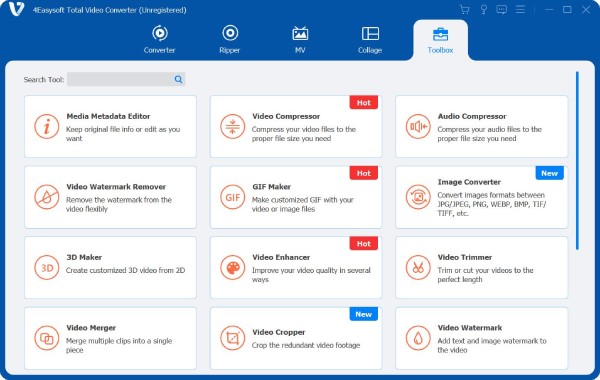
Step 2Upload the MOV video you wish to compress by clicking the "Add" button in the center. Adjust the file size using the slider or the arrow controls as needed.
Also, modify the format, bitrate, and resolution to optimize compression. Use the "Preview" button to check the output and ensure minimal data loss.
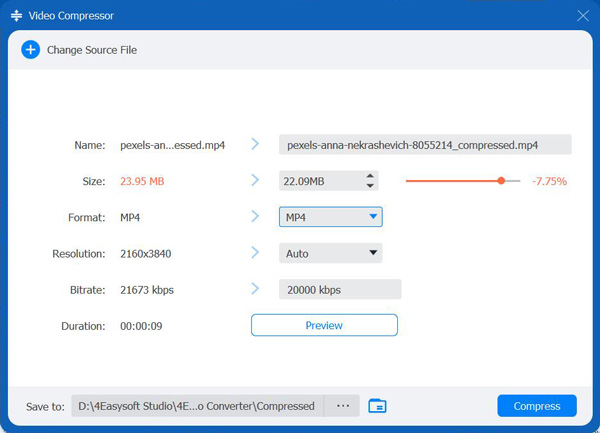
Step 3Enter your desired file name, choose the output location, and click the "Compress" button when satisfied with the preview. The program will quickly compress large MOV files with preserved clarity.
100% Secure
100% Secure
Use QuickTime Player to Reduce MOV Size on Mac
QuickTime is a built-in macOS player that can be used as a reliable, lightweight tool to shrink MOV files. It is famous for its clean interface and stable performance, making it easy for anyone to make MOV files smaller. Also, its direct integration with Mac makes the process smooth and has a consistent quality output.
Step 1Open QuickTime Player on your Mac.
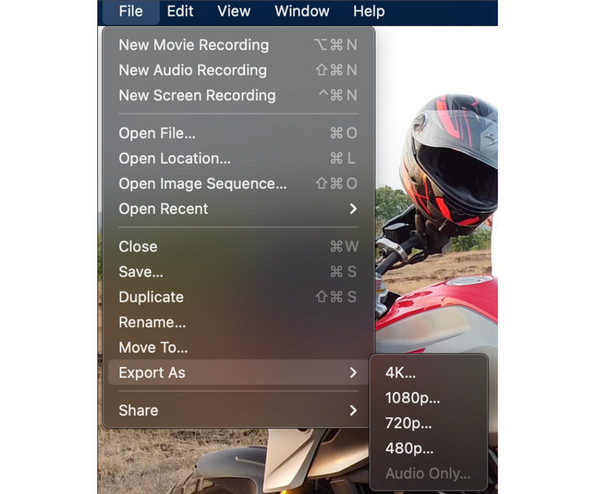
Step 2Head to the "File" menu and click "Open File", then select your MOV video to import.
Step 3Once it is loaded, click the "File" menu again, select "Export As", then pick a lower resolution, like "720p" to reduce the size.
Step 4Choose a location and click the "Save" button.
Compress MOV on iPhone and iPad with iMovie
Moving on to mobile solutions, iMovie for iOS can help you compress MOV files on your iPhone directly. This app offers a sleek, intuitive interface where you can enhance your video by trimming, editing, and compressing. It also has full compatibility with iCloud, letting you manage your videos seamlessly across iOS devices.
Step 1Launch iMovie on your iOS device.
Step 2Tap "Create Project", then choose "Movie" and import your MOV video file.
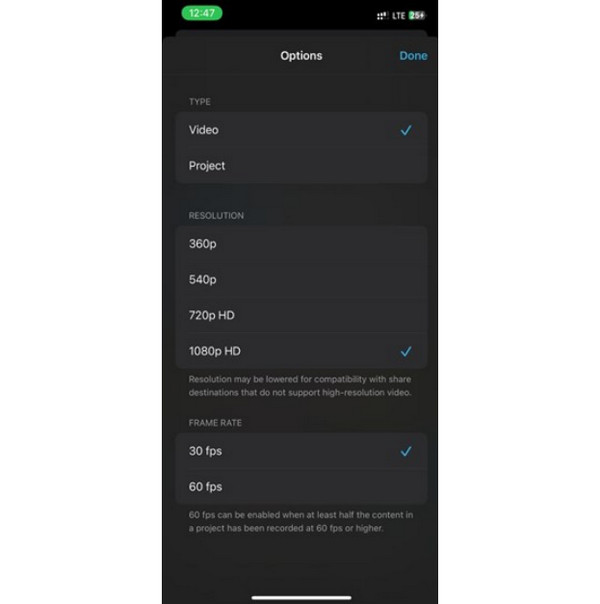
Step 3Next, tap the "Share" icon in the corner, select "Save Video", then choose a lower resolution from the options.
Step 4Wait for it to complete and check the video in your library.
FreeConvert - Fast Online MOV Compressor
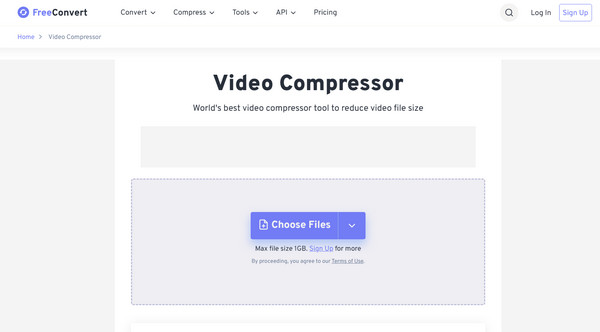
A straightforward and efficient online video compressor, FreeConvert can help you compress MOV files. It stands out for its batch processing, letting you reduce the size of multiple videos at once. It also has customizable compression settings so you can get the settings you want.
Step 1Search for the FreeConvert MOV Compressor page.
Step 2Click the "Choose Files" button and upload your MOV video.
Step 3Adjust settings like target size, resolution, or codec.
Step 4Click the "Compress Now" button to begin the process.
VEED.IO - MOV Compressor with Video Editing Tools
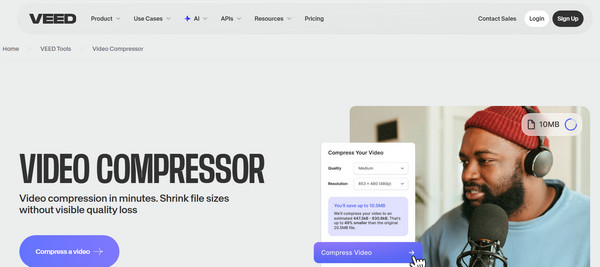
Another online solution for you is VEED.IO. It is a web-based video editor that also functions to assist you in compressing MOV. With this, you can preview and use adjustment options to fine-tune resolution, format, and bitrate while double-checking it before finalizing the compression.
Step 1Visit the VEED.IO Video Compressor page.
Step 2There, upload by clicking the "Choose Video" button or dragging it into the window.
Step 3Start adjusting the compression settings, then click the "Compress Video" button.
Step 4Download the compressed video once it is done.
Conclusion
To save storage space, speed up uploads, and share more videos easily, compressing MOV videos while keeping a good video quality is essential. With the five tools covered, each has unique advantages that match your workflow. For users who wish for an all-in-one solution, 4Easysoft Total Video Converter is your best choice to reduce MOV file size. Using its Video Compressor, you can fine-tune every aspect of your MOV files, like format, resolution, and bitrate, with minimal loss in quality and minimal effort, getting your files ready for any platform.
100% Secure
100% Secure
