
Back up and restore iPhone/iPad/iPod data selectively and safely without data loss.
Apps and Data Screen - Here's How to Find It and More

Posted by Alvin Cantero to iOS Backup&Restore Mar 05, 2026
Usually a seamless "Hello" greeting, but sometimes the Apps & Data screen can feel like one second and gone the next. Whether you want to restore data on an old iPhone or start a brand-new iPhone 17, finding how to get to that menu screen is crucial for getting your settings back. Fortunately, this guide will show you exactly how to trigger the Apps and Data screen on every generation of iPhone, and a secret to restore your precious backup without seeing the setup screen again.
Guide List
How to Get Apps and Data Screen on An Old iPhone Where are Apps and Data Screen on iPhone 18 Pro/17 How to Navigate to Apps and Data Screen after Setup? Restore iPhone Backup without The Apps and Data ScreenHow to Get Apps and Data Screen on An Old iPhone
To start, treat your old iPhone like a brand-new one and clear it out to make a fresh start. You need to go through the "Hello" setup phase and then see the Apps and Data screen. Once you read the white screen, you are just a few taps away from restoring your old memories from your iPhone.
Step 1Launch "Settings", tap "General", scroll down, and select "Reset". There, tap "Erase All Content and Settings".
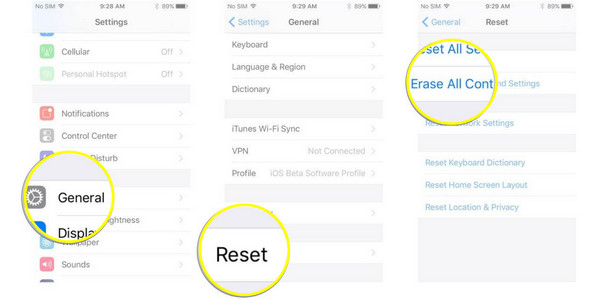
Step 2Once done with the prompts, the phone will restart. Go through the "Hello" screens until you reach the "Apps & Data" screen.
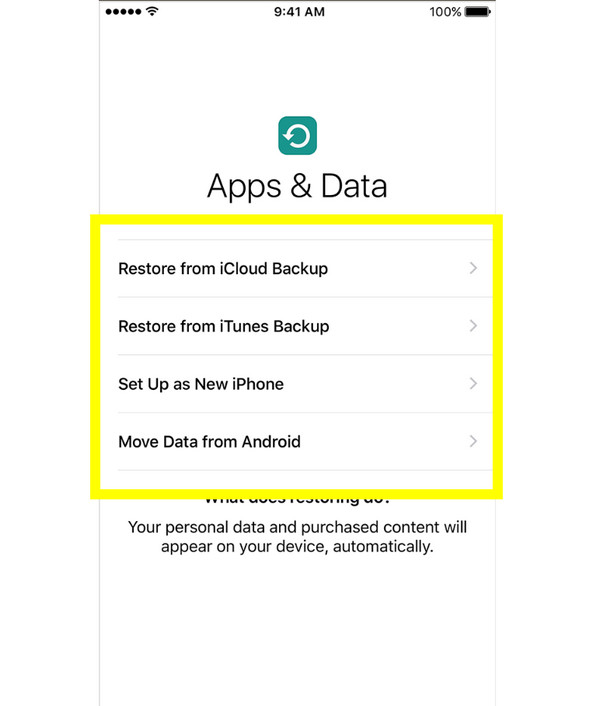
Where are Apps and Data Screen on iPhone 18 Pro/17?
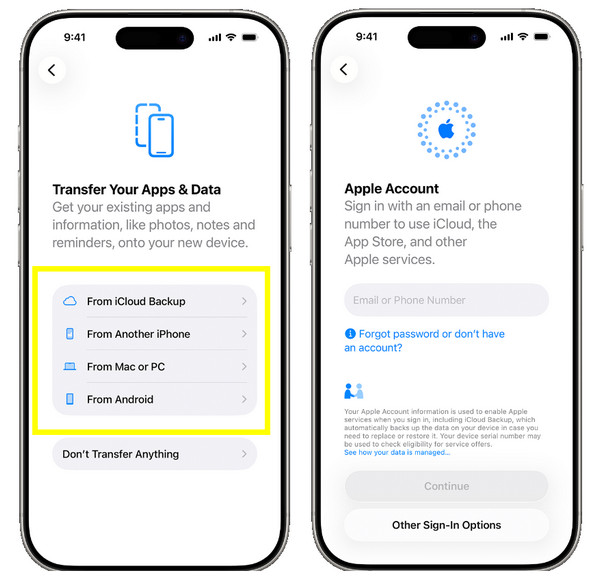
Moving on to the latest models, such as iPhone 17, 16, and 15, the Apps and Data screen may look different, but it remains the same. On these latest devices, the screen may be labeled as "Transfer Your Apps & Data" to indicate how you use iCloud and Quick Start today. After you get the "Hello" greeting, set up the Wi-Fi connection and Face ID (Forget Face ID? You can unlock iPhone without face ID or password here.) during initial activation, and the screen will appear immediately.
With these newer iPhone models, you can find your old phone automatically on the screen, often bypassing the need for manual clicking if both devices are nearby. It is the place where you decide whether you're moving in from an Android device or staying in the Apple ecosystem, showing you the following options:
How to Navigate to Apps and Data Screen after Setup?
Now, in this situation, where you have already finished setting up your iPhone, it can be a bit frustrating since iOS does not have a simple button to go back to that menu. The only official way is to perform a factory reset, just as you did with your old iPhone. Before proceeding, remember to back up anything new you have created. Here's how to go back to the Apps and Data screen:
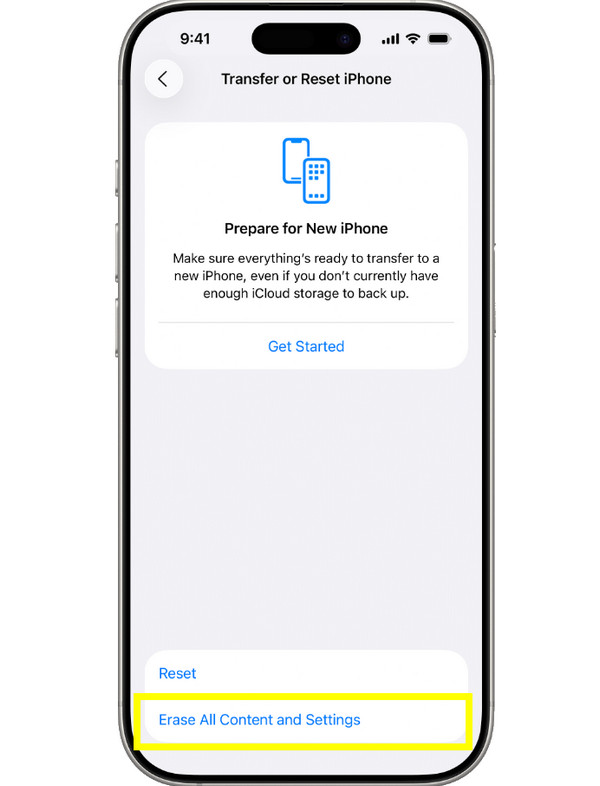
Step 1Go to "Settings", then tap "General", then select "Transfer or Reset iPhone". Tap "Erase All Content and Settings" and confirm it by entering your passcode.
Step 2Once you see the "Hello" screen, swipe up and choose your "Language" and "Country". Connect to a Wi-Fi network and complete the prompts to set up Face ID and reach the Apps & Data screen.
Step 3Here, start choosing your restore method, like Restore from iCloud Backup (solutions to fix iCloud backup not working), from Mac or PC, etc. Wait for the process to complete, and you'll get back to your iPhone again.
Restore iPhone Backup without The Apps and Data Screen
Want to avoid the headache of wiping out your entire phone and get through the Apps and Data screen just to get all your files back? Then, you might be looking for 4Easysoft iOS Data Backup and Restore. This program serves as the bridge, letting you handle all your iPhone data with precision. Besides recovering your photos, videos, contacts, and more data, it gives you the freedom to preview your files before finalizing the restoration, saving you a considerable amount of time. Instead of doing a complete system wipe, you can simply connect your iPhone and pick up where you left off, keeping your digital life organized and safe.
Easily restore videos, photos, contacts, and more without a full system restore.
Works seamlessly across every iPhone model and recent iOS updates.
High-speed, secure scan that finds all lost data without affecting other files.
Preview deleted files first to choose specifically which files to recover.
100% Secure
100% Secure
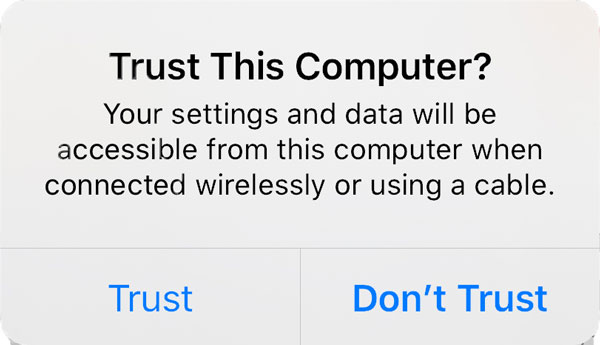
Step 1First, launch 4Easysoft iOS Data Backup and Restore on your computer, then pair your iPhone with it via a compatible USB cable. With the notification appearing on your phone, tap "Trust" to establish a secure connection between the two devices.
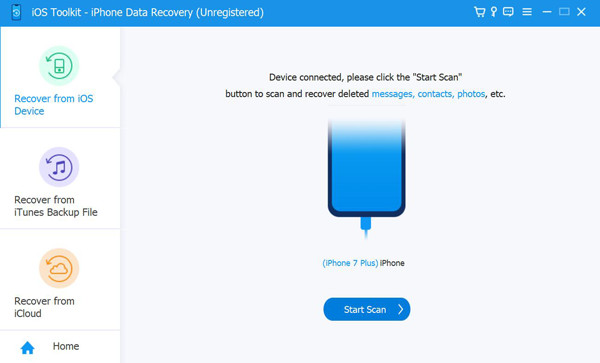
Step 2Select the "Recover from iOS Device" module and click the "Start Scan" button. This will start a deep search through your phone's memory to locate deleted videos, pictures, and other files that are not visible in your library.
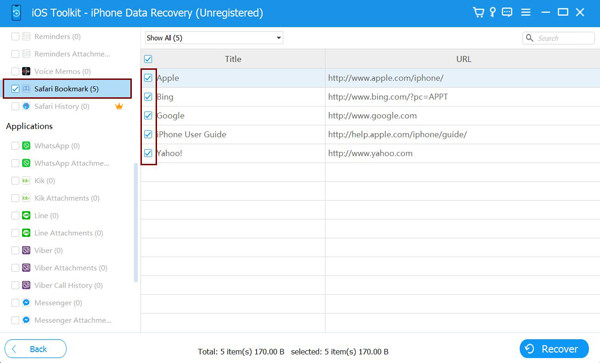
Step 3Once the scan is complete, browse the organized categories and select the data you want to restore, such as Videos, Photos, Contacts, etc. Then, tick the boxes for the specific items, and click the "Recover" button to export them to your computer.
Conclusion
Getting to the iPhone Apps & Data screen is a way to personalize your device, whether it's an old or new iPhone, but it shouldn't be a headache. Following the steps above ensures that your photos, messages, and settings are exactly where they belong. For a smoother data restoration experience that does not require a factory reset, 4Easysoft iOS Data Backup and Restore is highly recommended. Unlike the setup process, this tool lets you selectively back up and restore data with just a few clicks, while keeping other data safe. Take this easy route and keep your data secure today!
100% Secure
100% Secure
