
Compress videos from GB to MB and keep its original quality with the AI technology
6 Ways to Convert M4A to MP4: Turn Audio to Video

Posted by Aira Lesly Escoto to Convert Video Jan 23, 2026
Although M4A is a widely used format for music and recordings from Apple devices, it often does not work correctly with all players, editing software, or sharing platforms. So, converting M4A to MP4 makes it more flexible and easier to share. Luckily, several trustworthy tools are dependable for quick and convenient conversion. This guide shares six ways to convert M4A to MP4 music video, from desktop to online options, to choose the best one for your needs.
| Method | Platform | Output Quality | Custom Settings | Speed |
| 4Easysoft Total Video Converter | Windows, Mac | High-quality, lossless | Yes | Very fast |
| iTunes | Mac | Good | Yes, limited | Medium |
| VLC Media Player | Windows, Mac, Linux | Good | Yes, basic | Medium |
| FreeConvert | Online | Good | Yes | Medium |
| Zamzar | Online | Standard | No | fast |
| CloudConvert | Online | High | Yes | Medium |
The Best Choice to Convert M4A to MP4
There are many tools you can use to convert M4A to MP4 format, but not all of them have the same level of output quality. So, for a flexible solution and clean and reliable results, use 4Easysoft Total Video Converter. This program goes beyond just format conversion with a variety of audio and video formats, including MP4, M4A, MP4, WAV, AVI, MKV, and so on. Plus, it lets you adjust output settings such as bitrate, codec, and container format, giving you better control over what the final MP4 file will be like. Whether you wish to convert a single audio track or multiple files at once, the process remains smooth and efficient.

Preserves excellent audio quality when converting M4A to MP4 and other files.
Extract audio from video to MP3, M4A, and other popular formats.
Adjustable output settings for bitrate, codec, format, and others.
Supports batch conversion for processing multiple M4A files at once.
100% Secure
100% Secure
Step 1Open 4Easysoft Total Video Converter on your computer. Start uploading M4A files by clicking the "Add Files" button or dragging and dropping them into the program to load them.

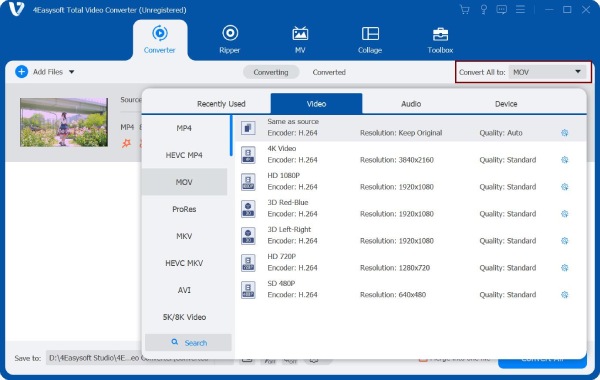
Step 2Click the "Format" dropdown menu to view all available output formats. Then, from the "Video" category, select "MP4" as the target format for your M4A files.
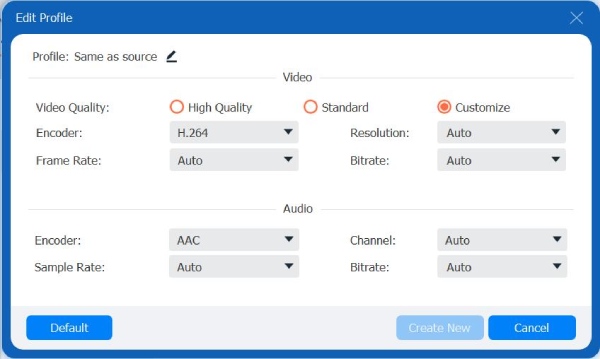
If you want more control over the output, click "Custom Profile" to adjust settings such as audio bitrate, codec, or channel options based on your needs.
Step 3Once you are satisfied with the settings, choose a destination folder and rename your output file if needed. Finally, click the "Convert All" button to export M4A to MP4 videos.

100% Secure
100% Secure
Convert M4A to MP4 Using iTunes for Mac Users
For Mac users who are looking for a built-in solution to save M4A to MP4, iTunes is here. This approach works very well for basic conversions and does not need any extra software installation. However, it lacks deep customization settings, but it is still a convenient choice for quick, simple tasks on macOS.
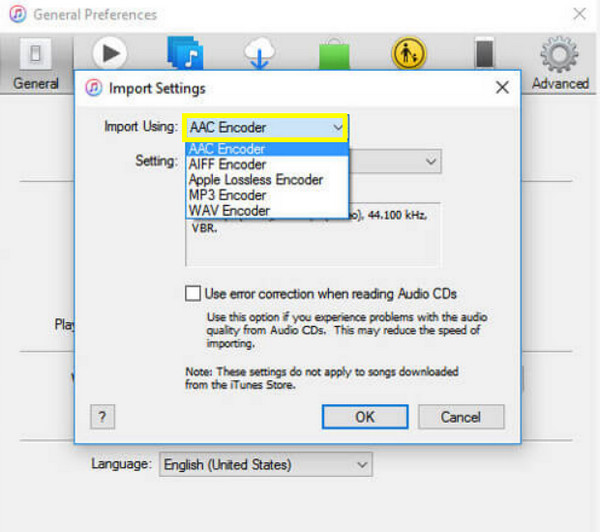
Step 1Open iTunes on your Mac, go to "Preferences", then head to "General" and click on "Import Settings".
Step 2There, select "AAC Encoder" and click "OK".
Step 3Upload your M4A file to the library, right-click on it, and select "Create AAC Version".
Step 4Locate the file in your library for use as an MP4-compatible file.
How to Turn M4A to MP4 with VLC
If you wish for a no-cost and cross-platform option to convert M4A to MP4 with image, VLC Media Player is an excellent choice. Although it works primarily for video playback, it also has basic conversion features, making it great for anyone who already has VLC installed and wishes for simple format changes. Moreover, you can edit MP4 videos with VLC after the conversion.
Step 1Start VLC Media Player on your computer.
Step 2Click on "Media", then "Convert/Save" option, then add your M4A file there. Click the "Convert/Save" button to proceed.
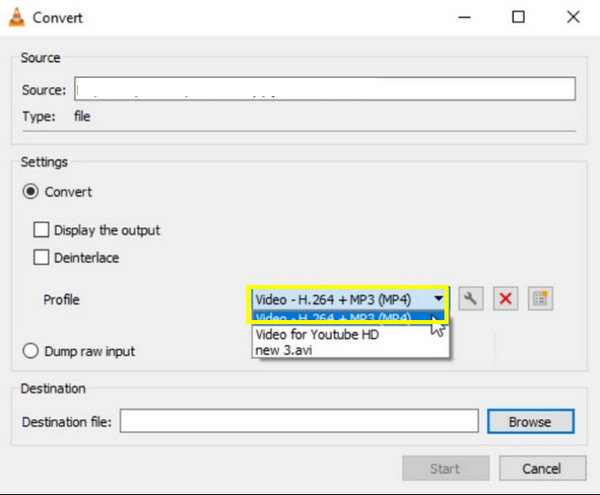
Step 3Under "Profile", select "MP4" as the output format.
Step 4Pick a location folder and rename the output file if needed, then click the "Start" button to start the conversion.
FreeConvert - Convert M4A to MP4 with Custom Output Settings
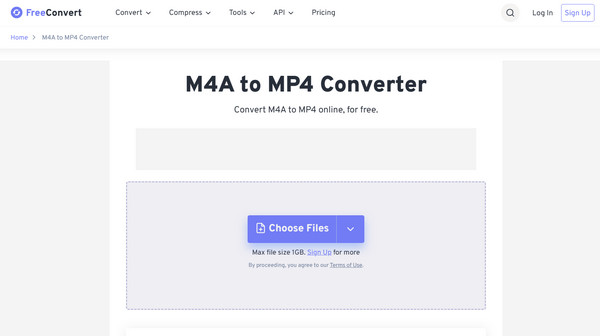
Stands out for its power to customize settings even as an online service, FreeConvert is one of the ideal online M4A to MP4 converters to use. Its clean and friendly interface makes the entire process quick and intuitive.
Step 1Visit the FreeConvert M4A to MP4 converter page in your browser.
Step 2Then, click "Choose Files" and upload your M4A file from your device.
Step 3Make sure to choose "MP4", and adjust settings if needed.
Step 4Click "Convert" and wait for the process to finish.
Zamzar - Fast M4A to MP4 Conversion Online
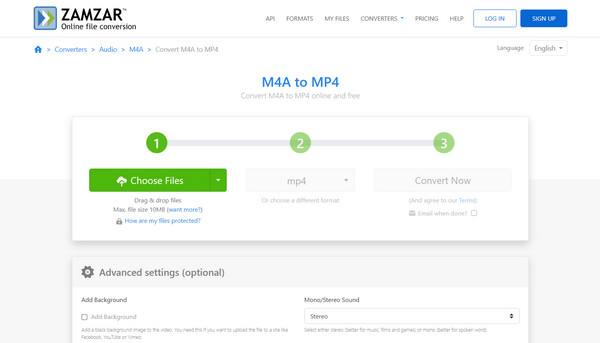
Next is Zamzar, an ideal solution to convert .m4a to .mp4 online for those who want a simple and hands-off process. Among its best features is its email notification, alerting you once the conversion is complete. Use Zamzar to deal with M4A format now!
Step 1Go to Zamzar M4A to MP4 official conversion page.
Step 2Click "Choose Files" to import your M4A file.
Step 3Ensure to select "MP4" as the target format, and optionally, you can enter your email address to get a notification once it is complete.
Step 4Click "Convert Now" to change the .m4a extension to .mp4.
CloudConvert - High-Quality M4A to MP4 Conversion
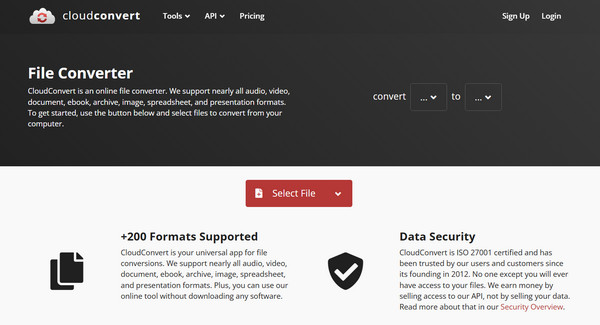
CloudConvert is a top-tier option for offering high-quality output with advanced format control. It covers detailed conversion settings, such as audio codec selection and bitrate adjustments, ensuring clean results when transforming M4A to MP4.
Step 1Navigate to CloudConvert's official page, click on "Select File" to upload your M4A audio from your device, or you may prefer uploading from cloud storage.
Step 2Choose "MP4" as the output format, and click on "Settings" to adjust preferences if desired. Then, click the "Convert" button and wait for the process to finish.
Conclusion
As shown here, converting M4A audio to MP4 video can be done in several ways, from desktop to online solutions. Each tool here holds a practical solution for making your audio files more compatible across many devices and platforms. By understanding what you prefer, you can select the best fit for your workflow. But, for the most reliable and flexible choice, try 4Easysoft Total Video Converter. With its broad format support, fast speed, customizable settings, and batch processing, it is your all-in-one solution for changing M4A to MP4 efficiently.
100% Secure
100% Secure
