
Delete duplicates and free up storage on iPhone flexibly.
How to Erase All Photos on iPhone with 5 Easy Methods

Posted by Alvin Cantero to iOS Cleaner Dec 05, 2025
When faced with thousands of photos in your iPhone's photo library, manually deleting them one by one is not only time-consuming and labor-intensive but also prone to oversights, meaning photos may not truly vanish from your device. Simply erasing photos to the "Recently Deleted" album doesn't permanently erase them—these photos remain stored for 30 days. This article details four methods to completely erase all photos from your iPhone, helping you resolve the issue once and for all.
Guide List
Use a Professional Tool to Erase All Photos on iPhone Batch Delete Photos Through the Photo App on iPhone Delete iPhone Photos at Once on your Mac via iCloud How to View Photos after Deleting Them from your iPhoneUse a Professional Tool to Erase All Photos on iPhone
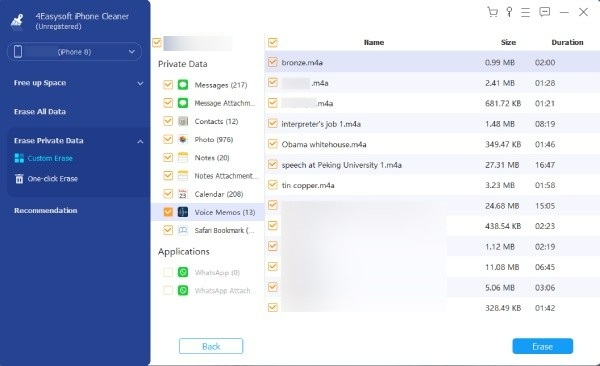
The top recommendation for a tool that thoroughly and efficiently deletes all photos from your iPhone is 4Easysoft iPhone Cleaner. This cleaning tool offers the most comprehensive solution. Using technology that overwrites original data, it ensures deleted photos cannot be recovered. 4Easysoft iPhone Cleaner also cleans other types of redundant data, featuring categorized previews and filters to free up storage space.

Offers low, medium, and high erasure levels to meet diverse cleaning needs.
Supports quick scanning and batch selection of all photos for deletion.
Scans and categorizes all file types, providing previews for easy filtering.
Compatible with all iPhone models, as well as iPad and iPod devices.
100% Secure
100% Secure
Step 1Install and launch 4Easysoft iPhone Cleaner, then connect your iPhone to your computer using a data cable.
Step 2Please turn off Find My iPhone first, then choose "Erase Private Data" mode, click "Custom Erase," and it will begin scanning your iPhone.

Step 3After scanning, you will see all photos and data. Then tap the checkbox next to the photos you want to delete. Finally, click "Erase" to delete them all.
Batch Delete Photos Through the Photo App on iPhone
Using the selection feature in the Photos app, you can directly select all photos and delete them in bulk. This method is simple to use, but note that photos deleted this way will first move to the Recently Deleted album. To permanently delete them, an additional step is required. Furthermore, if iCloud Photos is enabled, deleting photos on one device will also delete the iCloud backup.
Step 1Open the "Photos" app on your iPhone and tap the "All Photos" option at the bottom.
Step 2Tap the "Select" button in the top-right corner, then tap and hold the first photo, swiping down until all photos are selected.
Step 3Tap the trash can in the bottom-right corner. Then tap the "Album" option at the bottom to locate the "Recently Deleted" album.
Step 4Tap "Select" and then tap "Delete All". Finally, confirm the deletion operation.

Delete iPhone Photos at Once on your Mac via iCloud
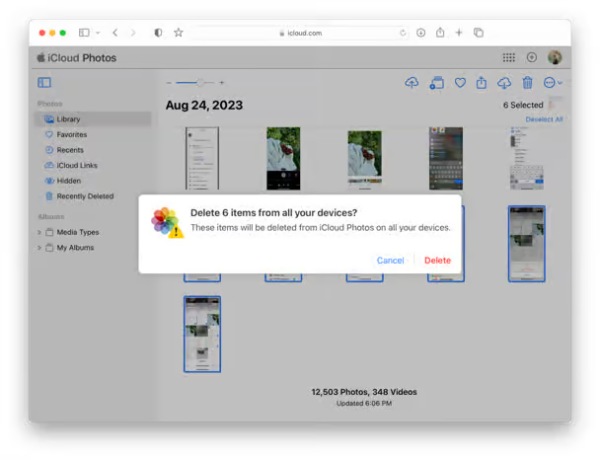
If your photos have already been synced to iCloud, you can manage and delete all iPhone photos directly from your Mac. This method is particularly suitable for users who utilize iCloud Photo Library and wish to free up space on their device while retaining cloud backups.
Step 1Open iCloud.com on your Mac and sign in to your account. Hold down the "Shift" key to select multiple photos for deletion.
Step 2After selecting all photos you wish to delete, tap the trash can button. Confirm the deletion of the images.
Step 3Then, the next time your iPhone syncs with iCloud Photos, these photos will be removed from your device.
How to View Photos after Deleting Them from your iPhone
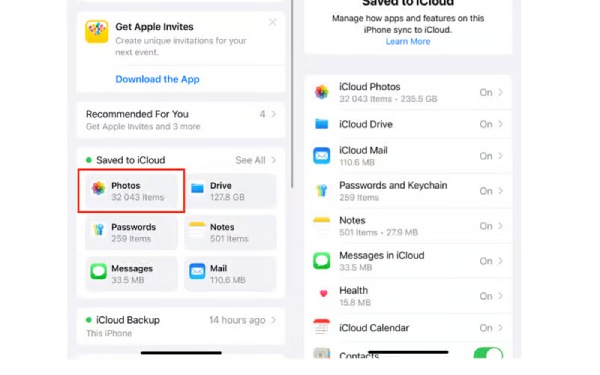
By turning off iCloud Photos, you can choose to remove photos from your iPhone while keeping the originals intact in iCloud. And you can still access them on your phone just as easily as you would in the Photos app.
Step 1Open Settings on your iPhone. Find Photos and turn off iCloud Photos.
Step 2Then open the Photos app and delete any photos you don't need. These photos will remain in iCloud.
Conclusion
When your iPhone storage space runs low again, you can first try to erase photos on iPhone using the system's built-in methods, though this may take considerable time. For more detailed categorization and removal, consider using 4Easysoft iPhone Cleaner. It ensures your old photos are thoroughly and accurately erased. Start using it now to free up storage space on your iPhone.
100% Secure
100% Secure
