

Convert, Edit and Enhance WMV Videos with AI Technology

Convert WMV to MP4 on Windows/Mac: 4 Easy Methods for You

Posted by Aira Lesly Escoto to Convert Video Dec 08, 2022
Since WMV format is incompatible with many digital devices such as Mac computers and mobile phones, you need to convert WMV to MP4 format. WMV stands for Windows Media Video and is a Microsoft-developed video file format. It is the Windows Media Framework's native video format. Moreover, this format offers lossless video compression, which reduces file size while maintaining excellent playing quality. However, converting WMV to MP4, the most extensively used and highly compatible format is the best way to play WMV videos on any device. This article will give you four methods to convert WMV to MP4 on Windows/Mac, and you can pick one according to your needs and preferences!
Guide List
Part 1: The Best Way to Convert WMV to MP4 with High Quality Part 2: Convert WMV to MP4 through VLC on Windows/Mac Part 3: 2 Easy Ways to Convert WMV to MP4 Free Online Part 4: FAQs about Converting WMV to MP4 FilesPart 1: The Best Way to Convert WMV to MP4 with High Quality
Several video converters are available, but 4Easysoft Total Video Converter is the best if you want fast conversion and high-quality output. This software will ensure no loss of quality will happen during the WMV to MP4 conversion. Furthermore, it also offers a high-speed converting method that allows you to convert your films and audio in a matter of seconds. So, get this amazing WMV to MP4 converter for your Windows or Mac.
Convert WMV to MP4 format on Windows 11 and macOS Tahoe without any limitations.
Customize the video settings to keep high quality when exporting.
60X faster speed to change a batch of WMV files to MP4 simultaneously.
Provide additional editing tools to crop, trim, add effects to videos.
100% Secure
100% Secure
Steps to Follow:
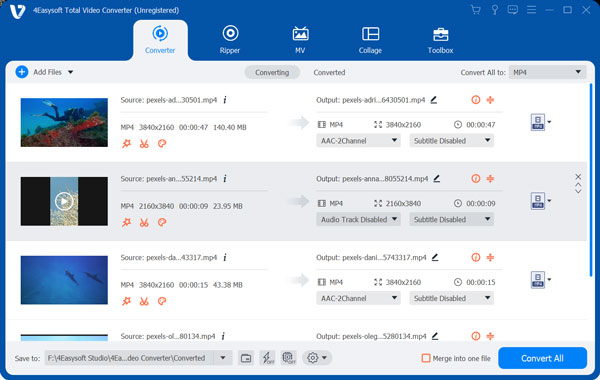
Step 1First and foremost, download and launch the 4Easysoft Total Video Converter on your Windows or Mac. Then, tick the Add Files button to add WMV files to the converter. You can also drag and drop all your files together.
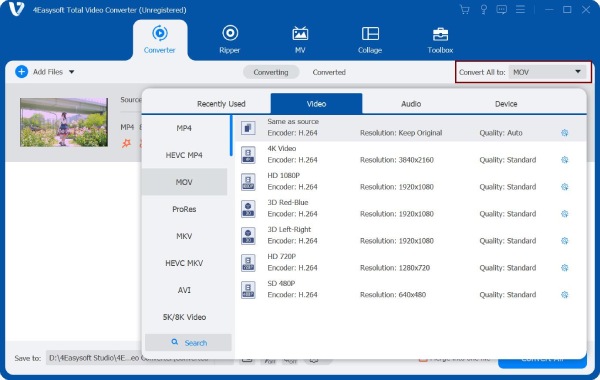
Step 2After that, convert WMV to MP4. On the right side of the screen, tick the Format icon. After that, a new window will appear on your screen. Then, head to the Video section and choose MP4 as the format.
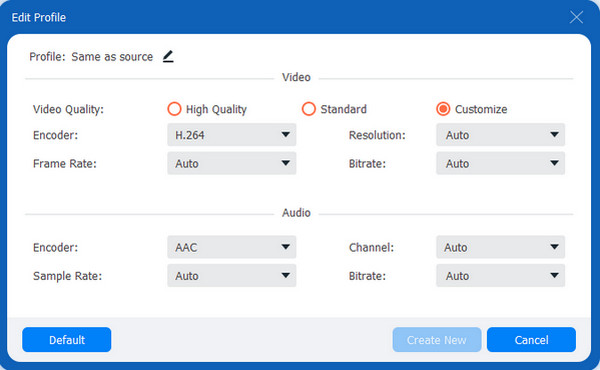
Step 3If you want to change the video settings, click the Gear button next to the format you want to use. Then, depending on your preferences, you can adjust the encoder, frame rate, bitrate, and resolution.
Step 4Finally, click the Save To option and select a file location where you can immediately locate your converted videos. Then, tick the Convert All button.

Part 2: Convert WMV to MP4 through VLC on Windows/Mac
VLC is a well-known and open-source video converter that can compatible with Windows, Mac, and other platforms. It can play practically every multimedia file format. Moreover, VLC Media Player allows users to convert WMV to MP4 files for free. However, consider that converting can be difficult, especially for first-timers. But you can accomplish it by following our step-by-step instructions.
Steps to Follow:
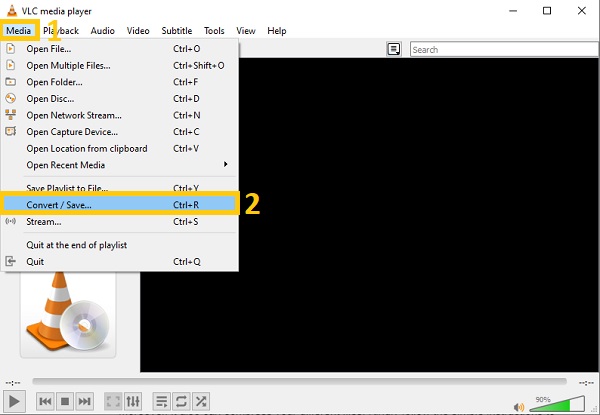
Step 1To start, go to the Media section and pick Convert / Save from the drop-down menu.
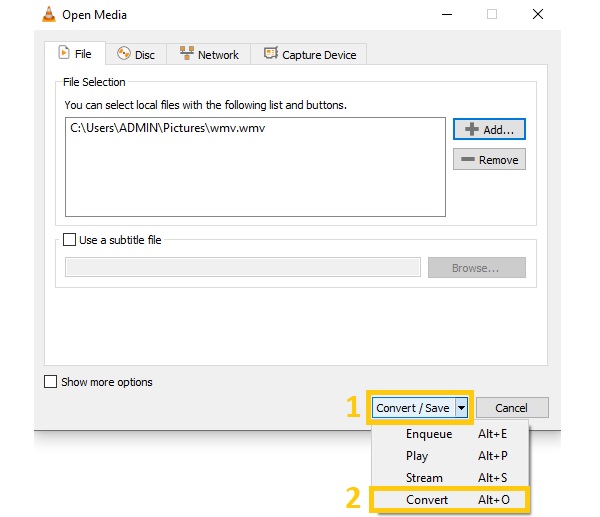
Step 2Next, add WMV files to the software. Click the +Add button, and select the WMV you want to convert. After importing your files, tick the Convert / Save drop-down option and select the Convert button.
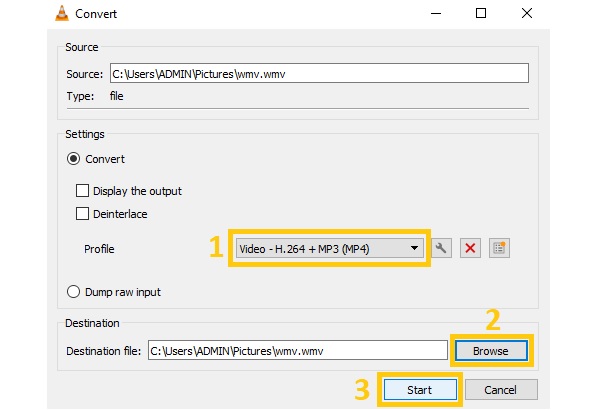
Step 3Finally, a new window will appear on your screen. Select the Video - H.264 + MP3 (MP4) format from the Profile drop-down option. Then, tick the Browse option to choose a file location. Next, click the Start button to convert WMV to MP4.
Part 3: 2 Easy Ways to Convert WMV to MP4 Free Online
You can also consider using an online video converter to convert WMV to MP4 if you do not want to download any software on your device. The thing is, online converters are loaded with pesky advertisements that might interrupt you with your converting session. But if you still want to use a free WMV to mp4 converter online, this post will give you the top two video converters, and you can follow the outlined steps below.
1. Convertio
Convertio is an online video converter that allows you to convert quickly. Moreover, it supports over 300+ file formats, including WMV to MP4. You can also modify the quality, codec, aspect ratio, and other video settings. Moreover, you can add files through Dropbox and Google Drive.
Steps to Follow:
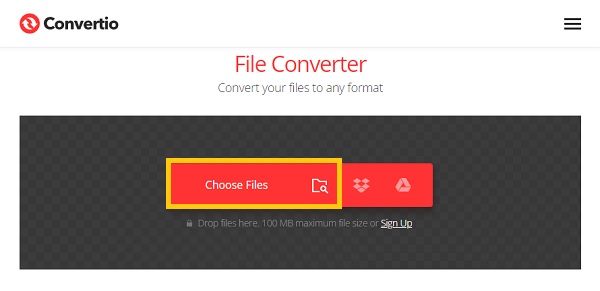
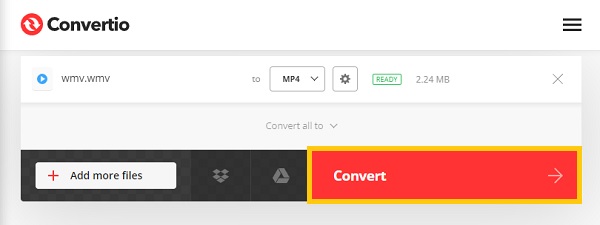
Step 1To get started, go to Convertio's official website. Once you're there, click the Choose Files button and select the WMV file you wish to convert.
Step 2Next, convert WMV to MP4. Click the Format drop-down button and choose MP4 from the Video section. Finally, click the Convert button and wait for the process to finish.
2. Aconvert
You can also consider using Aconvert to convert WMV to MP4 for free. It has user-friendly features that allow you to convert different files, such as videos, audio, documents, photos, e-books, and more. However, it will only allow you to convert with a maximum of 200 MB file size.
Steps to Follow:
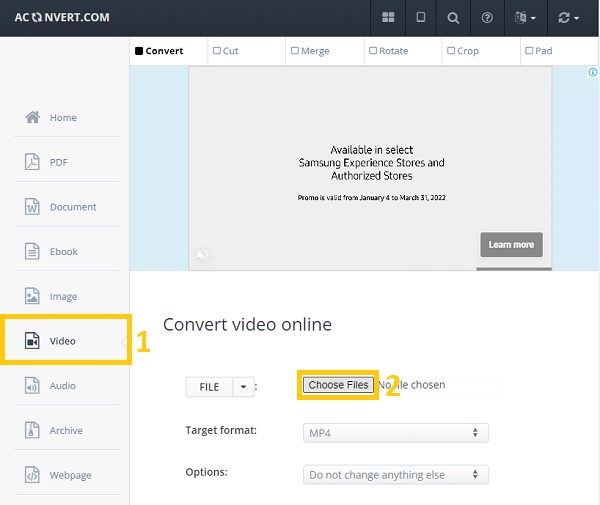
Step 1Head to Aconvert’s webpage. Then, go to the Video menu. From there, click the Choose Files to import your WMV to the website.
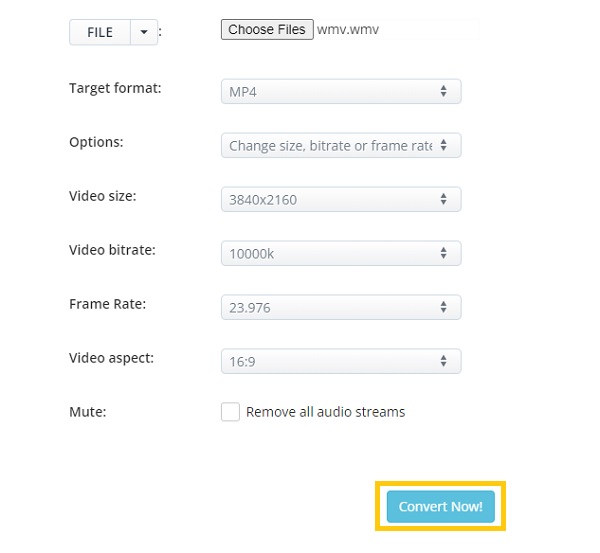
Step 2Afterward, tick the Target Format drop-down button and choose the MP4 file format. Then, you can change the video size, bitrate, frame rate, and aspect ratio if you want. Lastly, you can now click the Convert Now button to start converting WMV files to MP4.
Part 4: FAQs about Converting WMV to MP4 Files
-
WMV vs. MP4: Which is better?
Both WMV and MP4 can produce high-quality videos. MP4 is a lossy format while WMV is a lossless format; in short, MP4 format has a bigger file size than WMV. On the other note, MP4 has better compatibility than WMV because it is a universal format that any device can read and open.
-
How to play WMV file format on Mac?
Since Windows computers have a default Windows Media Player, they can play or open WMV files. But for you to play WMV files on Mac, you have to convert WMV to MP4 or other standard formats for Mac. You can use 4Easysoft Total Video Converter to make conversion hassle-free.
-
Can I play WMV files on my Android?
No, you can't. The commonly used format on Android is MP4. And you can choose to convert WMV to MP4 or download designed WMV players on Android.
Conclusion
At last! You have figured out how to convert WMV to MP4. Without a doubt, 4Easysoft Total Video Converter is the easiest way. So, stop searching for other options and download this powerful app now on your device. And if you still have problems converting, you can message us. We guarantee you that we will reply to you as soon as possible.
100% Secure
100% Secure
