
Reliable video converter, editor, and compressor for daily tasks.
6 Best MPEG Video Converters on Windows, Mac, and Online

Posted by Aira Lesly Escoto to Video Converter Jan 29, 2026
Even while the humble MPEG file remains leading in digital media, playing older files on modern devices can cause compatibility issues. Due to this, a high-quality MPEG converter becomes necessary. With the right tool, not only can you optimize file size, but you can also enhance visual clarity and ensure your content works everywhere.
Guide List
1. 4Easysoft Total Video Converter - All-Around MPEG Converter with Multi-Device Presets 2. Handbrake - Advanced Transcoding Control MPEG Conversion 3. VLC Media Player - Player with a Quick Built-in MPEG Converter 4. CloudConvert - Online MPEG Converter with Format Versatility 5. FreeConvert - MPEG Converter That Supports Large MPEG Files 6. VEED.IO - AI-Powered Editor and MPEG Converter1. 4Easysoft Total Video Converter - All-Around MPEG Converter with Multi-Device Presets
As a complete MPEG converter, the first option here is 4Easysoft Total Video Converter. With 600+ formats and pre-made profiles, you can convert MPEG for iPhones, tablets, or gaming consoles without incompatibility issues. Besides MPEG, it supports over a thousand formats while maintaining visual fidelity. And aside from simple conversion, it covers basic editing tools like trimming, cropping, and merging clips before you finalize the export.

Convert MPEG to 600+ video and audio formats like MOV, MKV, AVI, etc.
Batch conversion to handle multiple MPEG files at the same time.
Fully customize your file by adjusting the frame rate, resolution, and more.
Hardware acceleration ensures the conversion is fast and highly stable.
100% Secure
100% Secure
Step 1Open 4Easysoft Total Video Converter on your desktop. To start, simply click the "Add Files" button to choose your source videos.

Step 2Once your file appears in the list, click the "Format" dropdown menu on the right. Under the "Video" tab, choose your desired format.
If you wish for specific results, click the "Custom Profile" button to change the bitrate, resolution, or codec settings.
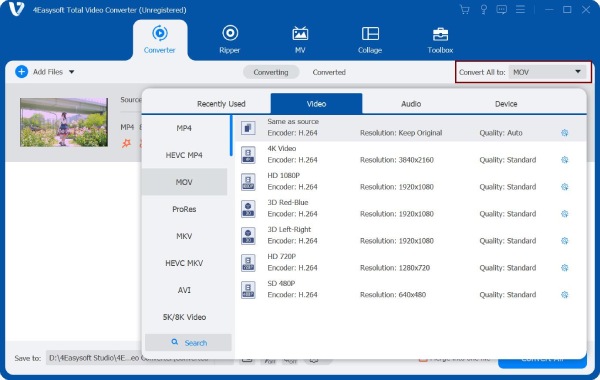
Step 3Set your preferred location folder and rename the file if needed. After all that, click the "Convert All" button to initiate the process. Once the MPEG conversion finishes, open it to your designated folder.

100% Secure
100% Secure
2. Handbrake - Advanced Transcoding Control MPEG Conversion
Handbrake can be your free MPEG to MP4 converter software with complete controls. It is specifically a transcode that takes almost any video and transforms it into a modern, highly compressed MP4 or MKV file.
- Pros
- Works for free with no ads, watermarks, or hidden charges.
- Cons
- Steep learning curve for starters.
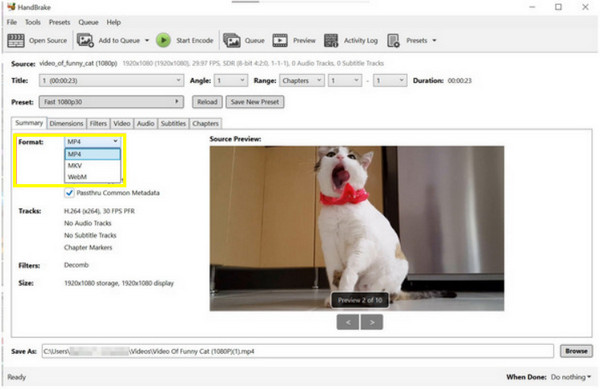
Step 1Drag your MPEG file into the Handbrake window. In the right-hand panel, select a "Preset".
Step 2Go to the "Summary" tab and choose your format there, like MP4, MKV, or WebM.
Step 3Later, click the "Start Encode" button at the top to convert MPEG files.
3. VLC Media Player - Player with a Quick Built-in MPEG Converter
If you wish for a no-install solution, use VLC, one of the popular MPEG players that can surprisingly help you convert to and from MPEG. This MPEG to MP4 converter is great for quick conversions where you don't need any fancy editing or complex settings. It has built-in codecs that let you stream a file directly into a new container.
- Pros
- No need for any extra software; covers almost every playback codec.
- Cons
- Its conversion interface is hidden in menus; no progress bar in some versions.
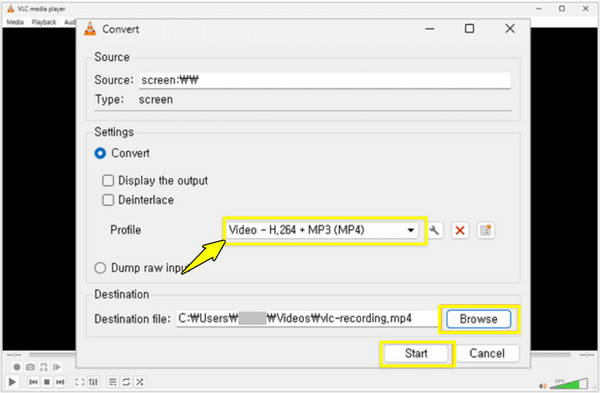
Step 1Upon launching VLC, head to "Media" and then click on "Convert/Save".
Step 2There, click the "Add" button to pick your MPEG file, then click the "Convert/Save" button.
Step 3In this new window, select a "Profile" you wish, like "Video - H.264 + MP3 (MP4)".
Step 4Choose a destination folder and click the "Start" button.
4. CloudConvert - Online MPEG Converter with Format Versatility
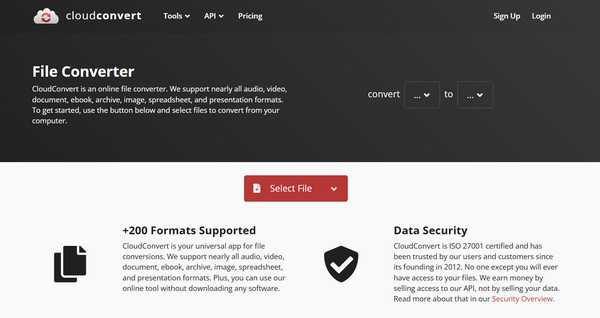
Head towards the MPEG converter online options. CloudConvert works entirely in your browser. This online service is highly secure. It ensures all uploaded files will be deleted automatically after the conversion. CloudConvert supports 200+ output formats and is perfect for desktop users who handle files stored on Google Drive or Dropbox.
- Pros
- Work directly with cloud storage; no system resources needed.
- Cons
- The speed is limited by your internet connection; the free tier has daily limits.
Step 1Inside the CloudConvert website, upload your MPEG file. Choose your target format from the "Convert to" dropdown.
Step 2If you want, click the "Settings" button to adjust resolution or quality.
Step 3Click the "Convert" button, then download the result.
5. FreeConvert - MPEG Converter That Supports Large MPEG Files
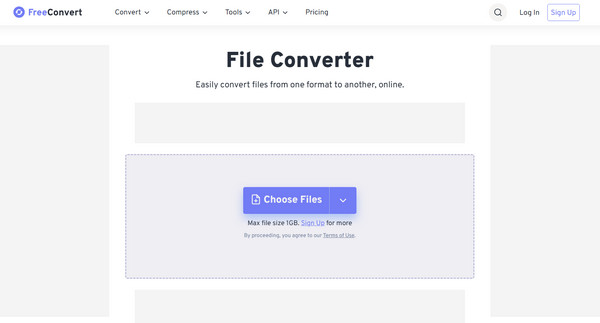
Next is FreeConvert, an online MPEG video converter that shines by allowing you to upload larger files than its rivals. It has Advanced Settings that let you fine-tune the video codec, screen size, and aspect ratio in the browser. Additionally, it has a batch mode that converts multiple files in a single load.
- Pros
- 1GB file limit for free users and very simple toggles.
- Cons
- The site is full of ads, which can be distracting.
Step 1On the FreeConvert page, click the "Choose Files" button to upload your MPEG video.
Step 2Choose your output format, such as AVI. Bo doing so, you can convert MPEG to AVI online.
Step 3Click the "Settings" button to adjust the codec or bitrate if desired.
Step 4Then click the "Convert to MOV" and then click on "Download".
6. VEED.IO - AI-Powered Editor and MPEG Converter
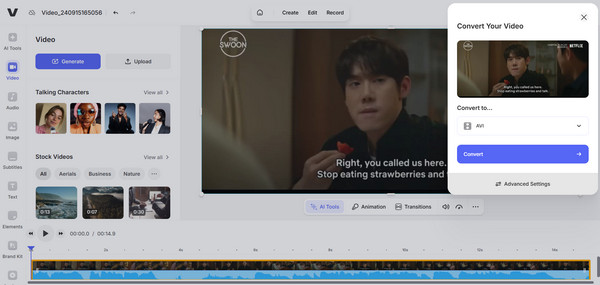
Finally, if you need to do more than just transform formats, VEED.IO may be the perfect MPEG converter for you. VEED.IO is particularly useful for social media creators who want to transform formats and, at the same time, add subtitles, remove noise, and apply other edits. Your boring conversion task will be a complete editing workflow.
- Pros
- Has incredible AI tools like Magic Cut; has automatic transcription.
- Cons
- Its free version adds a watermark to your video; it needs a stable connection.
Step 1Import your MPEG video to the VEED.IO Video Converter page by clicking "Upload Files".
Step 2Next, in the "Convert To" dropdown menu, choose your target format. Optionally, you can add subtitles, text, or music by clicking "Edit Video".
Step 3Once done, click "Convert" and wait for the conversion process to finish. Later, click "Download" to save your new file.
Conclusion
Converting MPEG files doesn’t have to be complicated. With the right MPEG converter, you can change formats, reduce file size, or improve compatibility without hurting video quality. Out of the above online MPEG converters, 4Easysoft Total Video Converter shines. Thanks to its AI acceleration, preset device profiles, and massive format support, it provides the stability and power that simply cannot match, regardless of whether you're dealing with MPEG files or other file formats.
100% Secure
100% Secure
