

Reliable video converter, editor, and compressor for daily tasks.

A Review Featuring Top 6 MOD Converter Tools with Pros and Cons

Posted by Paula Pailaga to Convert Video, Video Converter Apr 26, 2023
It is annoying that after you capture a video on your camcorder and want to transfer it to another device, you notice that your device can’t read it. This is because most devices do not support the MOD format. So, MOD converter is needed for photographers. This is where MOD converters enter the scene! They could help you overcome MOD compatibility issues. If you get overwhelmed by how many of them are on the market, don’t worry! This post collects 6 of the best MOD converter tools! Explore them now!
Guide List
Part 1: Top 6 MOD Converters on Windows/Mac/Online [Pros and Cons] Part 2: FAQs about the Best MOD Converters for YouPart 1: Top 6 MOD Converters on Windows/Mac/Online [Pros and Cons]
1. 4Easysoft Total Video Converter (Windows/Mac)
This lineup’s first MOD converter for Windows/Mac is the 4Easysoft Total Video Converter. This advanced tool supports 600+ formats, including popular and lossless formats, to convert MOD files. Moreover, it has a DVD ripper that lets you acquire those MOD files stored on a hard disk and convert them into a specific format. Additionally, this tool supports an ultrafast conversion process while maintaining the original quality of the MOD file. This tool is indeed one of the best tools you can easily use as your MOD to MPEG converter or other formats.
Support the Batch Conversion process, enabling you to convert tons of MOD files simultaneously.
Offer a lot of device presets to convert MOD files.
Equipped with output tweaking options that enhance the quality of your MOD.
Infused with accelerated machine learning computations and Blu-Hyper technology to convert MOD files at 60X speed.
100% Secure
100% Secure
- Pros
- Feature and functionalities are well-composed for ease of use.
- Intuitive interface design.
- Come with a fast and lossless MOD conversion process.
- Offer many media files, and device presets to convert MOD files.
- Cons
- Offers limited features for the free version.
- Payable upgrade.
2. Handbrake (Mac)
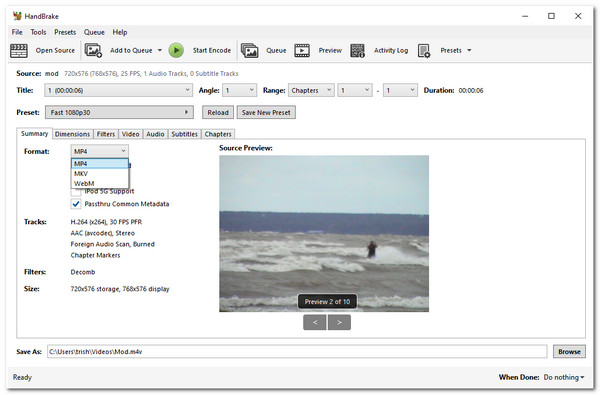
Another MOD converter on Mac is the Handbrake. This open-source and lightweight tool can be utilized as a MOD converter software that supports today’s most popular formats, and device presets. It is also infused with advanced features such as DVD and Blu-ray ripping that enable you to obtain MOD files out of those disks that don’t contain any copy protection. Aside from that, if you wish to bring incredible changes to those MOD files you wish to convert, Handbrake offers video editing features to change your MOD’s size and looks by adding filters. This Mac MOD to MP4 converter tool or with other formats is entirely free to use
- Pros
- User-friendly interface.
- Easy to use platform.
- Occupies little space on your computer.
- Provide various customizable video-enhancing features.
- Cons
- Offer a few media formats to convert MOD files.
- Not a reliable tool for converting lengthy MOD files.
- Video Customizable Settings are complicated to set up.
- MOD conversion takes a long time to finish.
3. FFmpeg (Windows)
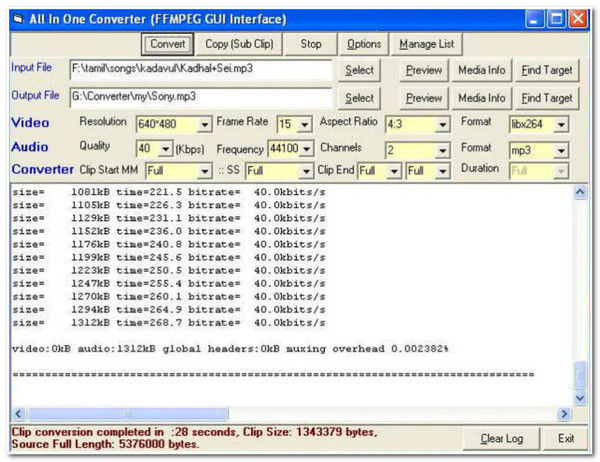
You shouldn’t also miss the chance to use FFmpeg as your MOD converter for Windows. Like Handbrake, this tool is also an open-source project and free to use MOD video converter. It supports an intuitive interface which makes this easy to use. It also supports a fast MOD conversion process with various formats, including MOV, AVI, MKV, etc. So if you are looking for a simple and free MOD converter tool, then FFmpeg is one of the best picks.
- Pros
- Simple MOD converter tool.
- Free and safe to use.
- Support many encoders, decoders, and significant audio and video formats.
- Video tweaking options to enhance your output.
- Cons
- Only made available for the Windows platform.
- Outdated interface and complex operation.
4. Convertio (Online)
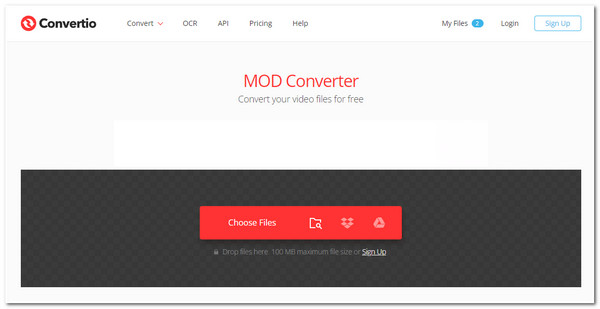
Aside from those downloadable tools, you must try these MOD converter tools Online. Let’s begin with Convertio. Using this tool, you can convert MOD into 89 different conversion processes. Moreover, it supports various browsers, and its website is protected with SSL protocol, securing your uploaded MOD file. Furthermore, this online tool is free and doesn’t require signing in to your account before using it.
- Pros
- Support a user-friendly interface with easy-to-understand features and a conversion process.
- Enable users to tweak settings according to their preferred setups.
- Allow users to import and store their files in various cloud storage.
- Utilize offline access.
- Cons
- The free version limits users to 100MB file size upload.
- Linked with issues regarding unsmooth round corners.
5. CloudConvert (Online)
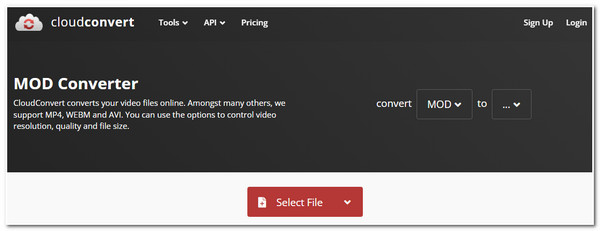
Next on the line is the CloudConvert MOD converter for Online. This tool supports 16 different MOD conversion processes with high-quality conversions. Additionally, just like Convertio, this tool also ensures the security of your MOD uploads. Aside from those points, this tool offers great conversion services with excellent convenience in converting your MOD files to other formats on Windows/Mac.
- Pros
- Come with an uncomplicated interface.
- Enable the users to customize the video looks before exporting the file.
- Provide a large number of formats to convert MOD files.
- Cons
- It doesn’t work well with inadequate bandwidth.
- Limit users with only 25 conversions per day.
6. ConvertFiles (Online)
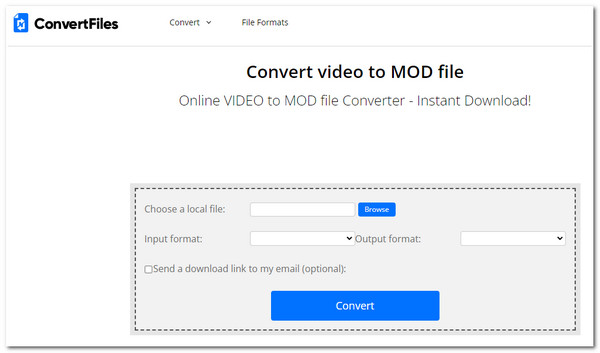
Last but not least is the ConvertFiles MOD converter for Online. This straightforward tool lets you convert MOD files easily with great speed and within a few steps. It offers free Windows/Mac MOD conversions with 15 different video formats. This would be the easiest and simple tool you can use on the market.
- Pros
- Simple to use the tool.
- Offer a smooth conversion process.
- Provide users with uncomplicated MOD conversion.
- Cons
- Few features are offered.
- Doesn’t support the batch conversion process.
Part 2: FAQs about the Best MOD Converters for You
-
Can I play MOD files on QuickTime?
Unfortunately, you can’t. QuickTime doesn’t support the MOD format. Apple QuickTime’s official website shows that this player only supports MPEG-1, MPEG-2, MPEG-4, 3GPP and 3GPP2, AVCHD, AVI Motion JPEG, and DV. So, you need to convert MOD to MP4 or MOV.
-
How to convert MOD to regular video with Handbrake?
To do this, launch Handbrake and click the Source button to add your MOD files. Then, you can tweak the format, resolution, and other settings easily according to your need. After that, click the Start button to convert MOD to MOV.
-
Is there any tool I can use as a MOD to iPad converter?
Yes! There is! If you want to store or play MOD on your iPad, use the 4Easysoft Total Video Converter tool to convert it. This tool supports many devices presets, including Apple devices such as iPad, iPad Air, and iPad Pro.
Conclusion
That’s it! That is the lineup of the top 6 MOD converter tools you can use to transform MOD to a format your device supports. As you might notice, all of them come with different drawbacks, but among them, the 4Easysoft Total Video Converter is the one that could give you the best MOD conversion service. With its great points, this tool will not let you down! Feel free to visit this tool’s official website to explore its other outstanding capabilities today!
100% Secure
100% Secure
