
Reliable video converter, editor, and compressor for daily tasks.

Top 11 MKV Converters to Change MKV to MP4 Format Elsewhere

Posted by Paula Pailaga to Video Converter Dec 22, 2025
MKV is a widely used video format due to its excellent video quality and flexibility, but it is not always compatible with all devices and players. So, here comes the need to look for an MKV converter to turn it into a compatible format. Fortunately, there are many MKV video converters today, from desktop to convenient mobile apps. Pick up the best one to convert MKV to MP4 and other popular formats now!
Guide List
1. 4Easysoft Total Video Converter – Full-Featured MKV Converter with High-Quality Output 2. Handbrake – MKV Converter with Customizable Encoding Tools 3. VLC Media Player – Free Media Player and MKV Converter in One 4. Freemake Video Converter – MKV Converter with Preset Device Profiles 5. DVDFab Video Converter – Pro MKV Converter with Advanced Codecs 6. Zamzar – Convert 2 MOV Files for Free Per 24 Hours 7. CloudConvert – Offer 10 Free MOV Conversions Per Day 8. FreeConvert – Free 20 Conversion Minutes Daily 9. Video Converter, Compressor – Convert MKV to MP4 on Android 10. MKV Converter, MKV to MP4 – Convert MKV to MP4 on iPhone 11. VidSoftLab Video Converter & Editor – Mobile MKV Converter with Built-in Editing Tools1. 4Easysoft Total Video Converter - Full-Featured MKV Converter with High-Quality Output
Stand out as the most powerful MKV to MP4 converter, 4Easysoft Total Video Converter works with exceptional format support, quick acceleration technology, and high-quality output. You can convert MKV files to MP4, MOV, AVI, and over 600 formats with zero noticeable quality loss. But beyond simple conversion, it includes editing tools like trimming, cropping, rotating, filters, and effects, making it an all-in-one video processing program. Its batch video conversion never fails to handle multiple MKV videos simultaneously.

Supports MKV to more than 600 format conversion with high-quality output.
Advanced editing tools like trimming, cropping, merging, filters, effects, and more.
GPU-accelerated for lightning-fast batch conversions without affecting the quality.
Customizable settings for resolution, codec, bitrate, frame rate, and so on.
100% Secure
100% Secure
2. Handbrake - MKV Converter with Customizable Encoding Tools
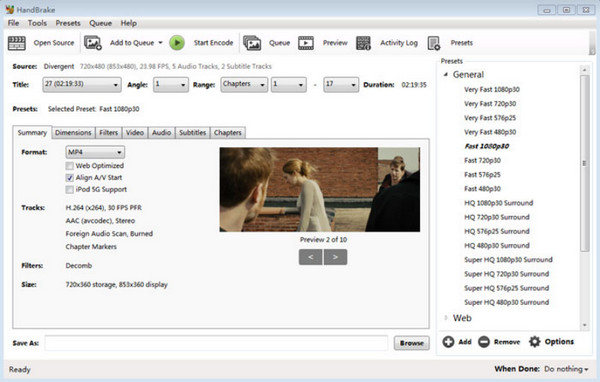
Moving on to Handbrake, a well-known open-source MKV video converter that allows you to encode videos into MP4, MKV, and WebM formats. Handbrake features advanced controls for codecs, bitrates, frame rate, and filters, allowing you to have full flexibility in optimizing output size and quality. As of today, it remains one of the most reliable free transcoding tools available, especially to those who need deep customization.
3. VLC Media Player - Free Media Player and MKV Converter in One
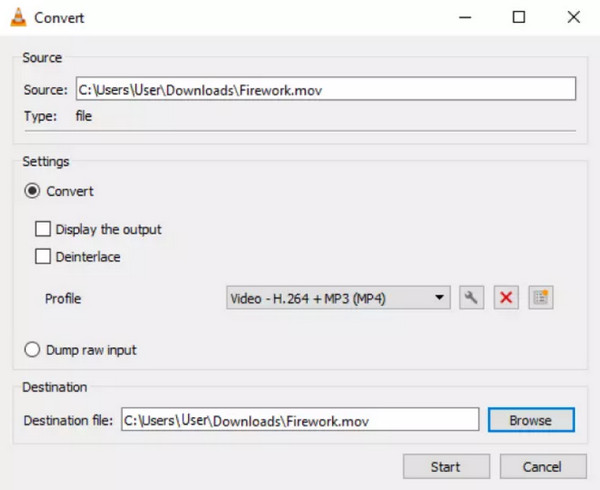
VLC Media Player may be known as a universal player, but it can also be a useful MKV converter. Here, you can change MKV to MP4, MOV, and other formats from its built-in conversion panel. It may lack advanced editing features you can find from those dedicated converters, but it performs very well for quick conversions. It is indeed perfect for users who want the convenience of a two-in-one media tool, especially in a familiar interface like VLC.
4. Freemake Video Converter - MKV Converter with Preset Device Profiles
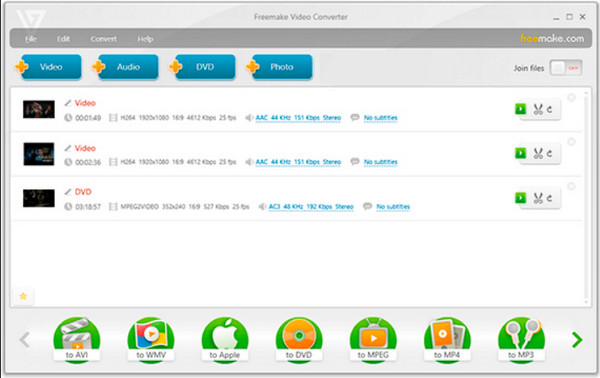
Furthermore, Freemake Video Converter here offers a beginner-friendly main screen with a bunch of preset profiles for smartphones, tablets, and gaming consoles. This MKV converting software supports formats like MP4, MOV, AVI, and more while keeping usable output quality. Although you may experience limitations in the free version, it is still functional for your basic conversion tasks, suitable for all who are looking for simplicity and device-ready export options.
5. DVDFab Video Converter - Pro MKV Converter with Advanced Codecs
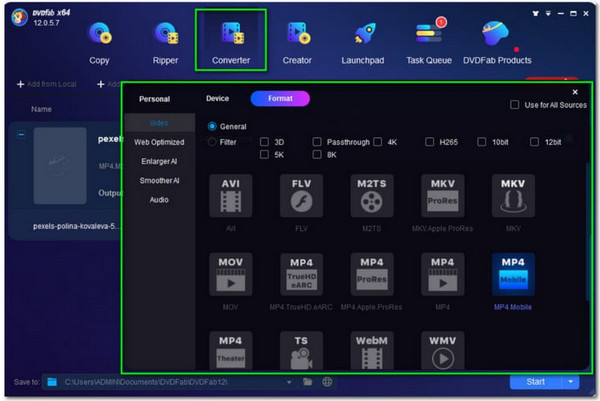
Next, DVDFab Video Converter delivers mighty MKV conversion power with support for codecs like HEVC, H.264, and 4K formats. It covers AI-powered features that help improve clarity and upscale resolution. Despite being a premium desktop MKV converter, it provides exceptional processing speed and professional output, which is perfect for those advanced users who need a studio-grade conversion quality.
6. Zamzar - Convert 2 MOV Files for Free Per 24 Hours
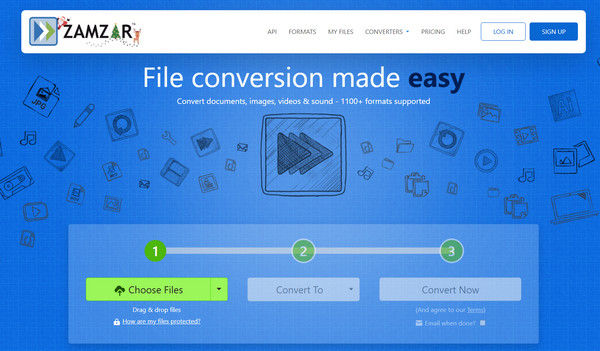
Meanwhile, Zamzar is an online MKV converter that permits you to convert video files without installing anything. It covers a wide range of format outputs and works completely through your browser. Furthermore, it is easy to navigate and ideal for anyone who opts for fast conversions on any device. However, for your larger files, you may need a paid plan for complete functionality.
7. CloudConvert - Offer 10 Free MOV Conversions Per Day

In addition, CloudConvert offers a flexible online solution to convert MKV to MP4 format with options to adjust resolution, bitrate, codec settings, and more. It provides you with strong security since all processing happens through encrypted servers. Also, this online platform supports batch conversion and operates smoothly even for large MKV video files.
8. FreeConvert - Free 20 Conversion Minutes Daily

Continuing the list for online MKV converters, here's FreeConvert. Using this tool allows you to have detailed control over codec, resolution, and size before converting .mkv files. Its drag-and-drop interface makes uploading and converting effortless. It may take time to process large files, but this tool maintains solid output quality, making it great for fast, browser-based conversions.
9. Video Converter, Compressor - Convert MKV to MP4 on Android
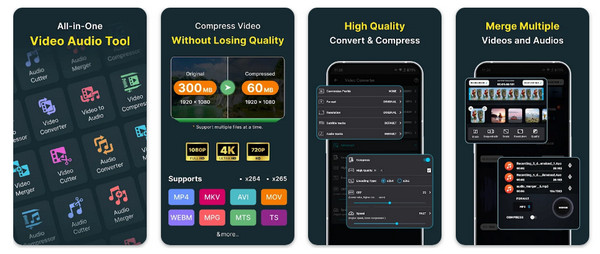
On the mobile size, the Video Converter, Compressor app for Android provides an easy way to convert MKV videos into formats like MP4, MOV, AVI, and more. The app covers trimming, merging, and compressing tools, too, for flexible editing on the go. While the processing speed depends on your device, it offers an efficient workflow for all Android users.
10. MKV Converter, MKV to MP4 - Convert MKV to MP4 on iPhone
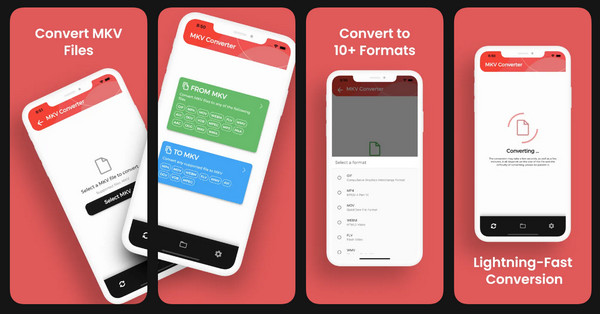
The MKV Converter, MKV to MP4 app for iOS, is made to convert MKV videos on iPhone or iPad. With the simple interface, MKV to MP4 app is easy to convert and compress videos for social media and device compatibility. Moreover, you can trim and edit videos with basic tools. So you can refine videos before export quickly. It is ideal for iOS users who want fast, mobile-friendly MKV processing.
11. VidSoftLab Video Converter & Editor - Mobile MKV Converter with Built-in Editing Tools
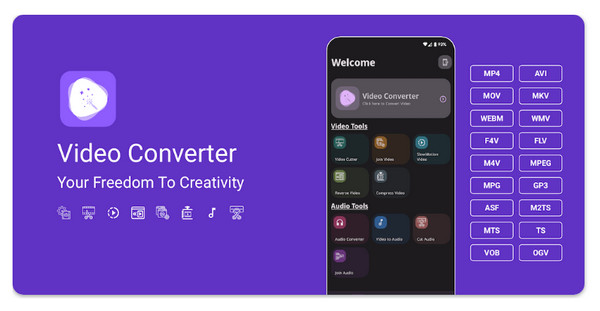
Finally, another reliable solution for mobile is VidSoftLab Video Converter & Editor. It offers a powerful way to convert MKV files with a broad support for input and output formats, letting you convert MKV to MP4, MOV, AVI, and more in just a few taps. Moreover, it contains essential editing tools like trimming, merging, cropping, and applying effects, making it perfect for users who want quick adjustments before exporting.
Conclusion
Thanks to all the online and offline MKV video converters mentioned today across desktop, online, and mobile platforms, you can handle MKV conversion needs efficiently and effectively. Among them, if you want to convert, compress, and edit MKV files in one stop, 4Easysoft Total Video Converter is the standout choice. Its speed, quality preservation, and full-featured set make it a superb tool for all your video conversion tasks.
100% Secure
100% Secure
