

Reliable video converter, editor, and compressor for daily tasks.

MP4 to AVI Made Simple: 6 Ways for Windows, Mac, Online

Posted by Aira Lesly Escoto to Convert Video Jan 16, 2026
While MP4 is a widely used video format today, it is not always compatible with older media players or specific devices. In these situations, converting MP4 to AVI can help make your video play, edit, or share easily, without extra hassle. And fortunately, doing so does not have to be complicated, as multiple tools are available to help. From desktop to online converters, read on here to see ways to convert MP4 to AVI videos, perfect for your device, file size, and quality needs.
Guide List
The Comparison of MP4 and AVI Use a Professional Tool to Convert MP4 to AVI Convert MP4 to AVI Using VLC How to Convert MP4 to AVI with MPEG Streamclip 3 Online Tools to Convert MP4 to AVI QuicklyThe Comparison of MP4 and AVI
Prior to making a decision on which format to use between MP4 and AVI formats, it is helpful to understand the difference between these two formats. While both are widely recognized, they are made slightly for different purposes.
Here's a quick comparison table to help you choose the format that best fits your needs in terms of quality, file size, compatibility, and use cases.
| Comparison | MP4 | AVI |
| File Size | Smaller file size thanks to its efficient compression. | Usually large due to less compression. |
| Compatibility | Widely supported on modern devices, apps, and platforms. | Perfect for older media players and editing software. |
| Video Quality | High-quality with balanced compression. | Very high-quality but comes with larger files. |
| Compression | Utilizes advanced codecs such as H.264 and H.265. | Supports fewer modern compression standards. |
| Editing Use | Ideal for general editing and playback. | Good for specific professional projects. |
| Streaming and Sharing | Online streaming and sharing. | Not optimized for streaming. |
Use a Professional Tool to Convert MP4 to AVI
If you need to turn MP4 to AVI format or vice versa, using the right converter can make a huge difference in quality and compatibility. Doing so is especially helpful when working with older players or programs that do not fully support MP4. For this, 4Easysoft Total Video Converter makes the entire process simple. This all-in-one converter supports nearly all formats and is made to deliver fast results without affecting the video or audio quality. On top of that, it has a built-in editing feature that allows you to trim, crop, rotate, or enhance footage before exporting it as an AVI file.
Converts MP4 to AVI and 600+ video formats, e.g., MOV, MKV, etc.
Batch convert multiple MP4 videos at 60× faster speed.
Edit videos with 20+ tools, including trimmer, watermark remover, noise remover, etc.
Hardware acceleration for low-end computers.
100% Secure
100% Secure
Step 1Launch 4Easysoft Total Video Converter on your computer. To load your MP4 video file, click the "Add Files" button or drag and drop videos into the main window.

Step 2Once your MP4 video is in the list, click the "Format" dropdown next to the file. Navigate to the "Video" category, and choose "AVI" as the target format.
For more control over the final output, click the "Custom Profile" button to fine-tune settings like video resolution, bitrate, frame rate, or encoder.
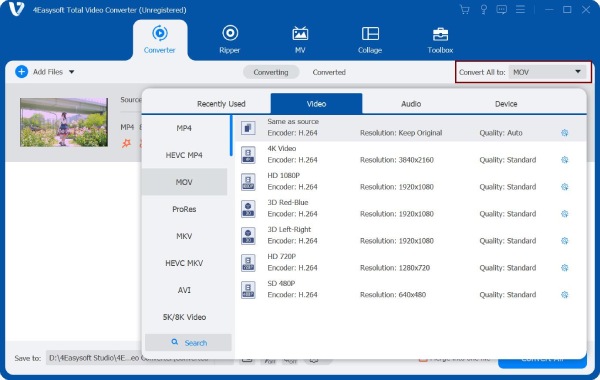
Step 3Next, select the folder where to save the converted AVI file. You can rename the video at this stage. If quick adjustments are needed, you can use the built-in "Edit" or "Trim" buttons to refine the video before conversion.
Step 4After confirming all settings, click the "Convert All" button to start converting .mp4 to .avi. Once it is complete, open the output folder to access your newly converted MP4 to AVI files.

100% Secure
100% Secure
Convert MP4 to AVI Using VLC
The next AVI video converter is with VLC Media Player. Not only does it work as a free video player, but it also has a built-in converter. It can be your convenient option if you don't have extra software and only need basic format conversions like MP4 to AVI.
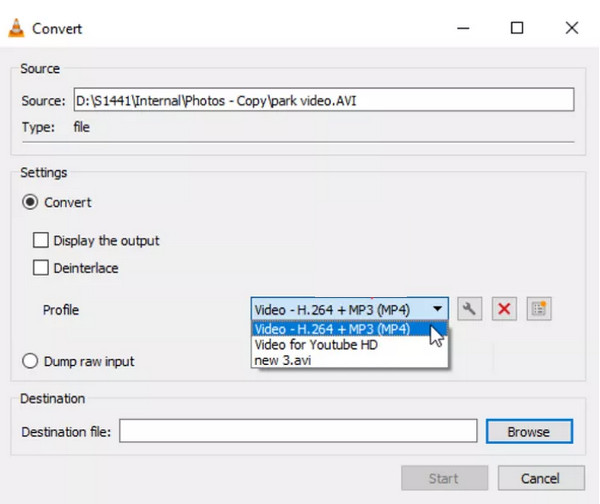
Step 1Launch VLC Media Player, then click on "Media" from the top menu, choose "Convert/Save". Now, under "File", click the "Add" button and import your MP4 video file.
Step 2Click the "Convert/Save" button at the bottom to move forward.
Step 3After that, choose "AVI" as the format from the "Profile" dropdown.
Step 4Click the "Browse" button to select a destination folder and rename it if needed.
Step 5Click the "Start" button to begin.
How to Convert MP4 to AVI with MPEG Streamclip
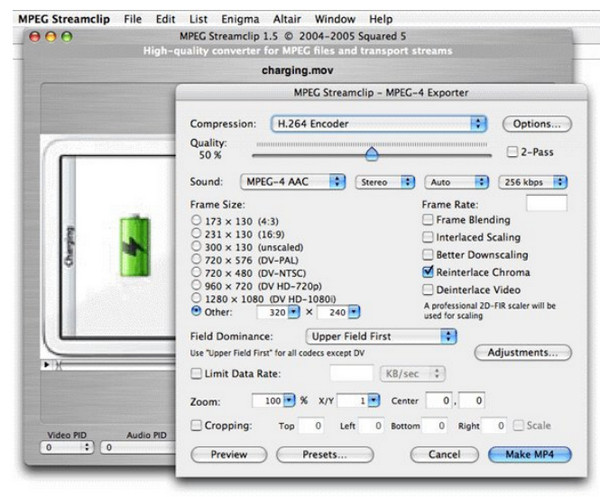
Moving on to another desktop-based solution for changing MP4 to AVI, MPEG Streamclip is a lightweight converter solution made for anyone who wants more control over output settings. It is especially great for those who handle video formats or editing software that need AVI files. However, extra codecs may be required for smooth operation.
Step 1Start MPEG Streamclip on your computer. Click on "File", then select "Open Files" to upload your MP4 video.
Step 2After that, click on "File" again and select "Export to AVI".
Step 3Adjust settings if necessary, then click "Make AVI" and pick a destination folder.
3 Online Tools to Convert MP4 to AVI Quickly
On the other hand, MP4 to AVI online converters offer a fast and accessible alternative if you don't wish to install software. Below are three tools that are perfect for quick conversion tasks.
1. CloudConvert
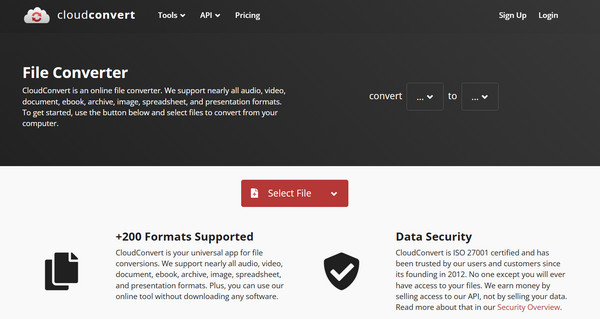
Known for its high-quality conversions and advanced settings, CloudConvert is a reliable choice to convert MP4 to AVI for free. It also lets you have more control over video output.
- Pros
- Secure file handling; advanced video settings support.
- Cons
- Upload speed; daily free limits.
Step 1In the CloudConvert page, click on "Select File" to upload your MP4 video.
Step 2Pick "AVI" as the output format.
Step 3Adjust settings if needed, then click "Convert".
2. Convertio
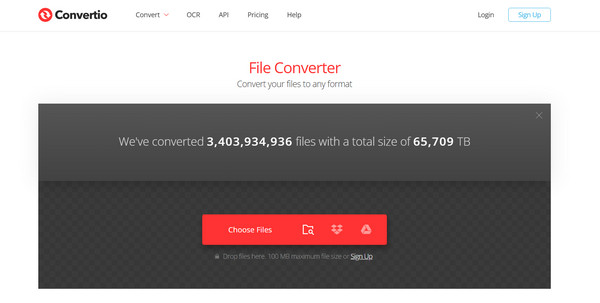
Next is a beginner-friendly online solution named Convertio. This online MP4 to AVI converter focuses on speed and simplicity, making it ideal for users who wish for quick results.
- Pros
- Supports cloud storage uploads; friendly interface.
- Cons
- Fewer advanced customization options; file size limits.
Step 1Inside the Convertio website, upload your MP4 video from your device or cloud.
Step 2Choose "AVI" as the target format.
Step 3Then click "Convert" and wait for it to complete.
3. Online-Convert
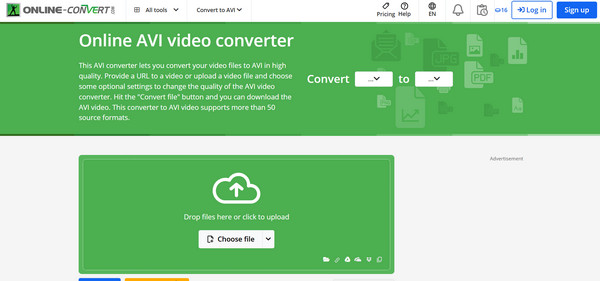
Lastly, you have here the Online-Convert that can tweak video settings before MP4 to AVI and other file format conversions. It is ideal for basic customization without installing anything.
- Pros
- No account needed; offers video adjustments; covers file formats.
- Cons
- Slower conversion; has ads on the free version.
Step 1Search for the Online-Convert page, then select "Video Converter", then pick "Convert to AVI".
Step 2From here, upload your MP4 video file.
Step 3Then, you can modify settings if needed before clicking "Start Conversion".
Conclusion
When you need better compatibility with older players or devices, converting MP4 to AVI is a practical solution for you. As you have seen here, there are multiple ways to handle the conversion, from desktop programs to a convenient online tool. But, if you wish for a more reliable and all-in-one solution, the excellent option is 4Easysoft Total Video Converter. This tool supports fast MP4 to AVI conversion, allows batch processing, preserves original quality, and offers more enhancements before export. It is indeed a simple yet powerful way to convert different video formats, definitely worth trying.
100% Secure
100% Secure
