
Reliable video converter, editor, and compressor for daily tasks.

Overall Review of Palm Video Converter on Windows/Mac: Pros and Cons

Posted by Paula Pailaga to Video Converter Jan 13, 2023
If you want to watch online FLV videos and YouTube videos on Palm portable devices, it is not feasible. You need a Palm video converter to convert the video format to WMV and other supported formats, such as VLC Media Player and Handbrake. But different Palm phones have different parameters. If you want high-quality video, you need professional tools to adjust the specific resolution and bit rate. Therefore, this article provides 8 Palm video converters on Windows and Mac with customizable settings and many functions.
Guide List
Part 1: Top 5 Palm Video Converters You Should Know Part 2: 3 Free Palm Video Converters Online for Windows/Mac Part 3: FAQs about Palm Video ConverterPart 1: Top 5 Best Palm Video Converters
Top 1: 4Easysoft Total Video Converter
The Palm video converter with complete customization settings and rich editing tools is 4Easysoft Total Video Converter. It supports high-quality conversion of more than 600 formats. If you have a Palm phone with Android 8.1, you can use the customized settings of the 4Easysoft Total Video Converter to convert video to MP4 with 720x1280 resolution and 30FPS. It also has more than 15 toolkits to edit the video, such as watermark, trim, audio sync, compress, etc. Moreover, this Palm video converter has GPU acceleration with 60x speed, even large video can be converted in a few minutes on your Windows and Mac.
Customize video settings to keep the high quality for playback on Palm, like adjusting 720x1280 resolution and 30FPS for Palm phone with Android 8.1
Support conversion to Palm-supported file formats, including MP4, WMV, and 3GP.
Can convert multiple files in batch and play them on your Palm portable devices.
100% Secure
100% Secure
Step 1Download the 4Easysoft Total Video Converter, and launch this Palm video converter. Click the Add File button or the Add Folder button to upload your video files.

Step 2Click the Format button to choose the most appropriate format for Palm, which is MP4. Of course, you can choose other Palm-supported file formats, such as WMV and 3GP.
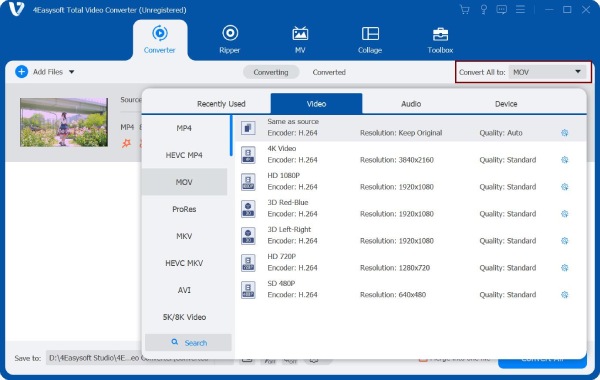
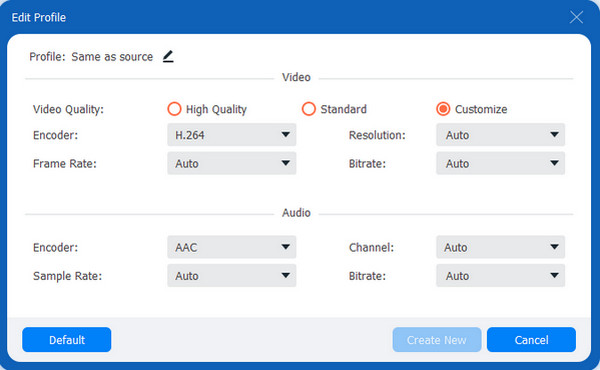
Step 3You can click the Gear button to adjust the high-quality video to play on Palm, 720x1280 resolution and 30fps are the best appropriate parameters for Palm phone with Android 8.1.
Step 4Select the output folder by clicking the Save to button and click the Convert All button to start converting videos for playback on Palm.

Top 2: Any Video Converter Free
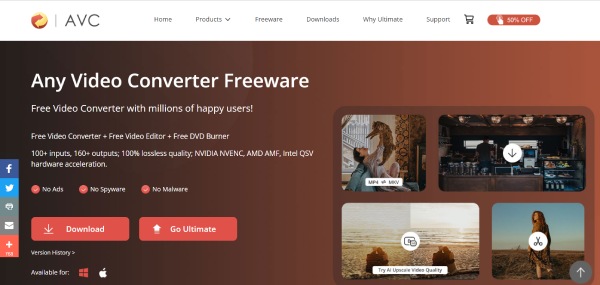
Any Video Converter Free is a free Palm video converter that can support Windows and Mac. It provides 100+ inputs and 160+ outputs, including MKV, M4V, WMV, MPG, ASF, M2TS, and 3GP. Moreover, it also supports 100% lossless quality and burns video to DVD or AVCHD DVD.
- Pros
- Support convert video with lossless quality.
- Provide editing tools to trim, rotate, flip, and add subtitles.
- Can enhance the conversion ability by using the GPU of the AMD graphics card and CPU of the Intel graphics card.
- Cons
- Fewer support formats of input and output.
- Can’t support batch conversion.
Top 3: Freemake Video Converter
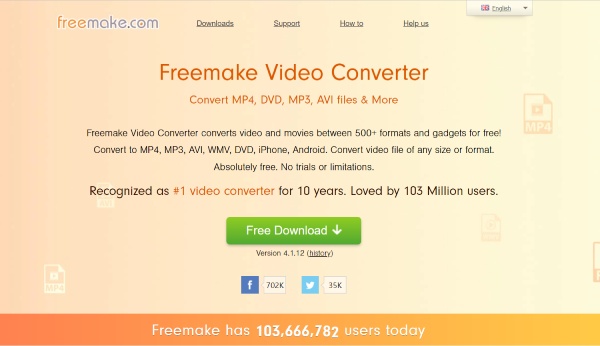
If you want to find a Palm video converter with various formats, you can try the Freemake Video Converter. It supports more than 500 formats, such as MP4, AVI, MKV, WMV, MP3, DVD, 3GP, SWF, and FLV. It also can edit the video, including cutting, joining, and rotating clips.
- Pros
- Provide more than 500 formats.
- Can convert the video to 4K, Full HD 1080p, and HD 720p.
- Support rip and burn DVD/Blu-ray.
- Cons
- Less editing functions.
- Slow conversion speed of the free version.
- Convert the video with a watermark.
Top 4: VLC Media Player
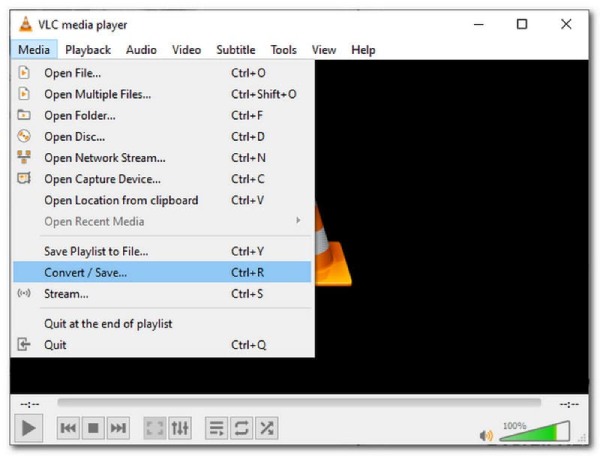
VLC Media Player is also a popular Palm video converter that can work with multiple platforms, including Windows, Mac, Android, Linux, Unix, and iOS. It can support various formats, such as MPEG-1, MPEG-2, MPEG-4, AVC, WMV, MP4, DV, DVD, CVD, etc.
- Pros
- Free and compatible with various platforms.
- Support preview the video upon conversion.
- Cons
- There are no rich editing functions and custom settings.
- Errors and even crashes may occur during the use of this Palm video converter.
Top 5: Handbrake
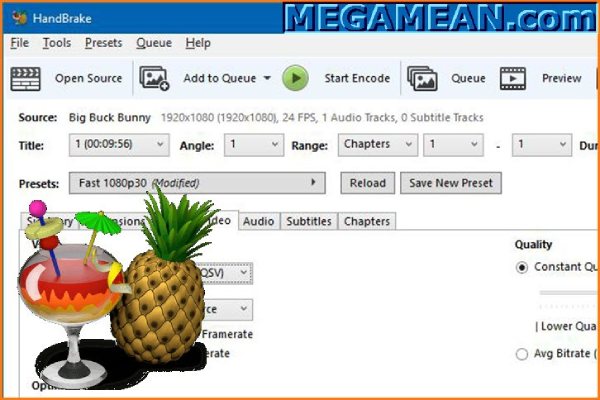
Handbrake is a free and open-source Mac Palm video converter, and you can rip DVD/Blu-ray and convert video files between almost all codecs. It helps you export high-quality output with the customizable settings. However, it only supports some common video formats, like MP4, MOV, MKV, etc.
- Pros
- Free and open source.
- Can preview the video upon conversion.
- Provide the editing function to crop and rotate your videos.
- Cons
- Can’t support batch conversion.
- The operation steps are complex and unfriendly to beginners.
Part 2: 3 Free Palm Video Converters Online for Windows/Mac
Top 6: Convert365
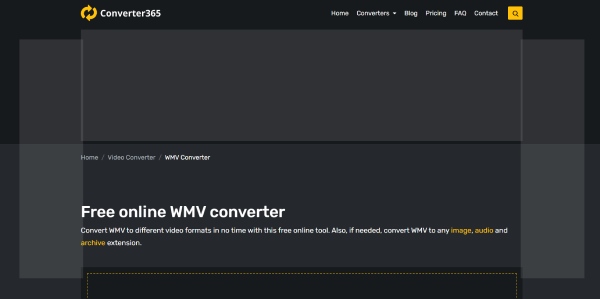
If you don’t want to download any Palm video converter, Convert365 is a nice choice for you. It supports various popular formats, including MP4, WMV, 3GP, AVI, MKV, VOB, etc. Moreover, it also can edit your video, such as mirror/flip and rotate.
- Pros
- Free and easy to use.
- Can support batch conversion.
- Cons
- The maximum file size of the free version is only 100MB.
- Less editing function and customizable settings.
- The speed of conversion is slow.
Top 7: FreeConvert
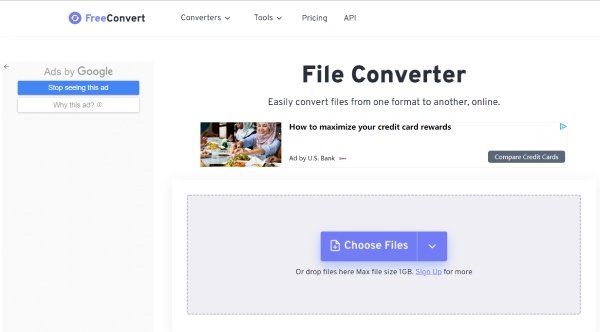
FreeConvert is also an online Palm video converter that can support more than 1500 file conversions. It can work on Windows, Mac, Linux, or any mobile device. Moreover, you can set the frame rate and codec of the video. It also provides some editing functions, such as flip, rotating, and adding subtitles.
- Pros
- Free and simple operation steps.
- Compatible with various platforms.
- Cons
- Less editing function and customizable settings.
- The maximum file size is 1GB.
- It has some advertisements on the website.
Top 8: Online Converter
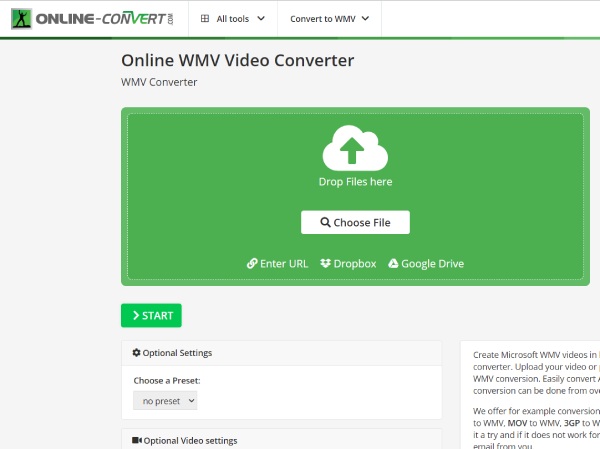
As its name suggests, it is an online Palm video converter. Online Converter supports more than 250 file formats, such as AVI, WMV, MP4, MPEG-2, MKV, 3GP, FLV, etc. Moreover, you can customize the bit rate and frame rate of the video. You can also edit the video with this Palm video converter, including rotate and mirror/flip.
- Pros
- Free and finish the conversion with simple three steps.
- Don’t need to download the software on your device.
- Cons
- The maximum processing time is 30 minutes.
- The maximum video file size is only 100 MB.
- Less editing tools and customizable settings.
Part 3: FAQs about Palm Video Converter
-
What format file is most suitable for the Palm device?
Palm supports MP4, WMV, 3GP, and other popular video formats. MP4 is recommended. It is not only applicable to various platforms, including Windows, Mac, Android, and other portable devices, but also of high quality and small memory. Of course, you can convert the video to WMV according to your needs.
-
How to convert high-quality video to play on the Palm phone?
High quality needs to be adjusted according to the resolution of your device. If you have a Palm phone with Android 8.1, you can set the resolution to 720x1280 and the frame rate to 30FPS.
-
Can I play the DVD movies on Palm?
No. Unfortunately, you must convert DVD movies to MP4, WMV, and 3GP formats which Palm supports play.
Conclusion
The above are the best 8 Palm video converters recommended to help you convert your video to play on the Palm phone. The online video converter is easy to use, but it lacks many functions. If you want a multifunctional and professional tool, 4Easysoft Total Video Converter is the best choice.
100% Secure
100% Secure
