

Backup DVD to MP4: 6 Efficient Methods You Must Try to Do

Posted by Aira Lesly Escoto to Rip DVD Nov 07, 2024
With the rise of various online streaming platforms today, DVDs are gradually becoming less popular, and the main reason is the inconvenient playback. Thankfully, you can backup DVD to MP4 to make it much easier to play on various devices. You don’t know how to do that? Well, by good luck, you landed here! This post listed six simple yet efficient methods to backup DVD collection to MP4! So, without further ado, start diving below.
| Methods | Special feature |
| 4Easysoft DVD Ripper | Rip or backup DVD to all devices in MP4 format with high-quality output. |
| Handbrake | Backup DVD to MP4 with customizable conversion to optimize output. |
| VLC Media Player | Backup DVD collection to MP4 quickly and for free. |
| Freemake | Support backing up various DVD types to MP4. |
| WinX DVD Ripper | Rip DVD to MP4 with a fast ripping process. |
| DVDFab DVD Ripper | Backup DVD to MP4 with AI enhancement feature. |
Guide List
Professional Way to Rip DVD to MP4 with High-Quality Use Handbrake to Rip DVD to MP4 on Windows/Mac Can you use VLC to convert DVDs to MP4 for free? How to backup DVD to MP4 with Freemake [Any DVD formats] Guide to Rip DVD to MP4 with WinX DVD Ripper Swiftly Steps to Rip DVD to MP4 using DVDFab DVD RipperProfessional Way to Rip DVD to MP4 with High-Quality
If you want a professional yet easy way to back up a DVD to MP4 with high-quality output, go straight with 4Easysoft DVD Ripper. This tool can rip protected and unprotected DVD/ISO/DVD folders to 600+ formats, as well as device presets, including MP4. Moreover, it rips DVDs at a 60X faster speed with GPU acceleration, multi-core processors, and other technologies. In line with that, even if you pull multiple DVD content simultaneously, this tool can still rip them at excellent speed! Furthermore, this tool can also keep the original quality of the DVD. Thus, you can acquire a high-quality output.
Backup DVD to MP4 without any restrictions imposed by protections.
Allow you to insert and edit subtitles to your DVD before ripping it to MP4.
Redefine the DVD’s content by applying this tool’s filters and effects.
Support output tweaking options to optimize the output’s size and quality.
100% Secure
100% Secure
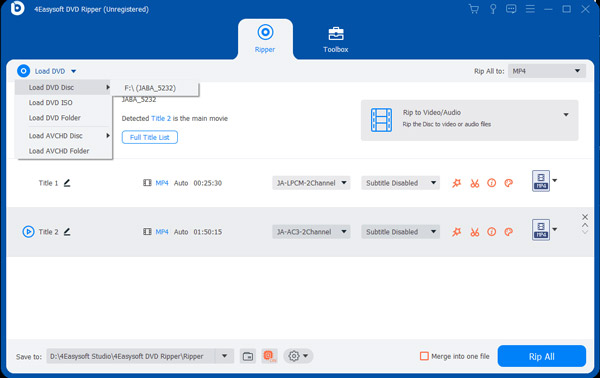
Step 1Install the 4Easysoft DVD Ripper. Then, run the tool, insert the DVD into the internal or external disc drive, click the “Load DVD” dropdown button, and select “Load DVD Disc.”
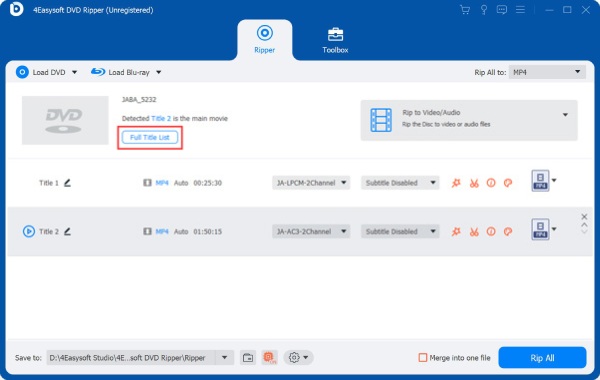
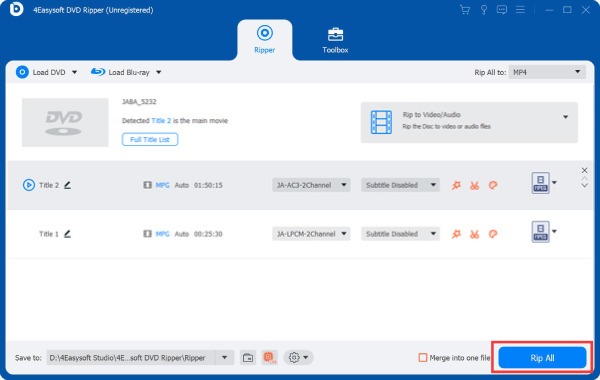
Step 2After that, choose the inserted disc, click the “Full Title List” button, and select all the content you wish to rip by ticking their checkboxes. Then, click the “OK” button to proceed.
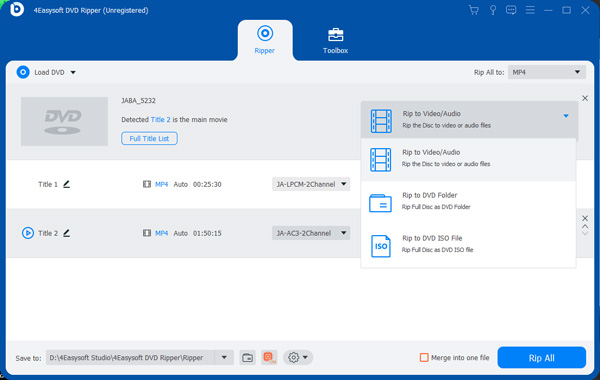
Step 3Next, click the “Rip All to:” dropdown button, click the “Video” tab, and select “MP4” on the left pane. Then, choose between the “Same as source, 4K Video, or HD 1080P”.
Step 4Then, click the “Custom Profile” button. From there, you can adjust the quality, encoder, resolution, etc., to maintain the original high-quality DVD content.
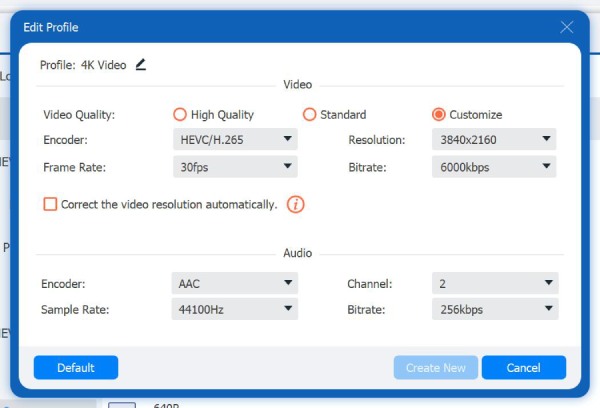
Step 5Once you finish the adjustments, click the “Create New” button. Then, click the “Rip All” button on the main interface to start the “backup DVD to MP4” process.
Use Handbrake to Rip DVD to MP4 on Windows/Mac
In addition to the first one, you can also use Handbrake to back up DVD to MP4. Handbrake is an open-source converter tool that can digitalize DVDs, rip blu-ray, etc. It is infused with advanced customizable presets that allow you to optimize the quality and size of the output. Now, this tool comes with a confusing interface and backup DVD to MP4 process. If you still want to try this one, here are the steps you should go after:
Step 1Download Handbrake. Then, run the tool, insert the DVD into the drive, and wait for the tool to detect it. Once it is detected, click the disc in the Source Selection.
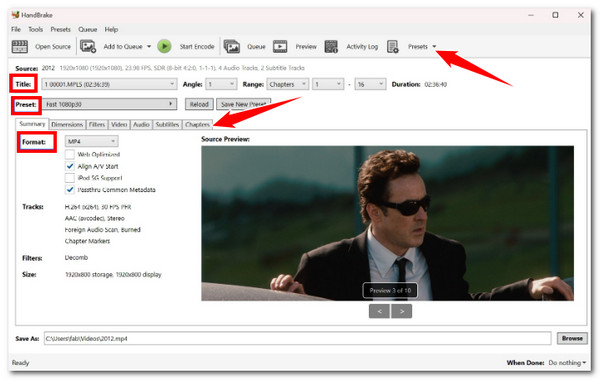
Step 2Next, select the content you wish to back up by clicking the “Title” dropdown. Then, choose the “MP4” format under the “Format” menu.
Step 3Then, adjust the output by choosing a preset at the top right corner, adjusting Dimensions, selecting Filters, altering Video, etc. Then, click “Start Encode” to start ripping.
Can you Use VLC to Convert DVDs to MP4 for Free?
Another tool that can backup DVDs to hard drives in MP4 format is VLC. Although this tool is known as a media player, it is infused with options to digitalize DVDs. It is also an open-source tool like Handbrake, meaning you can use it for free. Sadly, VLC is too slow to rip DVDs and doesn’t have editing features. Now, if you are still up for this one, then here are the steps you must follow:
Step 1Install and run VLC on your computer. Then, insert the DVD on the drive and head to VLC’s interface. Click the “Media” tab, select the “Convert/Save” option, and click the “DVD” tab.
Step 2After that, select the inserted disc on “Disc device”, and choose the “Title” and “Chapter” of the content you wish to rip. Then, click the “Convert/Save” button.
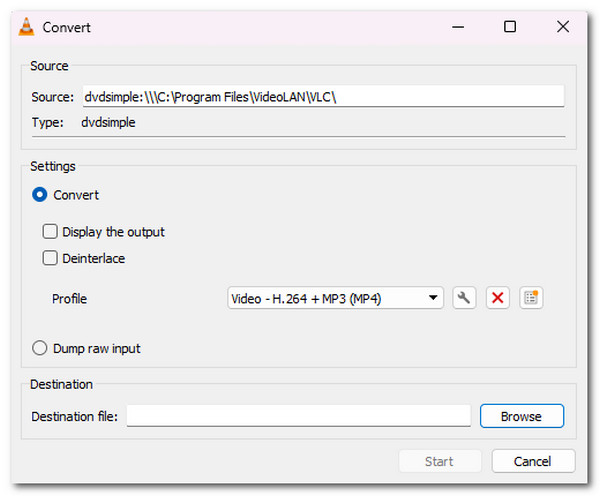
Step 3Next, select the “Video—H. 264 + MP3 (MP4)” option, click “Browse” to choose an output destination, and click “Start” to start the “backup DVD to MP4” process.
How to backup DVD to MP4 with Freemake [Any DVD formats]
Apart from the abovementioned tools, you can also use Freemake to backup DVDs to MP4 on Windows. Unlike VLC and Handbrake, Freemake offers a user-friendly interface and a quick and easy ripping process for all DVD formats. However, this tool is not free. It adds a watermark on the output after the ripping process. If you still want to know how Freemake backup DVDs to MP4, look at the steps below.
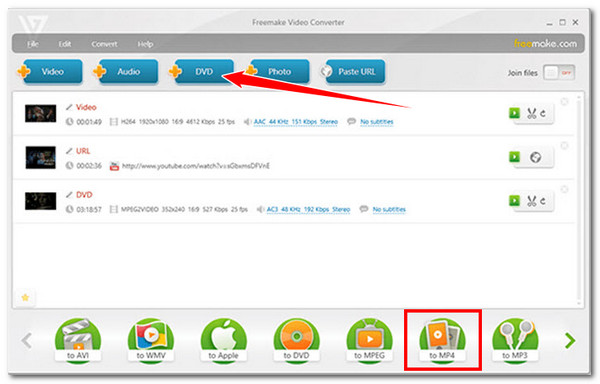
Step 1Get your version of the Freemake Video Converter tool on your computer. Then, run it, insert the DVD on your disc drive, click the “DVD” button, select your DVD, and click “OK”.
Step 2After that, select the “to MP4” option below to choose MP4 as an output format. Then, select your preferred file destination and preset. Lastly, click the “Convert” button.
Guide to Rip DVD to MP4 with WinX DVD Ripper Swiftly
Another method you can use to backup DVD to MP4 is to use the WinX DVD Ripper. Like the above, this tool can also rip DVD content to MP4. But this tool stands out because of its speed, ability to rip damaged DVDs, and bypass protection. Sadly, not all of its features are usable for free. If you want to buy this one, here are the steps to help you use it to backup DVD to MP4.
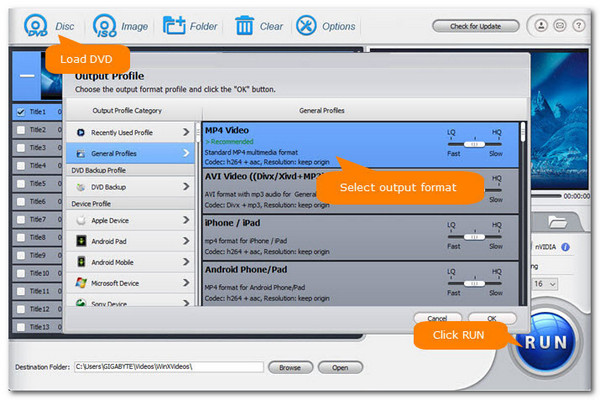
Step 1Install WinX DVD Ripper on your computer. Then, launch the tool, insert the DVD into the disc drive, and click the “Disc” button. Then, select the “MP4” option as an output format.
Step 2Next, adjust the parameters to modify the output’s quality and size. Then, select an output file destination and click the “Run” button to start backing up the DVD to MP4.
Steps to Rip DVD to MP4 using DVDFab DVD Ripper
The last method to back up DVD to MP4 is to utilize DVDFab DVD Ripper. This one offers an easy-to-execute conversion operation compared to the other tools above. It supports various customization options that enable you to enhance the output further. However, it can’t handle newly released DVDs and is not the cheapest in this group. Now, if you still want to let this one have its shot, then here are the steps on how to use it to backup DVD to MP4:
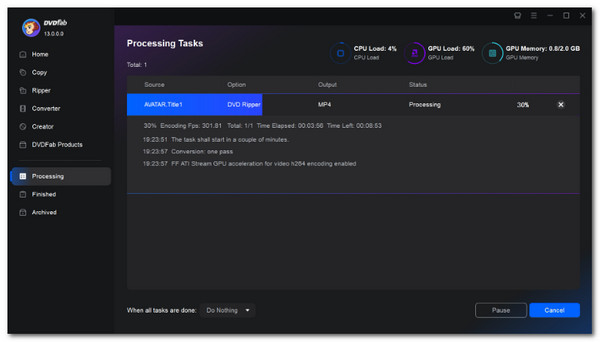
Step 1Install and run the DVDFab DVD Ripper. After that, insert the DVD onto the drive, select the “Ripper” option, click the “Add” button, and select the inserted disc.
Step 2Next, select the “MP4” format as an output format and customize the output by altering its resolution, bitrate, and more. Then, click “Start” to trigger the ripping process.
Conclusion
Now those are the reliable and efficient ways to backup DVD to MP4! You can now digitalize your DVD collection and play them on various devices conveniently through them. However, among these methods, the best and most professional way to back up a DVD is to use the powerful 4Easysoft DVD Ripper. Through this tool’s DVD-related ripping features, you can quickly and efficiently rip various DVD content to MP4 with high-quality output. So, use it today!
100% Secure
100% Secure
